
Appearance
Score projects and automate approvals
Three settings decide how work gets chosen and signed off: Project scoring ranks projects, the Intake workflow sets how a request becomes a project, and Workflows send approvals and tasks to the right people at the right time.
Before you start
- An Admin sets these up under Settings.
- Workflows and the request board are part of the Professional plan. Project scores are on every plan.
- Approvals in the left menu is for the Admin, PMO and PM roles; anyone named on a step sees it in their notifications.
Score projects
Settings, Project scoring holds named ways of scoring, such as Balanced, Max ROI or Strategic-first.
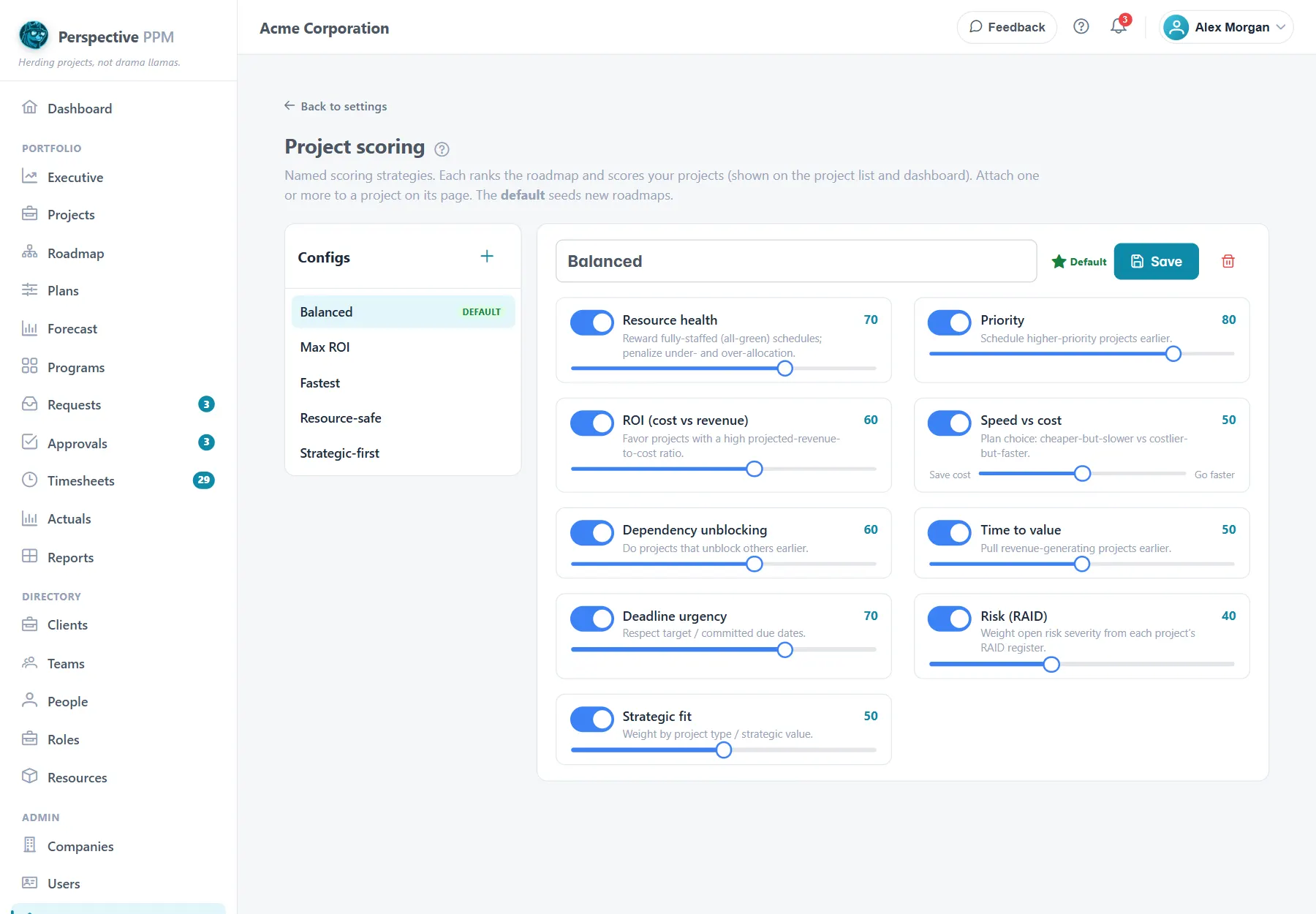
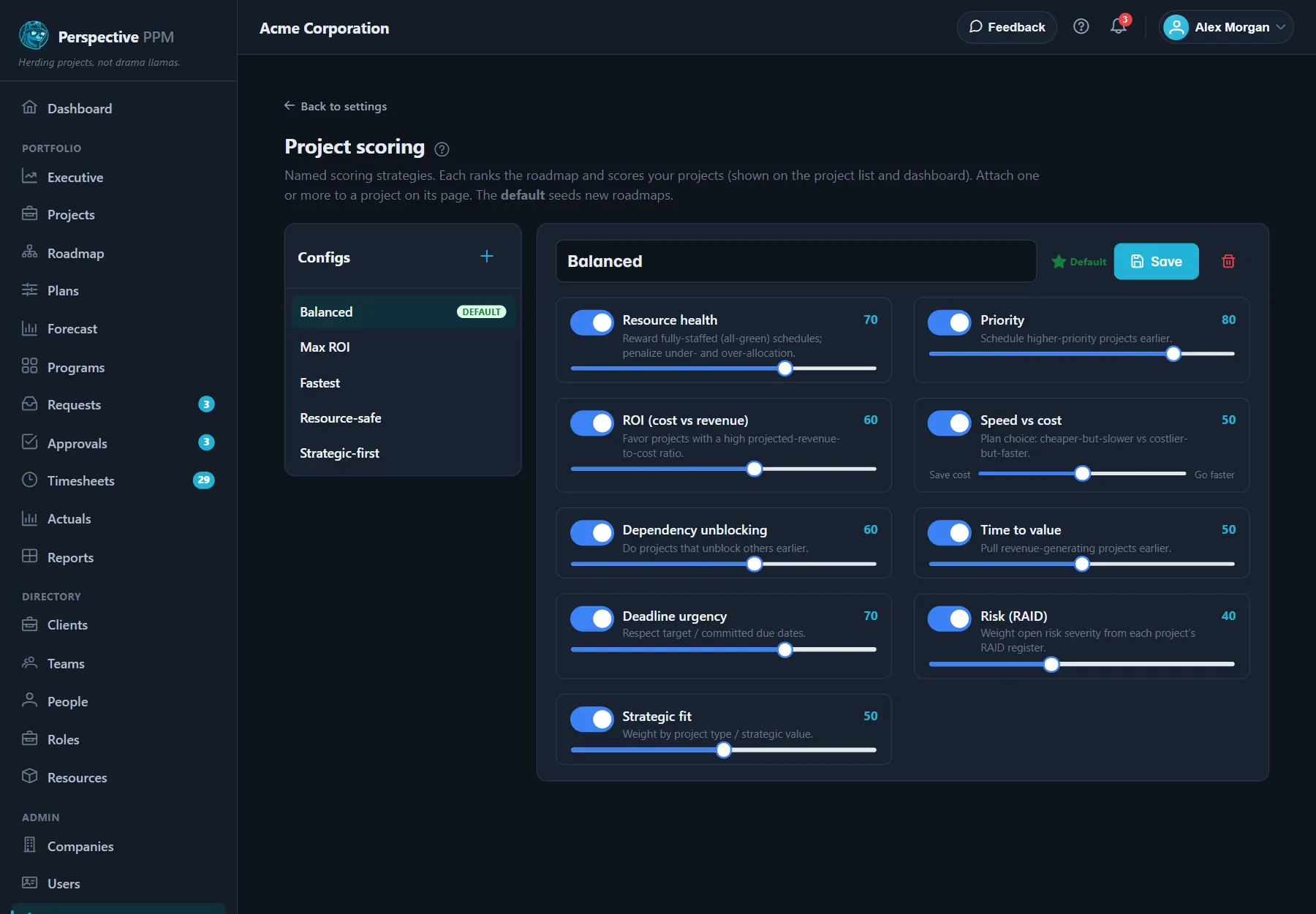
- Pick one on the left, or select + to make your own.
- Turn criteria on or off and set each one's weight: Priority, ROI (cost vs revenue), Strategic fit, Dependency unblocking, Risk (RAID), Resource health, and for the roadmap Time to value, Deadline urgency and Speed vs cost.
- Select Save. Make default uses it for new roadmaps.
To score a project, edit it and choose under Scoring which setups to score it under. Each gets a score from 0 to 100, shown on the project and in the Projects list. The Dashboard shows the top and bottom five.
Decide how a request becomes a project
Settings, Intake workflow sets the columns on the request board and who can move a request between them.
- Under Statuses, select Add status for each stage, such as Triage or Architecture review. Mark one Requests start here, one Creates the project, and any that are Final. Drag the rows into order.
- Under Allowed moves, select Add a move for each step a request can take: from which status, to which, the Button text people see (such as "Approve"), Who can make this move, and whether to Require a note. Tick Only the named approver for decisions only the request's approver may take.
A status with no move out of it is flagged as a dead end. When a request reaches the status that Creates the project, the project is created from its business case. See Submit a project request.
Build a workflow
A workflow is a flow chart of steps, run on a project or request: notify someone, get an approval, wait for a review, or ask for a task to be done.
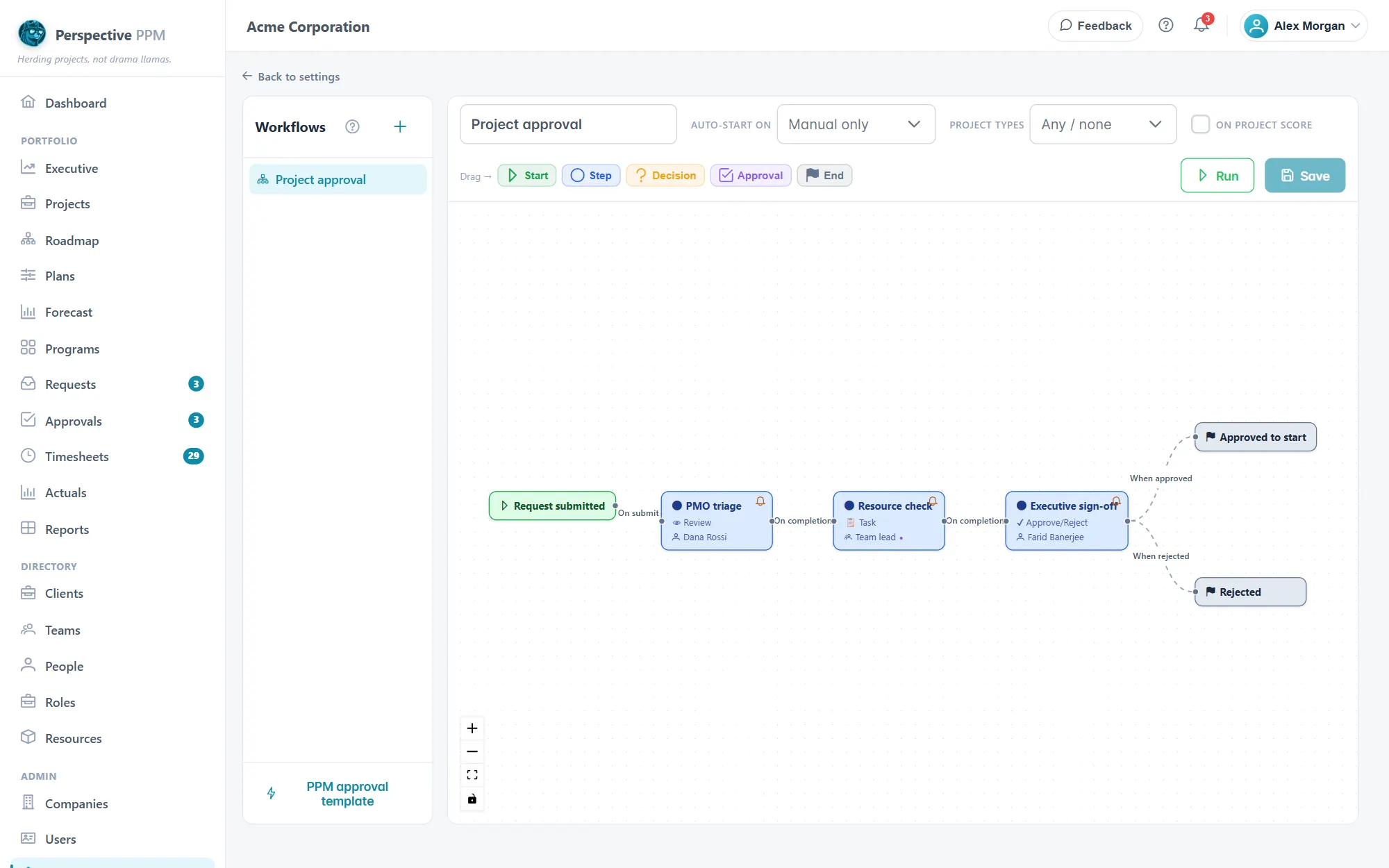
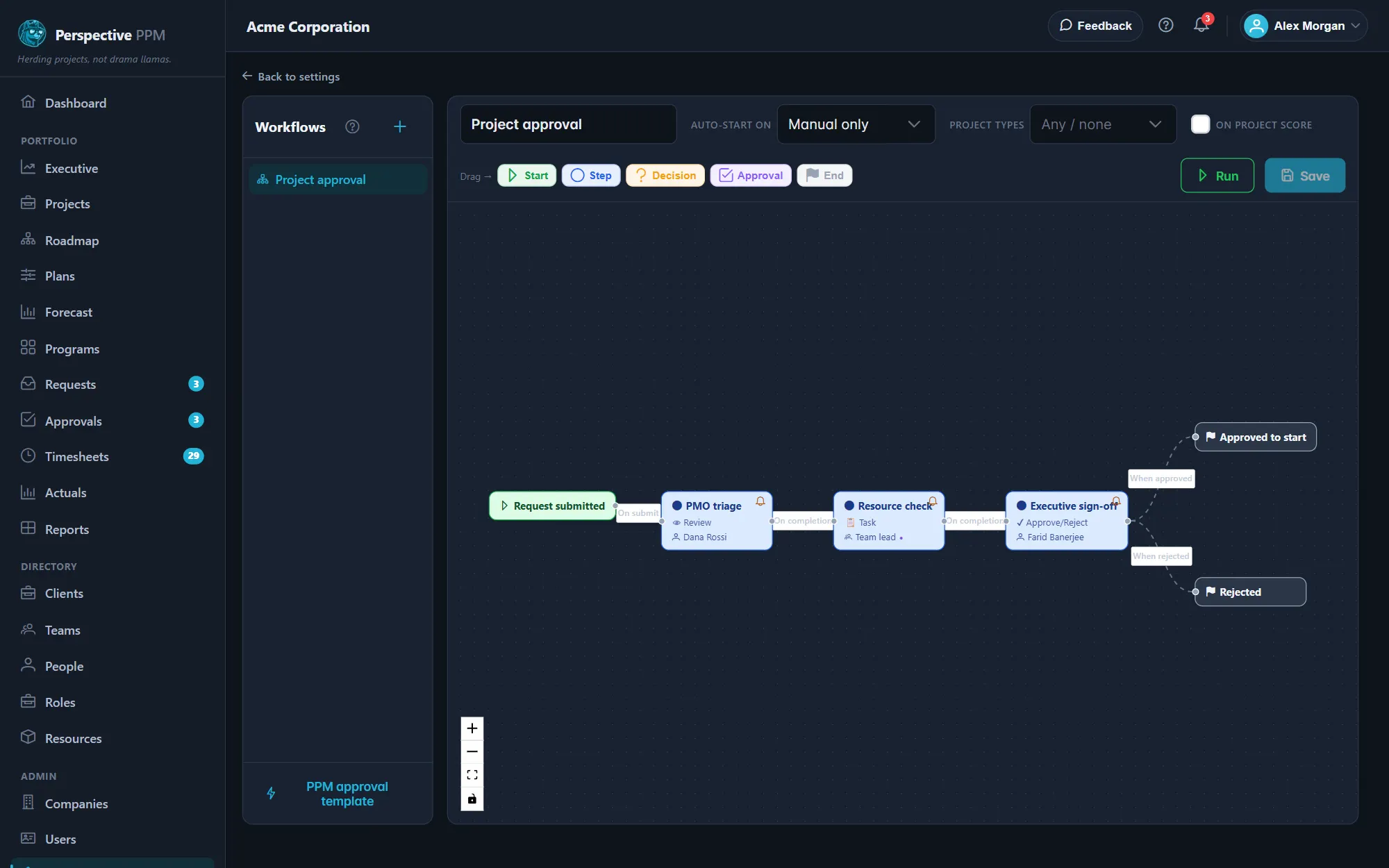
- Open Settings, Workflows. To start quickly, select PPM approval template for a ready-made intake and approval flow, then change it.
- Drag Start, Step, Decision, Approval and End onto the canvas, and connect them by dragging from one to the next.
- Click a step to set it up:
- Action required: Notify, Approve / reject, Review or Task / do work.
- Who is responsible: the team's manager, a person named in a custom field, everyone in a role, or named people.
- Approvals required: the first answer, or everyone.
- SLA, due in (days): overdue steps are flagged and escalated to Admins.
- Click an arrow to choose when it is followed: when the step is approved, rejected, completed or submitted, after a delay, or when a field or the project's score matches.
- Choose when it starts under Auto-start on, such as when a project is created, a request is submitted or approved, or a score crosses a threshold. Limit it to some Project types if you like.
- Select Save.
WARNING
Approvers need a full seat. A contributor, who can only view work and enter time, cannot be named to approve, and the workflow will not save.
Act on an approval
When a step is waiting for you, it appears in the bell and on the project or plan as Approval needed, Review needed or Action needed.
- Read the details and add a note if needed. The note is added to the project's comments unless you untick it.
- Select Approve, Reject or Mark complete. Delegate hands it to someone else.
People waiting on a step get a reminder email each morning. Approvals in the left menu shows every run, where it is waiting and a timeline of what has happened. Admins and PMOs can act on any approval to keep things moving.