
Appearance
Plan the work with tasks
A project's tasks are its work breakdown: what has to be done, by whom, in what order. Perspective lays them out as a list, a board and a Gantt chart, and works out the critical path, the chain of tasks where any delay moves the finish date.
Before you start
- To add or change tasks you need to manage the project: the PMO or Admin role, or the PM role as one of the project's managers. Everyone who can see the project can see its tasks.
- Tasks are on every plan.
Where to find them
Open the project. The Tasks & schedule card shows the tasks. Select Open full view for a whole page with more room.
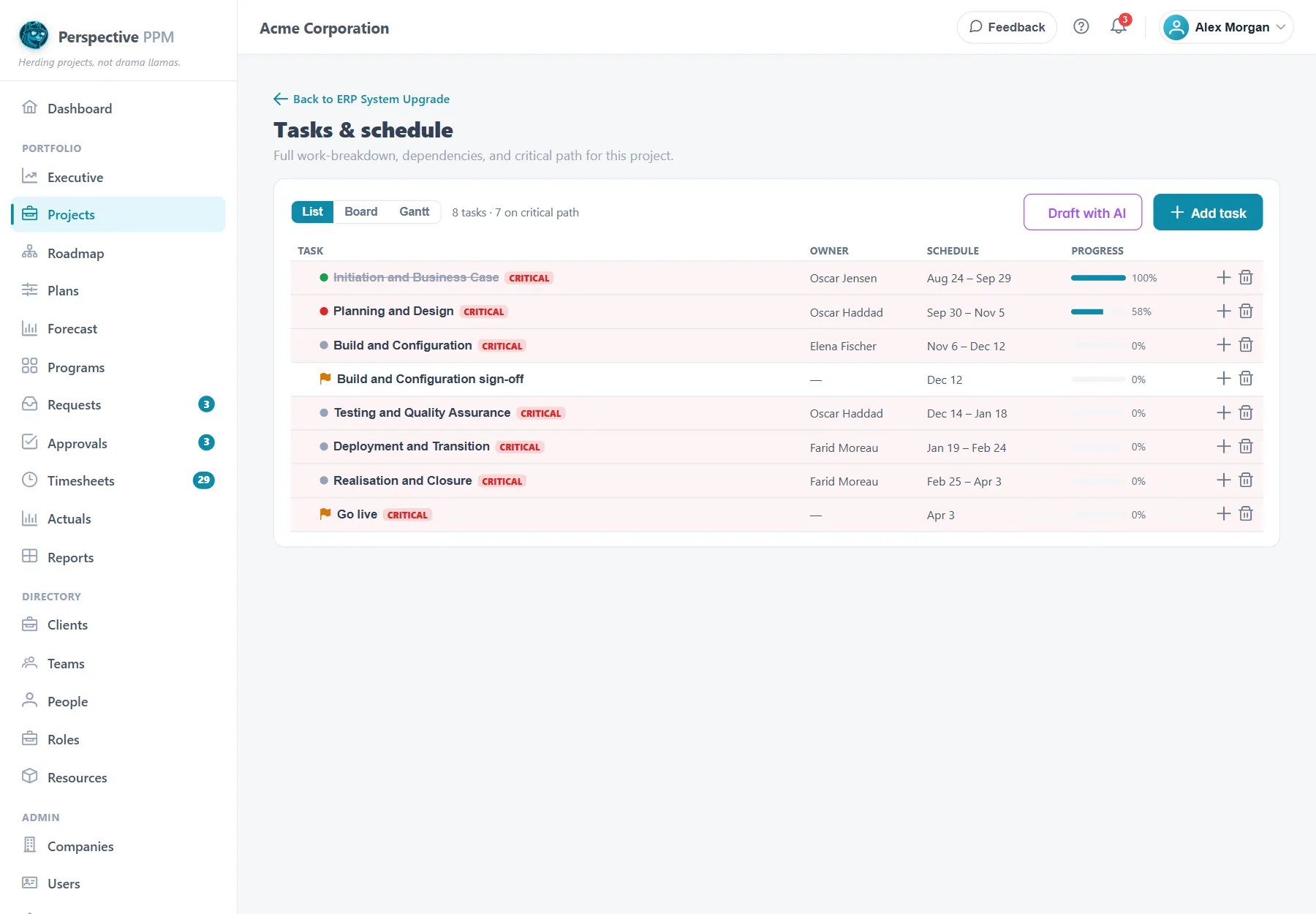
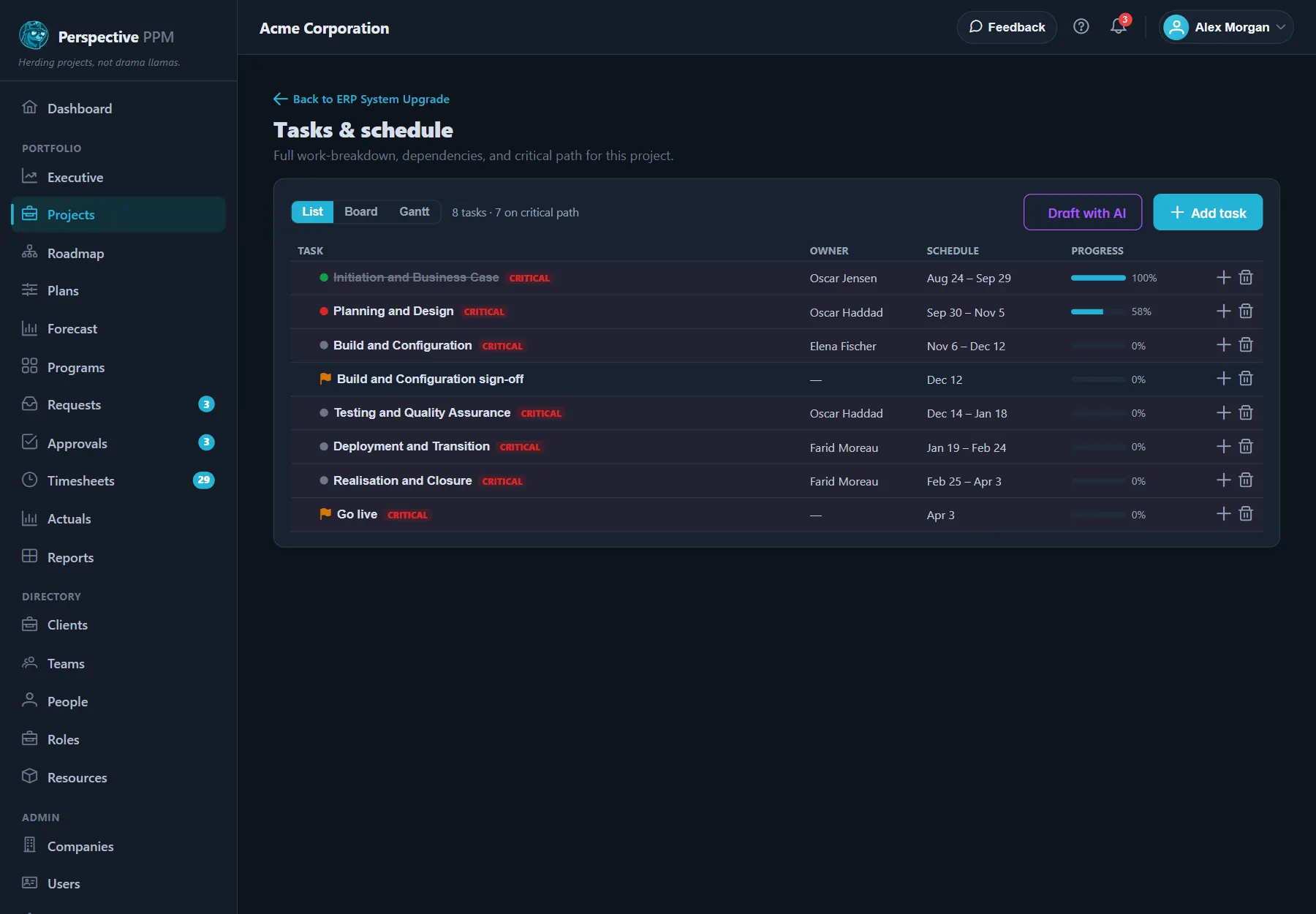
At the top, choose how to look at them:
- List: the full breakdown, with subtasks indented under their parent. Click the arrow on a row to fold its subtasks away.
- Board: one column per status. Drag a card to another column to change its status.
- Gantt: each task as a bar on a timeline, with arrows between linked tasks.
The summary beside the views shows how many tasks there are and how many are on the critical path.
Add a task
- Select Add task.
- Fill in what you know:
- Name
- Status: Not started, In progress, Blocked or Done
- Owner: who is doing it
- Start and Due dates
- Estimate (hrs): how much work it is
- % complete
- Tick Milestone (zero-duration) for a checkpoint rather than a piece of work, such as a sign-off.
- Select Create.
After Create, the window stays open so you can link the new task to the ones that come before it. Select Done when you have finished. Saving changes to an existing task closes the window.
To add a subtask, select + on the parent row in List view. To change a task, click its name. To delete it, select the bin on its row; its subtasks go too.
TIP
Give tasks an estimate. Perspective uses the estimate and % complete of each task to work out how far through the project you really are, which feeds the cost forecast.
Put tasks in order
Link a task to the ones that must happen first.
- Click the later task to open it.
- Under Predecessors, choose the earlier task in Add predecessor….
- Choose how they connect. Finish → Start (the usual one) means this task starts when the other finishes. Start → Start, Finish → Finish and Start → Finish are there for the less common cases.
- Select Link.
Perspective will not let you link a task to itself, to a task in another project, or in a loop.
Read the Gantt chart and critical path
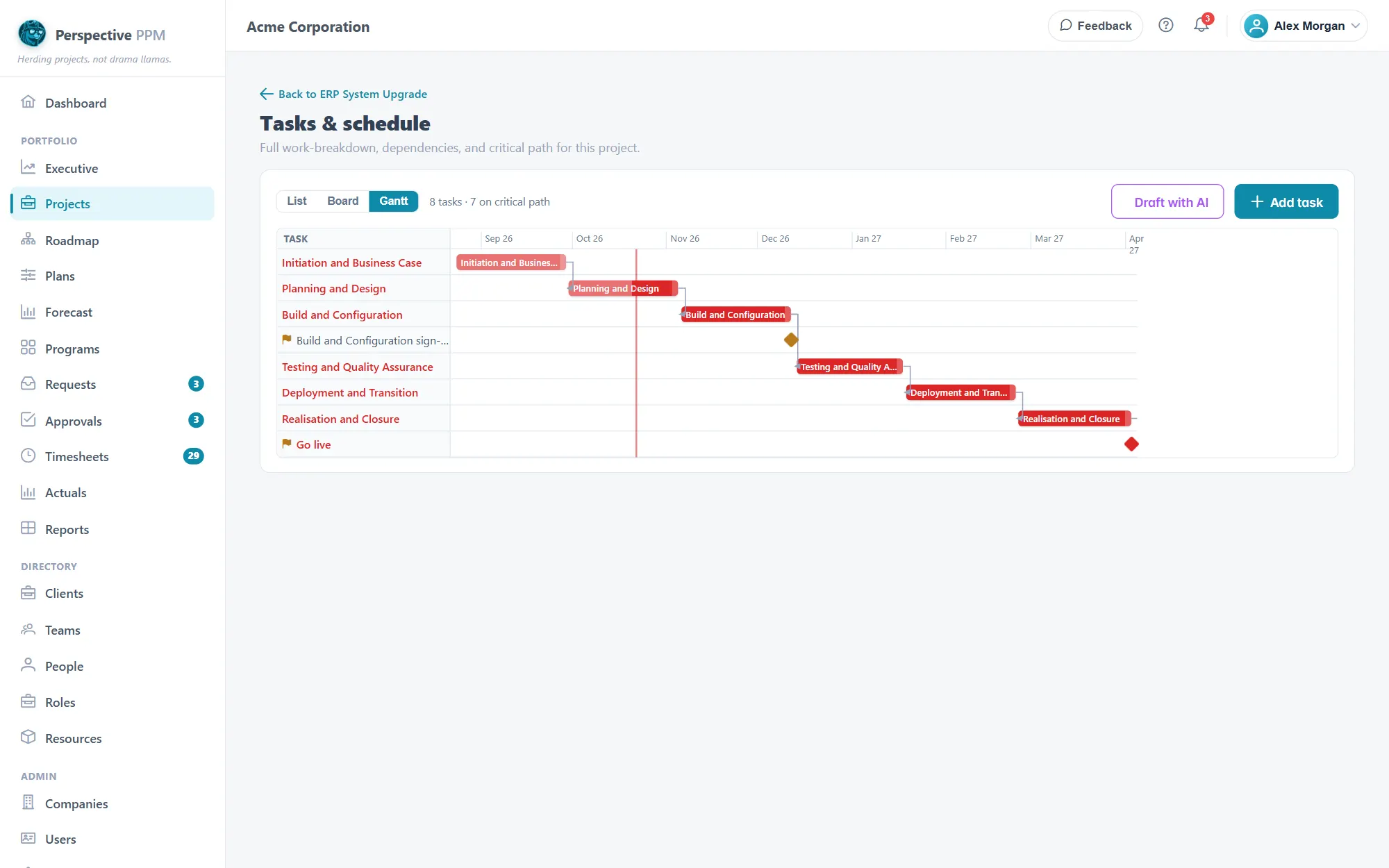
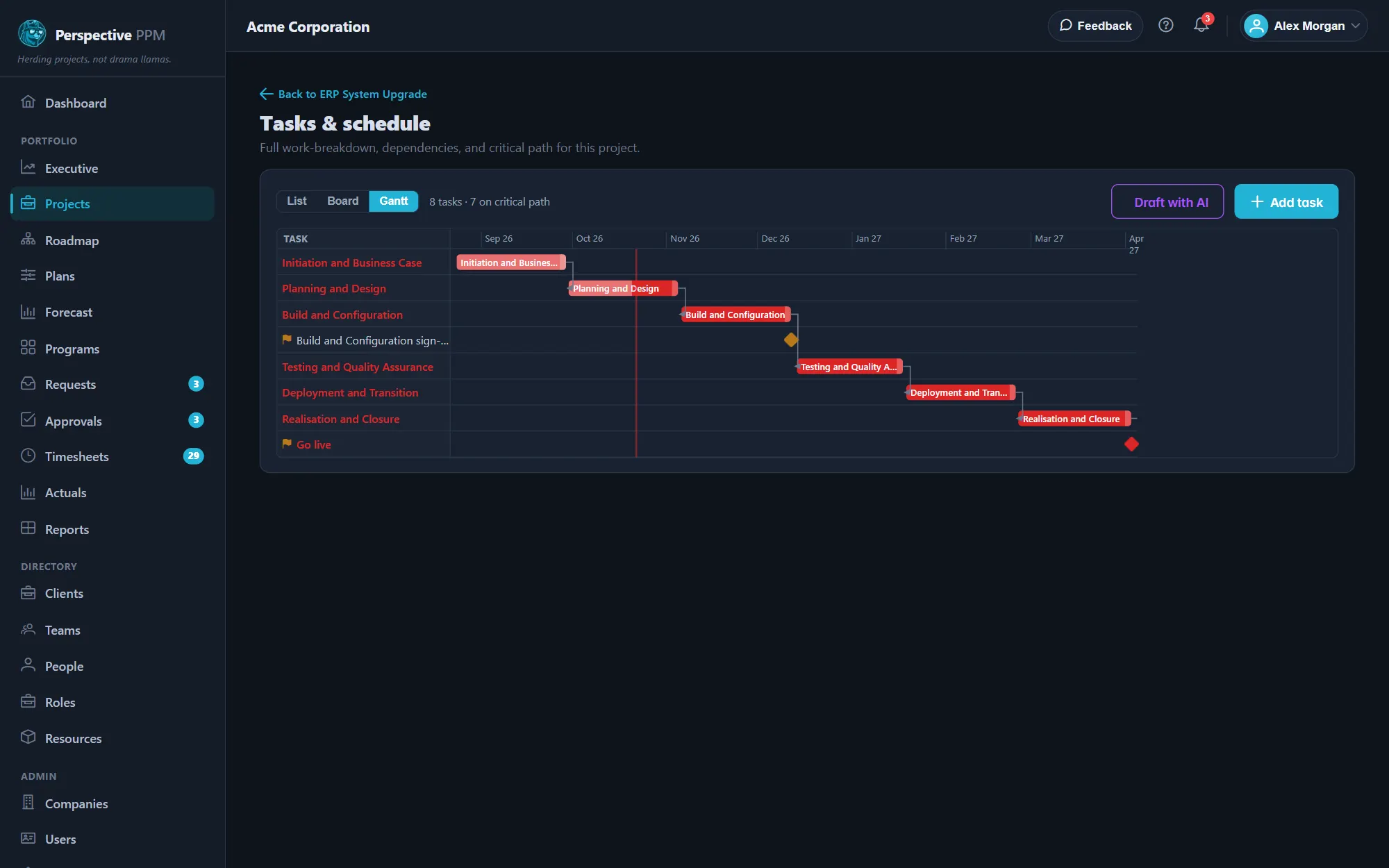
- Each bar runs from a task's start to its due date. The shaded part shows % complete. Milestones are diamonds.
- Arrows show which task waits for which.
- The red line marks today.
- Red bars and the critical badge mark the critical path. Those tasks have no slack: if one slips, the project finishes later. Look after them first.
To reschedule, drag a bar to move it, or drag its right edge to make it longer or shorter. The dates are saved when you let go.
Tasks without dates still get a place on the chart: Perspective uses the estimate (8 hours to a day) or one day, and starts from the earliest dated task.
Draft tasks with AI
On a project with a good description, select Draft with AI to have a first breakdown written for you: tasks, subtasks, milestones, estimates and links. It adds to any tasks you already have and leaves dates and owners for you. Review and edit the draft like any other tasks.
Good to know
- Status and % complete are separate. Moving a task to Done does not set it to 100%, so update both.
- A parent task does not add up its subtasks. Give each subtask its own estimate and progress.
- Overdue tasks (due before today and not done) are counted at the top of the project page under what needs attention.
- To bring tasks in from a requirements document, see Turn a requirements document into tasks.