
Appearance
Group projects into programs and track objectives
Programs and objectives answer two questions leaders ask: how is this group of related projects doing as a whole, and are we getting closer to what we set out to achieve?
Before you start
- Programs need the Enterprise plan. A PMO or Admin creates and changes them; everyone with access to planning can look.
- Objectives & Key Results are on every plan. A PMO or Admin manages them.
Create a program
- Open Programs in the left menu, under Portfolio, and select New program.
- Give it a Name, a Description, a Status such as Active, and its Lead. Select Save.
- Click the program's name to open it. Choose a project under Add a project… and select Add. Repeat for each project.
A project can be in one program at a time, so the list only offers projects not yet in one. To take a project out, select the cross next to it.
The program cockpit
Select Cockpit on a program to see it as a whole.
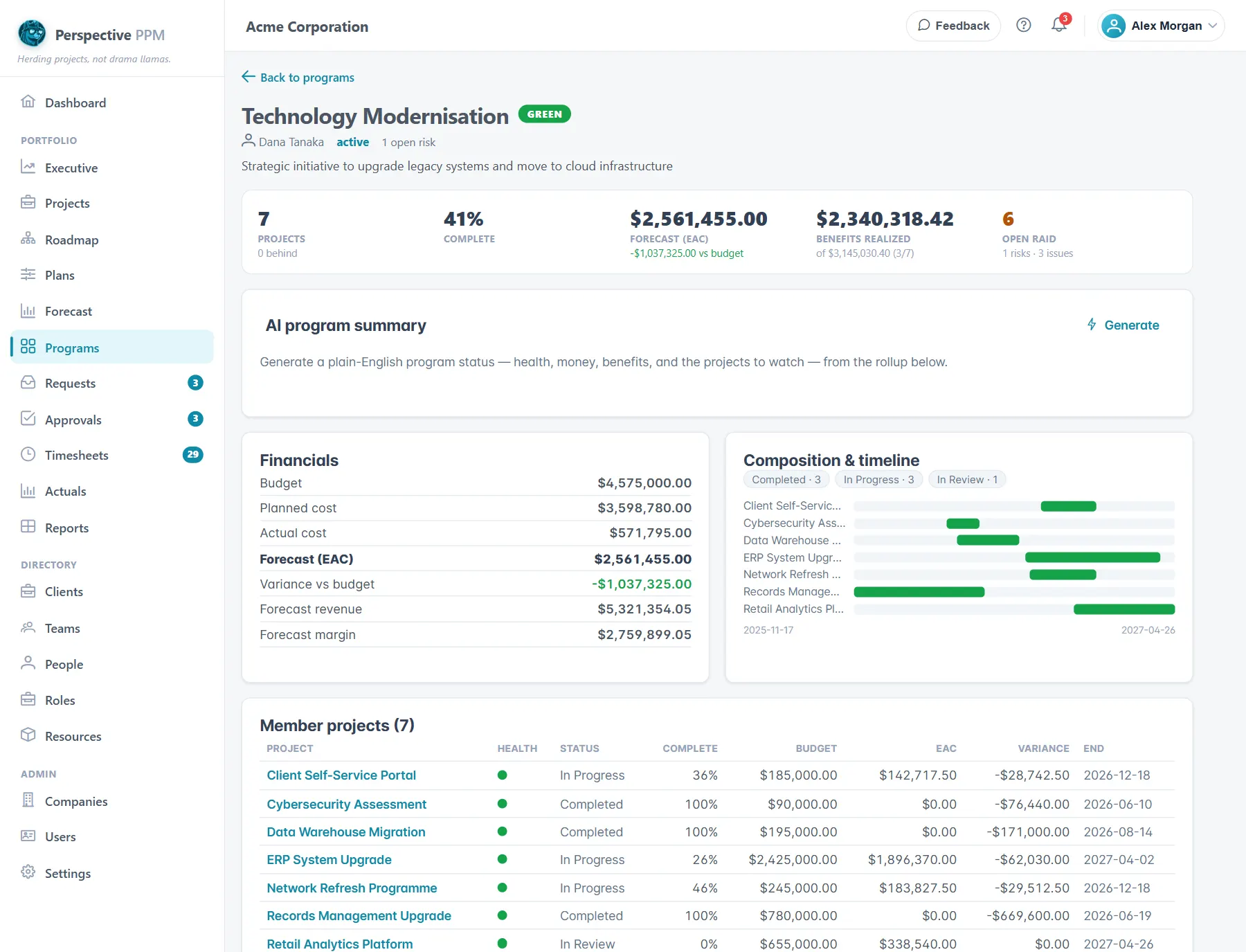
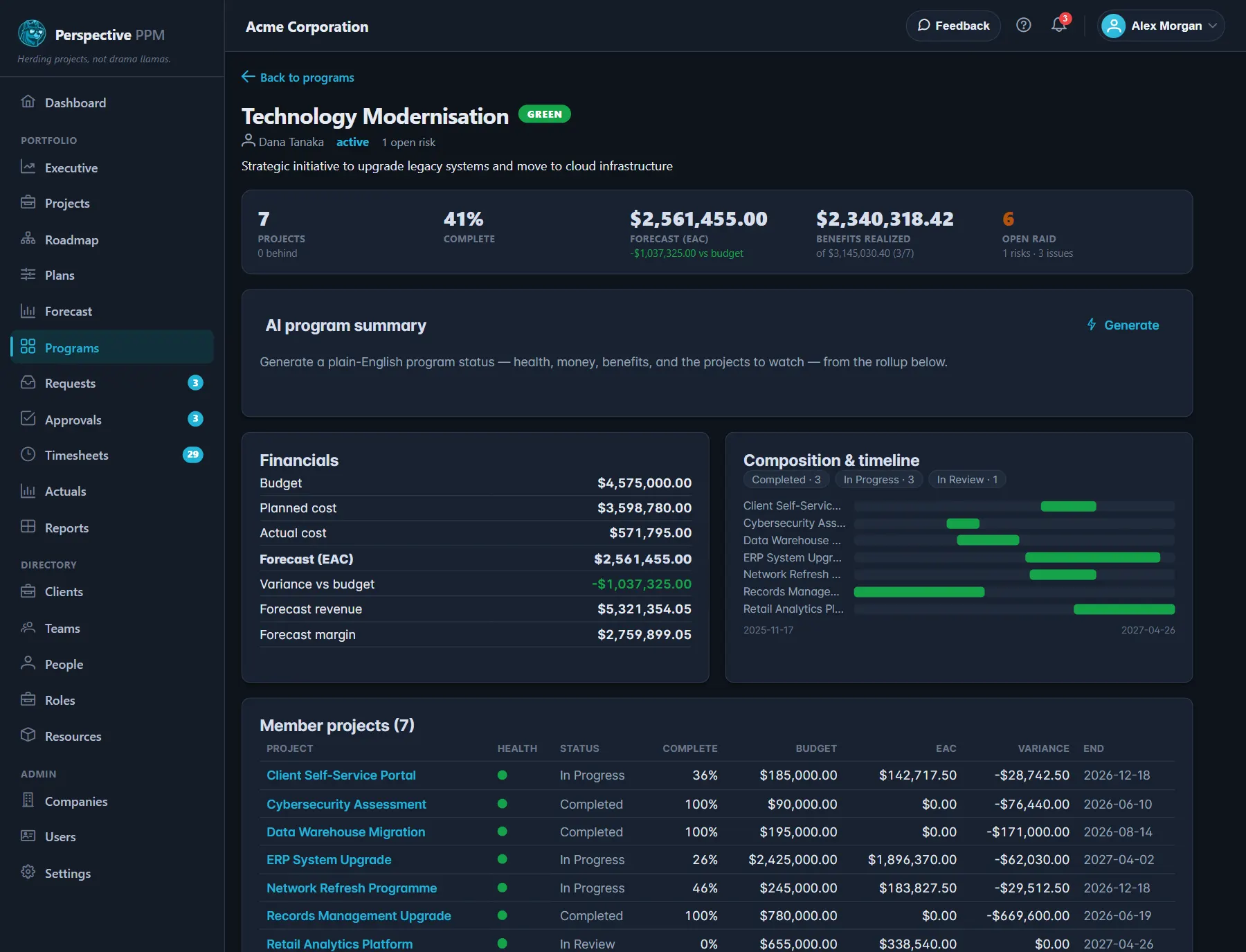
- Health: GREEN, AMBER or RED, with the reasons, such as projects behind schedule or a forecast over budget. A project that is late or forecast well over its budget turns the program red.
- Key numbers: projects (and how many are behind), how complete it is, the cost forecast against budget, benefits realized, and open risks and issues.
- Financials: budget, planned cost, actual cost, forecast, variance, forecast revenue and margin. Only for people who can see financials.
- Composition & timeline: the member projects on one timeline.
- Member projects: each project's health, status, progress, budget, forecast and end date. A warning sign marks one that is overdue.
Select Generate under AI program summary for a short written read of where the program stands. Review it before you act on it.
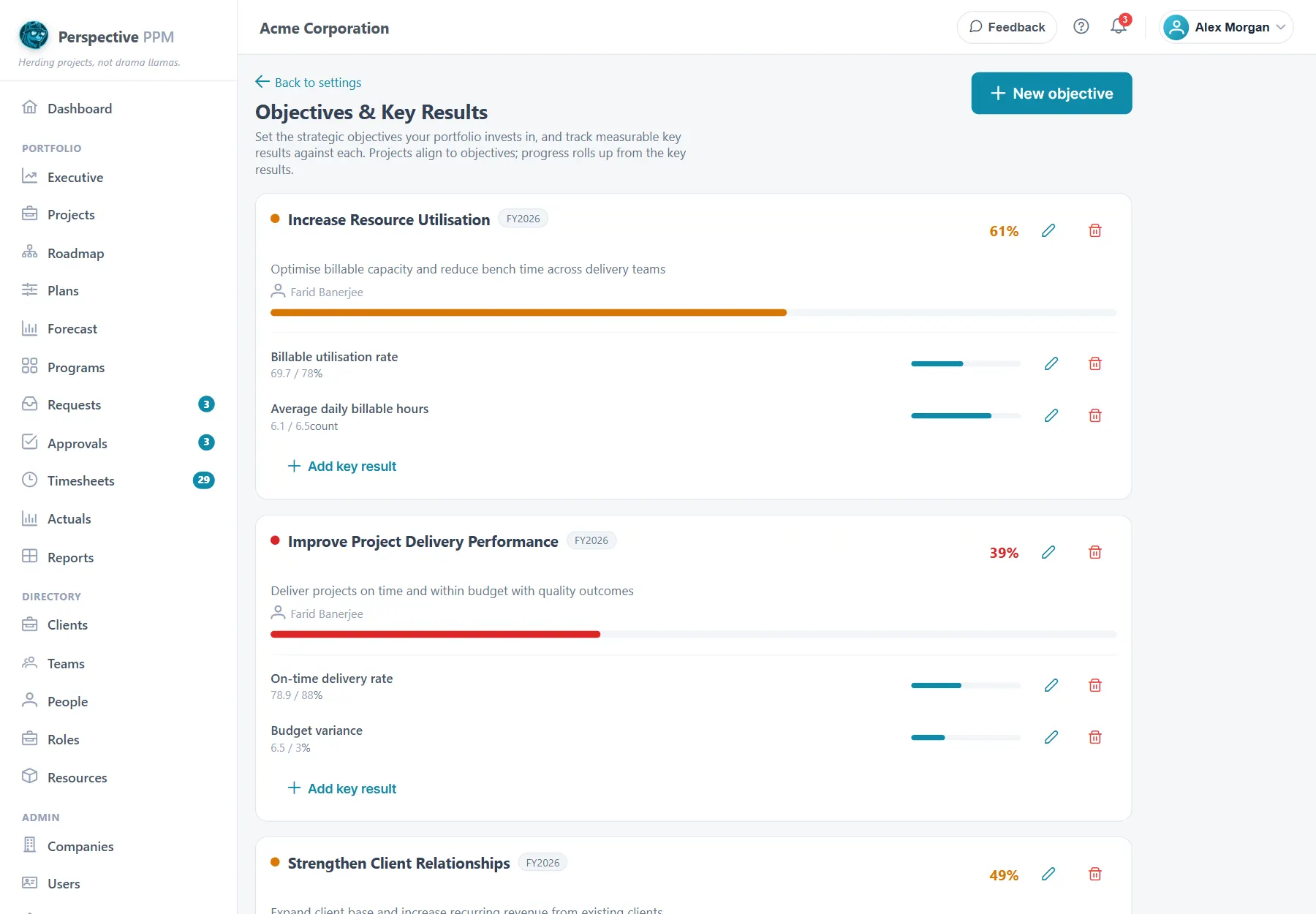
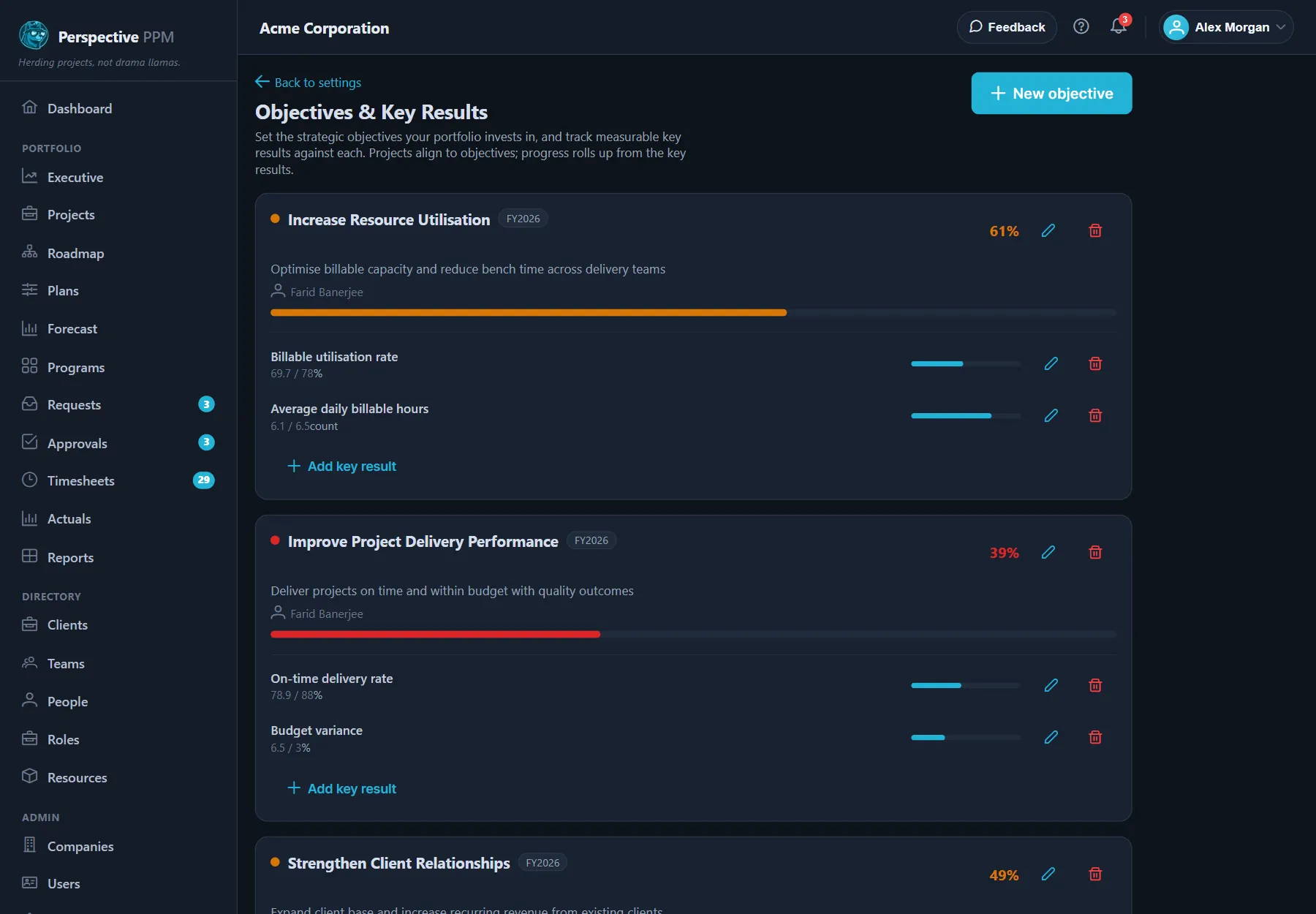
Set objectives and key results
An objective is what you want to achieve; its key results are how you will know.
- Open the Objectives & Key Results card on the Dashboard and select Manage, or open Settings, Objectives & Key Results.
- Select New objective. Give it a Name, a Period such as 2026 Q3, and an Owner. Select Save.
- Under the objective, select Add key result. Describe it, such as "Cut time to approve a request to 10 days".
- Set the Start (baseline), Current and Target, and a Unit.
- Select Save.
Let a key result measure itself
Under Measure by, pick something Perspective already counts, such as projects in execution, budget, benefits realized, open risks or people, or one of your organisation's own Portfolio metrics. The key result then shows Auto and keeps its Current value up to date for you.
How progress is worked out
- A key result's progress is how far Current has moved from Start towards Target. It works for goals that go down too, such as reducing open risks.
- An objective's progress is the average of its key results.
- Green is 70% or more, amber 40% or more, red below that.
The dashboard card shows the objectives furthest behind.
Link projects to an objective
Open the project, select Edit and choose its Strategic objective. Each project supports one objective. The Executive portfolio then shows how much investment goes to each objective, and how much is unaligned.