
Appearance
Build a report
Reports answer the questions the standard screens do not: where the budget is committed, who is booked past their capacity, which tasks are late, where the hours went. You choose the data, and Perspective builds the table and chart as you go.
Everything in a report comes from your own company. Each person only ever sees what their role allows.
Before you start
- Reports is in the left menu under Portfolio. It is part of the Professional and Enterprise plans.
- Money fields such as budget, cost and rates only appear for people who can see financials: Admin, PMO, PM and C-suite.
Start from a question
- Open Reports in the left menu.
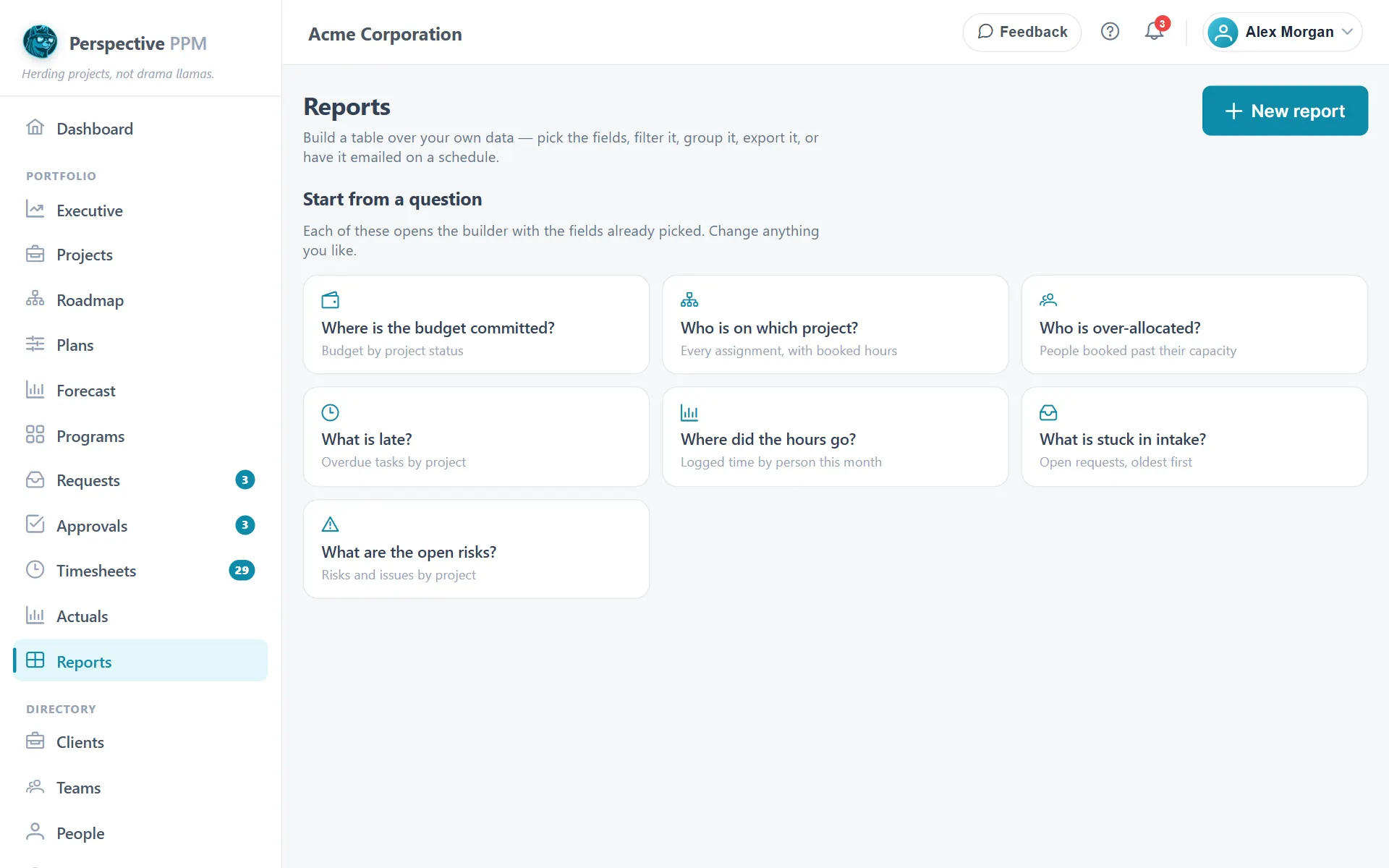
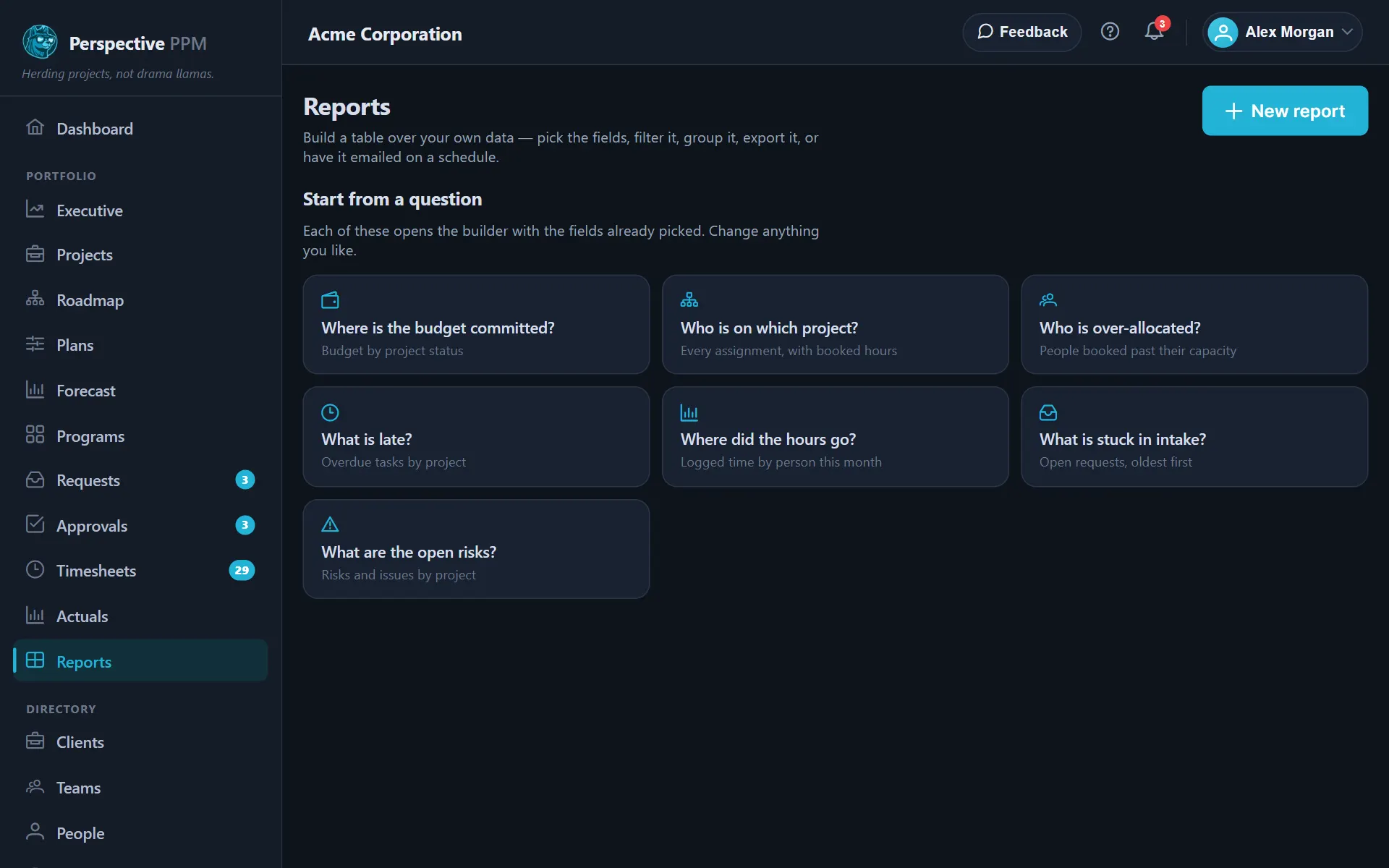
- The first time, you see Start from a question: ready-made reports such as Where is the budget committed?, Who is over-allocated? and What is late? Click one to open it with the fields already picked, and change anything you like. Or select New report to start from scratch.
Build it
1. Choose what to report on
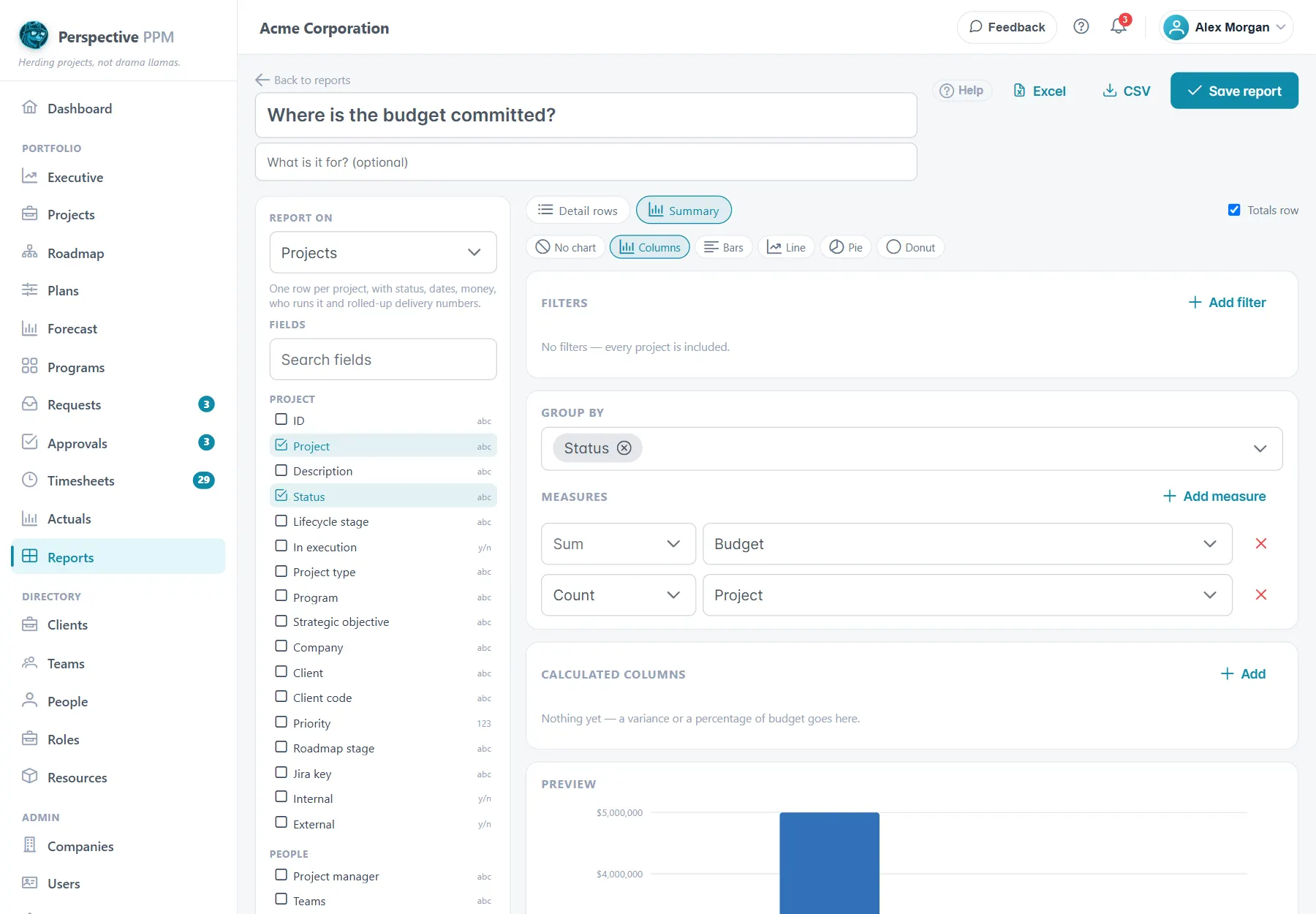
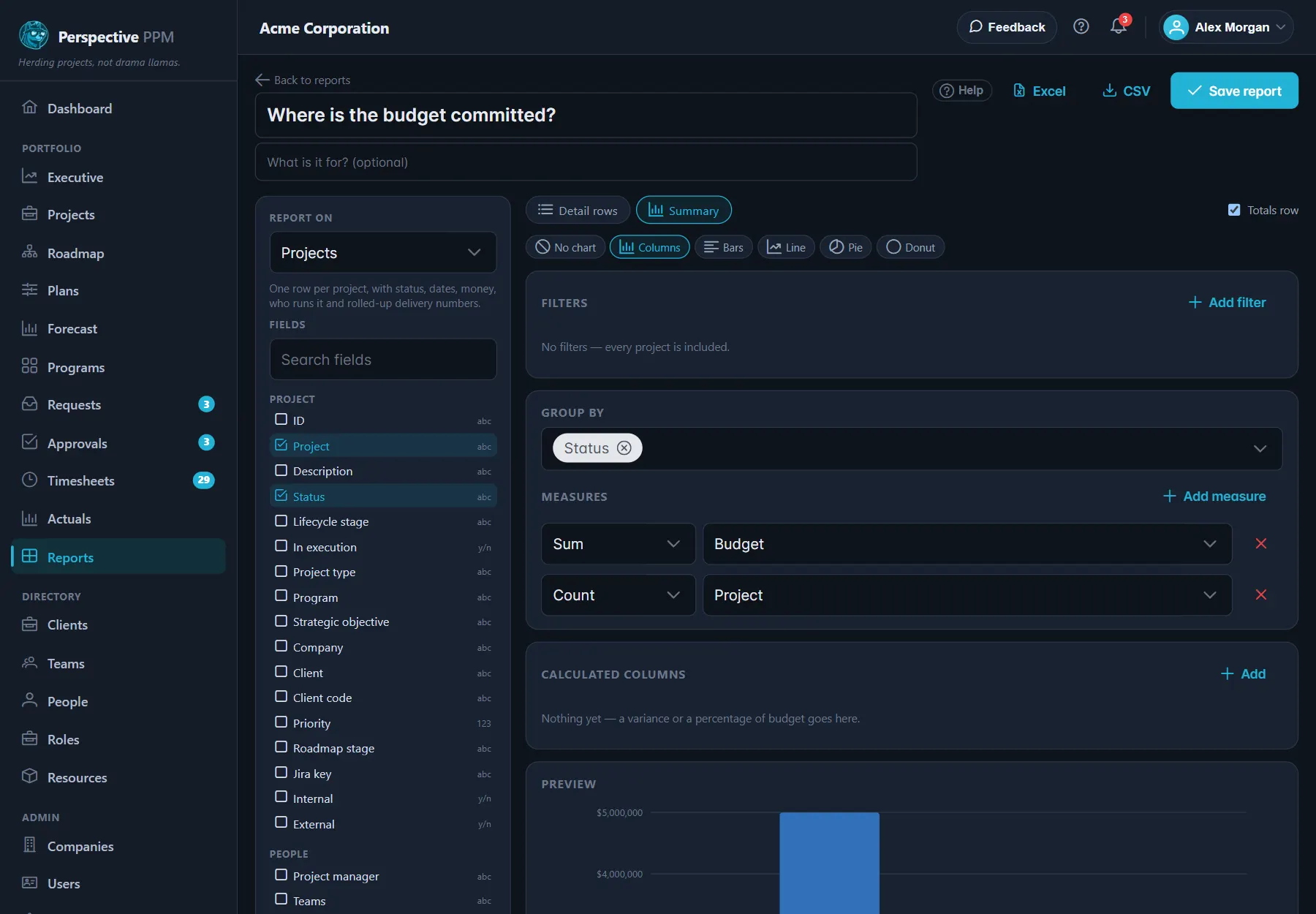
Under Report on, pick the data you want. Each choice is described under the list.
| Report on | One row for each |
|---|---|
| Projects | Project, with status, dates, money, who runs it and delivery numbers such as hours, tasks and open risks |
| People | Person, with team, skills, projects and how loaded they are |
| People on projects | Person, plan and day they are booked, to see who is on what |
| Time & actuals | Time entry, with what it cost and what it bills at |
| Tasks | Task, with its schedule, owner and whether it is late |
| Requests (intake) | Project request, from raised to decided |
| Risks & issues | Risk, assumption, issue or dependency |
Changing this starts the report again, so choose it first. Your company's custom project fields are included under Projects.
2. Pick the fields
Tick the fields you want under Fields. Use Search fields to find one quickly, and hover over a field to see what it means.
3. Choose detail or summary
- Detail rows lists every row. Drag the columns under Columns to reorder them. Subtotal each adds a subtotal under each group of rows, for example each project.
- Summary groups the rows and adds them up. Under Group by, pick one or two things to group by, such as status, person or month. Under Measures, select Add measure and choose Sum, Average, Lowest, Highest, Count or Distinct count of a field. Group a date by Day, Week, Month, Quarter or Year.
- With two groupings, tick Pivot to spread the second one across the columns. Totals row adds a total at the bottom.
4. Filter it
Select Add filter, then choose a field, a condition and a value. Dates have handy conditions such as in the last … days, this month and this quarter. Tick Ask on run to have the report ask for that value each time someone opens it, for example a project or a date range.
5. Add a chart
Pick Columns, Bars, Line, Pie or Donut above the filters. The chart uses the first text column for its labels and the first number column for its values, so a summary report charts best.
6. Work out a difference
Under Calculated columns, select Add to combine two number fields: for example actual cost minus budget, or actual cost as % of budget. You need at least two number fields in the report first.
7. Check the preview and save
The Preview at the bottom updates by itself after each change. Click a column heading to sort by it, and hold Shift while clicking to add a second sort.
Give the report a name and, if you like, a description, then select Save report.
Export it
- CSV downloads every matching row of a saved report, ready to open in Excel.
- Excel downloads the rows shown in the preview, as a spreadsheet.
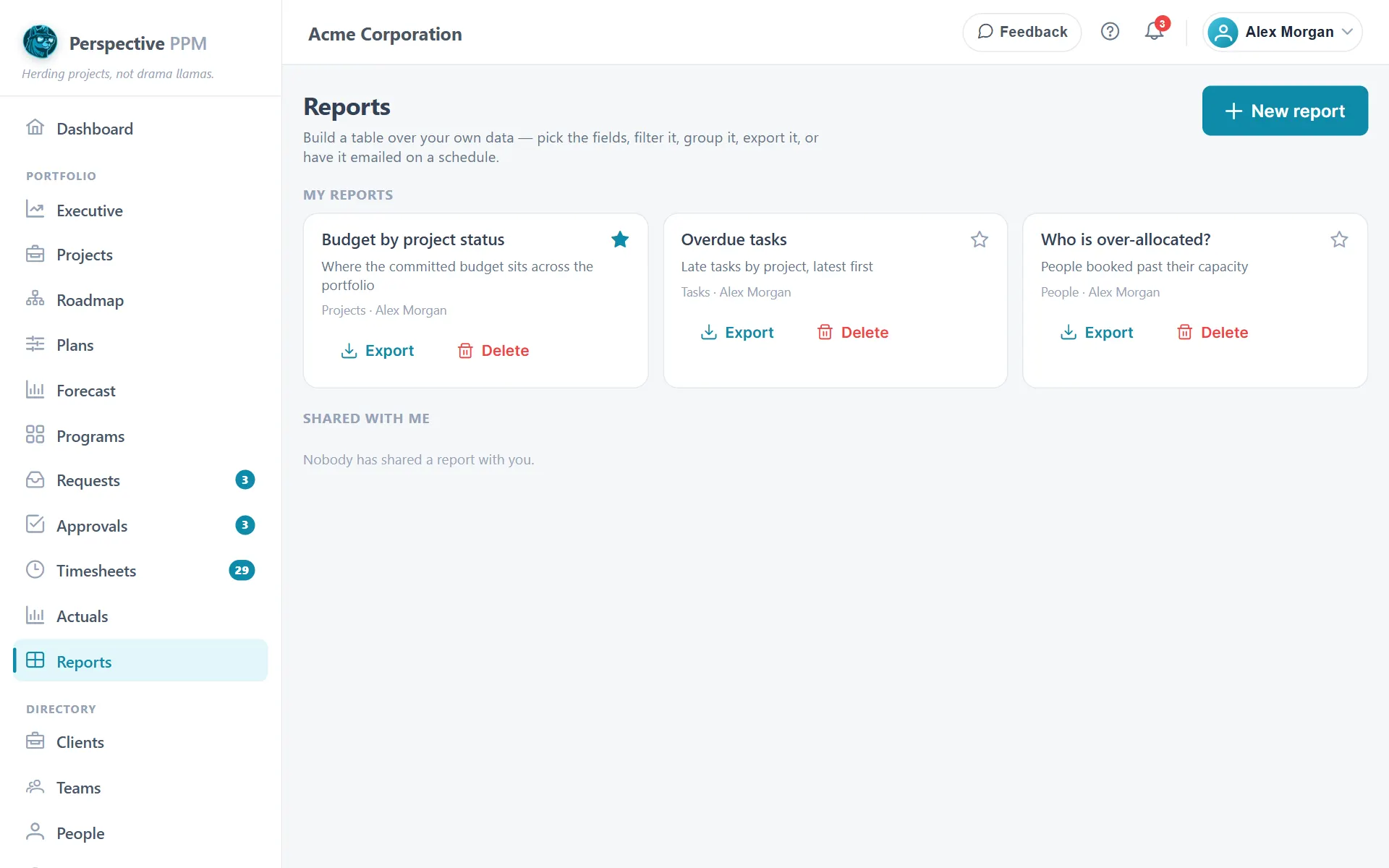
- On the Reports page, Export on a report gives you the full CSV without opening it.
TIP
For the full set of rows, use CSV. Excel is quickest for the rows you can see, but the preview only loads the first rows of a large report.
Pin it to your dashboard
Select Pin to dashboard in a saved report, or the star on it on the Reports page. It appears on your Dashboard, as its chart or its first few rows, with a link to the full report. Pins are your own: pinning a report does not add it to anyone else's dashboard.
Open, change or delete a report
- Your reports are under My reports. Reports others have shared with you are under Shared with me.
- Click a report's name to open it. Change anything, then select Save.
- To delete one, select Delete on the Reports page, then Really delete? to confirm.
- Only the person who made a report, or a PMO or Admin, can change or delete it.
If a report is slow or cut short
- If the preview says it is showing only the first rows, add a filter to narrow it down.
- If a report takes too long, add a filter (a date range usually does it) or group it.
- If a field you expect is missing, it may be a money field you do not have access to.