
Appearance
Staff a plan
A plan says who works on a project and how much. You add the roles the work needs, say how many hours each role needs, then assign real people. The grid checks every number against each person's actual availability as you type.
Before you start
- You need a role that can manage projects, such as PM, PMO or Admin. Everyone else sees the plan read only.
- The project needs at least one plan. If it has none, ask whoever runs the project to add one with Add plan or Planning wizard on the project page.
- The roles you need (for example "Developer" or "Designer") should already exist under Roles in the left menu, with people in them.
Steps
Open the plan
- Open Projects in the left menu and click the project.
- Under Plans, click the plan you want to staff. If the project is already under way and you see a tracking view instead, click Full project details first.
Choose the teams
In the Teams card, click Edit teams, pick the teams who will do the work, then click Save.
The people you can assign come from these teams. Someone from any other team is only offered when you turn on Other teams, and they are marked loan-in in the grid.
Add the roles you need
- Scroll to the Planning grid and click Add resource.
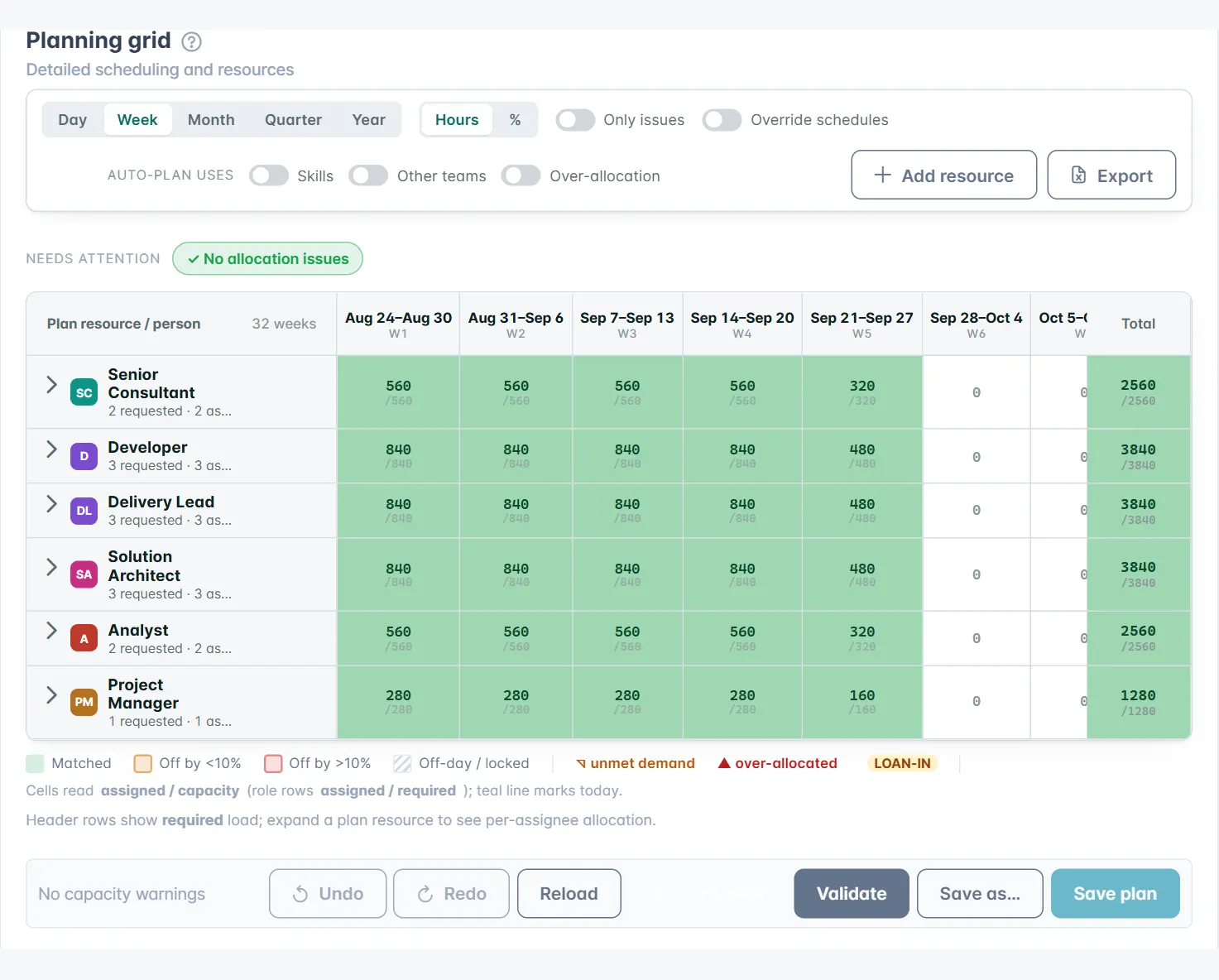
- Pick the role from the Resource list, set # of resources needed, and click Add to plan. The role appears as a row in the grid.
- Type the hours the role needs into that row's cells. These are the role's Required hours for each period.
Assign people
- Expand the role row with the arrow next to its name.
- Use the Add assignment list under the role to pick a person. The list shows people who hold that role. Turn on Skills to also see people whose skills match.
- Type each person's hours into their cells. The bolt button on a person's row, Fill to capacity, fills them up to what they have free.
- Click Save plan when you are happy. Nothing is kept until you do.
TIP
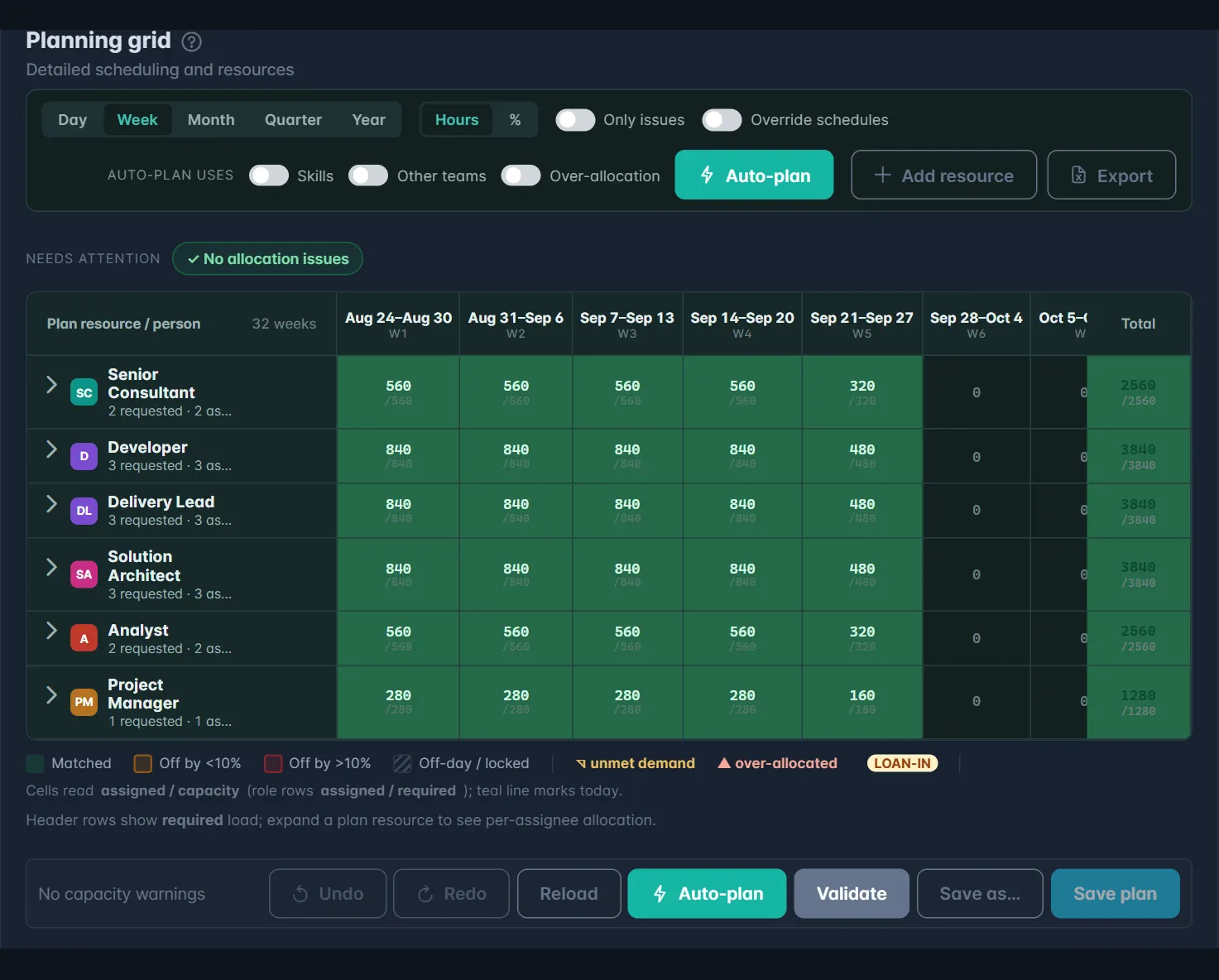
Auto-plan staffs every role for you within everyone's real availability. Run it first, then adjust the result by hand. Use Undo if you do not like what it did.
Read the grid
Switch the columns between Day, Week, Month, Quarter and Year, and show cells as Hours or %. Each person's cell reads assigned / capacity, and a role row reads assigned / required.
The legend under the grid explains the colours:
- Matched: the role has exactly what it needs, or the person is comfortably within their capacity.
- Off by <10%: close, but slightly short or slightly over.
- Off by >10%: a real gap or a real overbooking.
- Off-day / locked: a dash means the person is not working then, because of a weekend, a company holiday or their own time off.
A small corner mark (◹) flags unmet demand on a role, and a triangle (▲) flags a person who is over-allocated. The Needs attention strip above the grid counts capacity warnings and loaned-in people, and Only issues hides every row that is already fine.
WARNING
To put hours on someone's day off, you have to turn on Override schedules. Do it only on purpose: those hours count in their totals like any others.
Tentative or committed
A plan you are still shaping can be a soft booking. Click Mark tentative at the top of the plan page and it shows a Tentative badge. Its hours still appear in the grid, but they do not use up people's committed capacity elsewhere, so they will not block other plans.
When the plan is real, click Commit plan. From then on its hours count against everyone's availability.
Only a plan whose Status is Active in Plan details counts towards capacity. A project can have several plans, but only one is active at a time.