
Appearance
Log and submit your time
Your timesheet records the hours you actually worked, project by project, one week at a time. It starts filled in with the hours you were planned for, so most weeks you only need to correct what changed and submit.
Before you start
- Your sign-in needs to be linked to your person record. If you see a message saying there is nothing personal to show, ask an administrator to link your account.
- You can log time against the projects you are staffed on.
Steps
Open your timesheet
- Find your timesheet in one of these places:
- If Enter time is in your left menu, click it.
- On your Dashboard, under My work, click the Timesheet tile, or the This week tile to jump straight to the current week.
- Otherwise, open People in the left menu, open your own name, and click Enter time next to it.
- Use the arrows on either side of the dates to move between weeks. You can step back to earlier weeks, but not forward past the current one.
Enter your hours
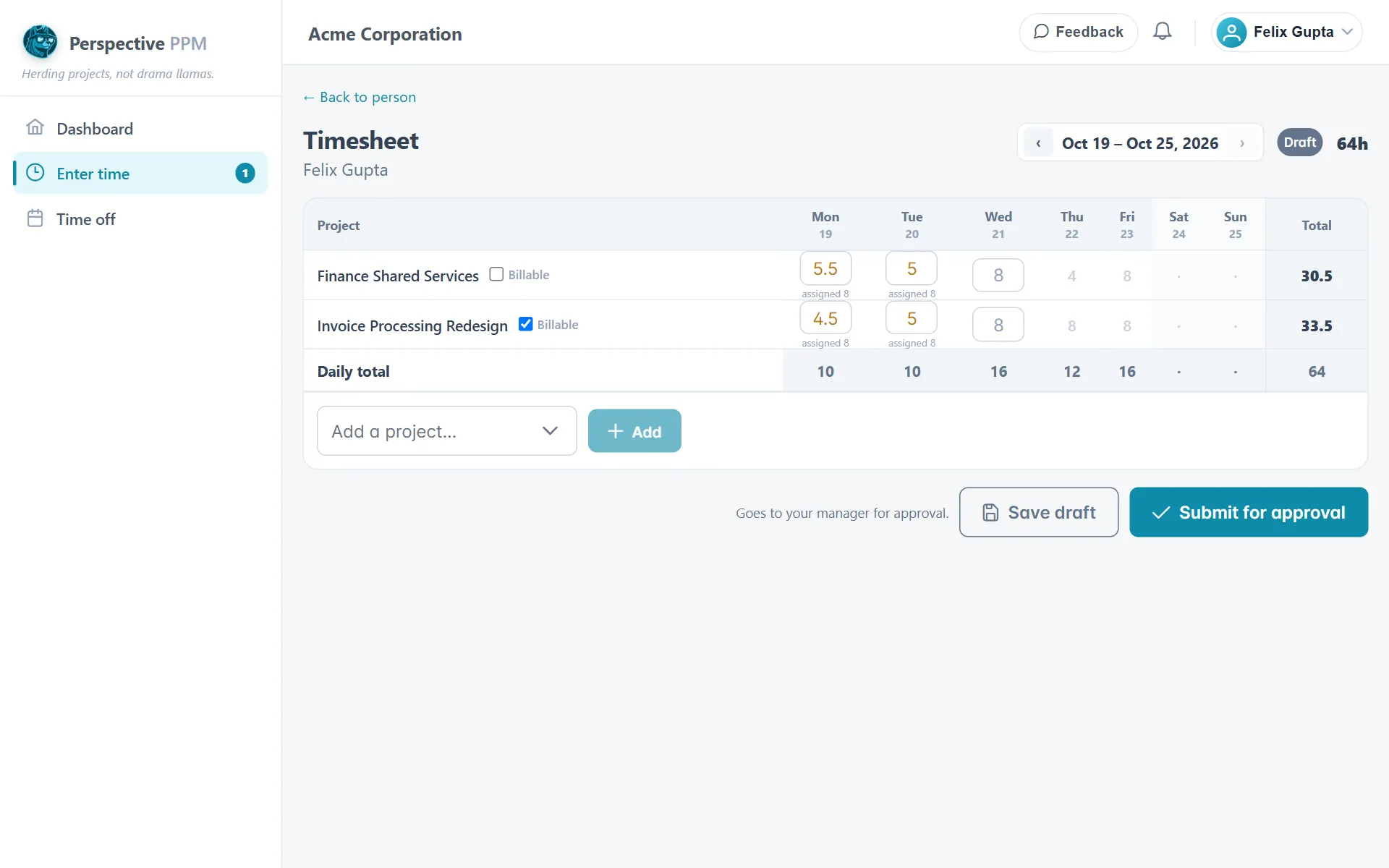
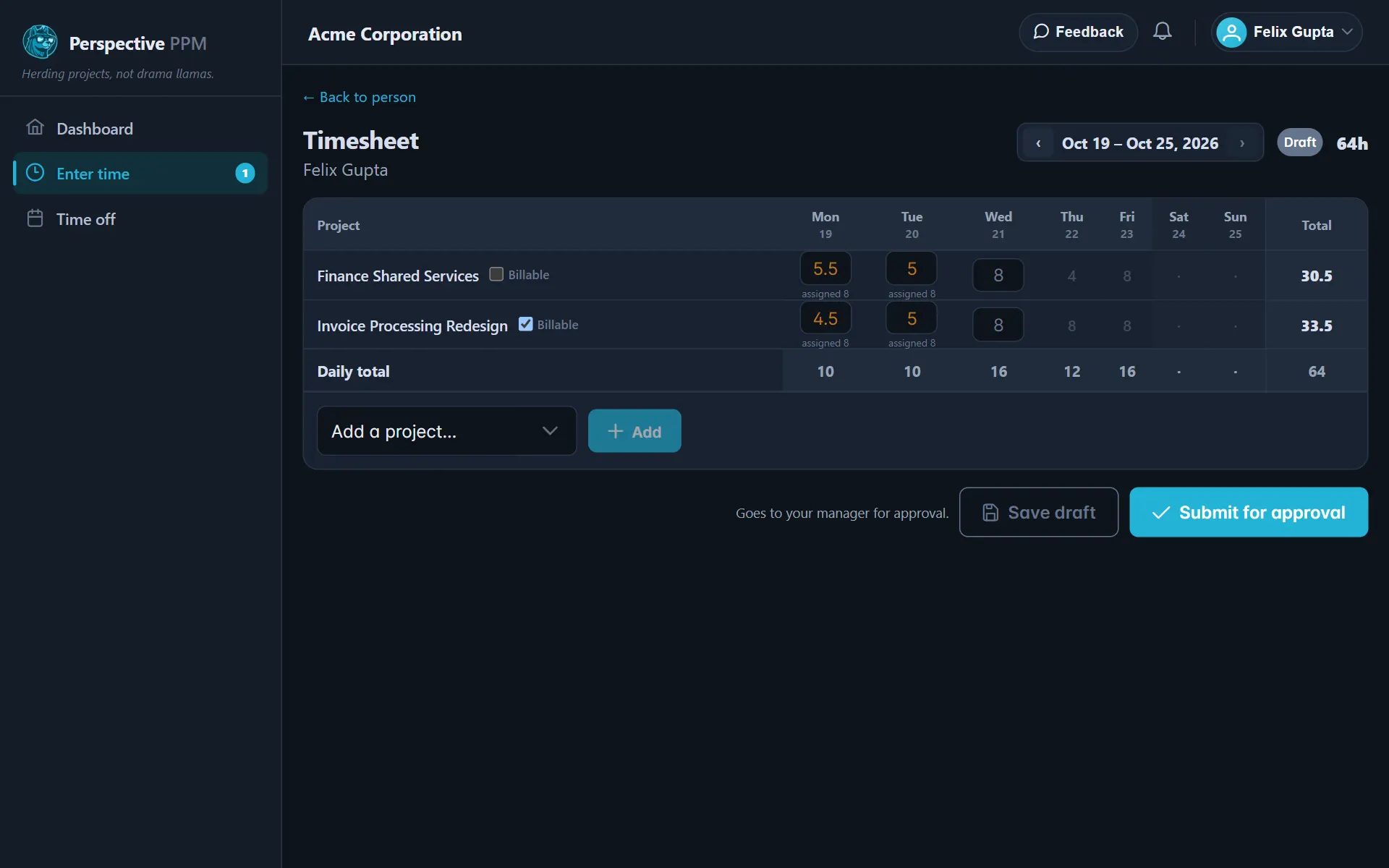
- Each row is a project and each column is a day. Type your hours into each day, up to 24 in a day.
- Where your hours differ from what you were planned for, the cell shows the planned figure underneath as assigned. Time on a project you were not planned for that day is flagged extra.
- To log time on a project that is not listed yet, choose it from Add a project… and click Add.
- Leave Billable ticked for time your organisation charges for, and untick it for internal work.
- Click Save draft whenever you want to keep your progress. Saved appears when it worked.
Submit the week
When the week is complete, click the submit button. Its label tells you what will happen, based on your company's setting:
- Submit for approval: the week goes to your manager.
- Confirm week: the week is confirmed straight away, with no approval step.
The note beside the button explains which applies to this particular week.
TIP
Days later in the current week cannot be filled in yet. Time can only be logged for today or earlier.
After you submit
The badge at the top shows where the week stands: Draft, Submitted, Approved or Rejected.
- Submitted: the week is locked while it waits. If you spot a mistake, click Reopen to turn it back into a draft, fix it, and submit again.
- Rejected: the week was sent back. Any note from your manager appears at the top under Sent back. Make your changes and submit again.
- Approved: you are done for that week.