
Appearance
Book time off and set holidays
Time off tells Perspective when someone is not available, so plans and capacity do not count on hours that will not happen. Company holidays mark the days everyone is off. Both show on the team calendar, so you can see who is away at a glance.
Before you start
- Your own time off: anyone with a person record can book it.
- Someone else's time off: a Team Lead (for their team) or an Admin.
- Company holidays: an Admin.
- Everyone who can see a team or person can see their time off.
Book your own time off
- Open Time off in the left menu. If you have a full menu rather than the self-service one, open People, find yourself and use the Time off card on your page instead.
- Select Add time off.
- Choose the Start and End dates.
- Enter Hours off (per day). For a full day, enter your normal working day, such as 8. For a half day, enter 4.
- Add a Note if you like, such as "Vacation" or "Conference".
- Select Add time off.
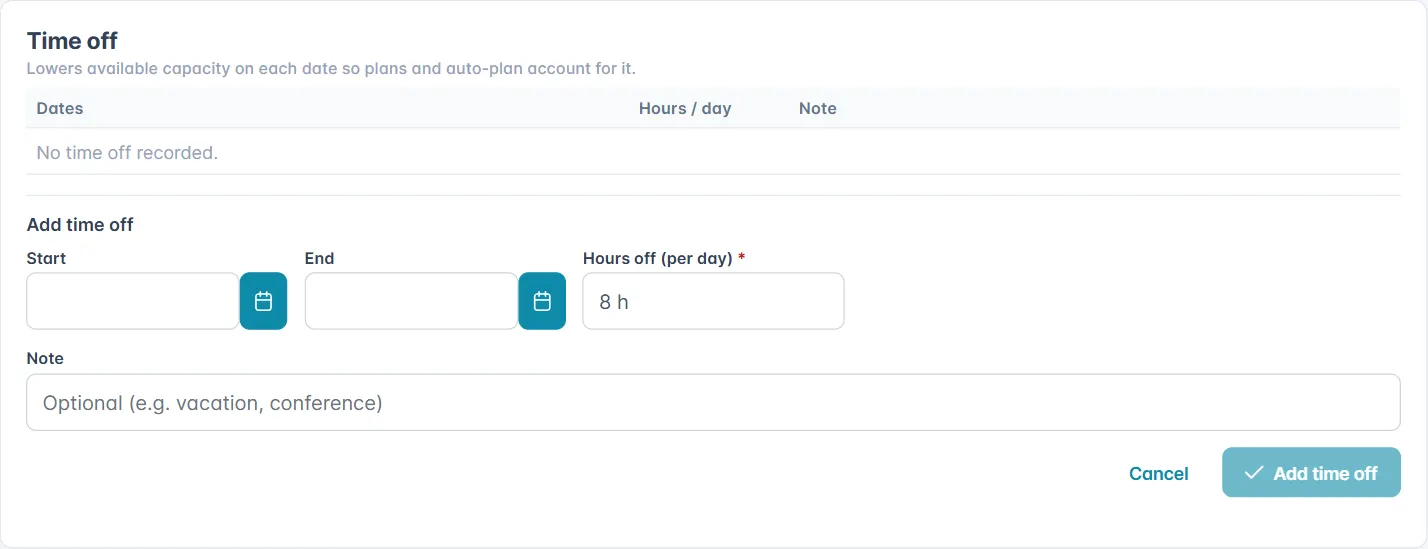
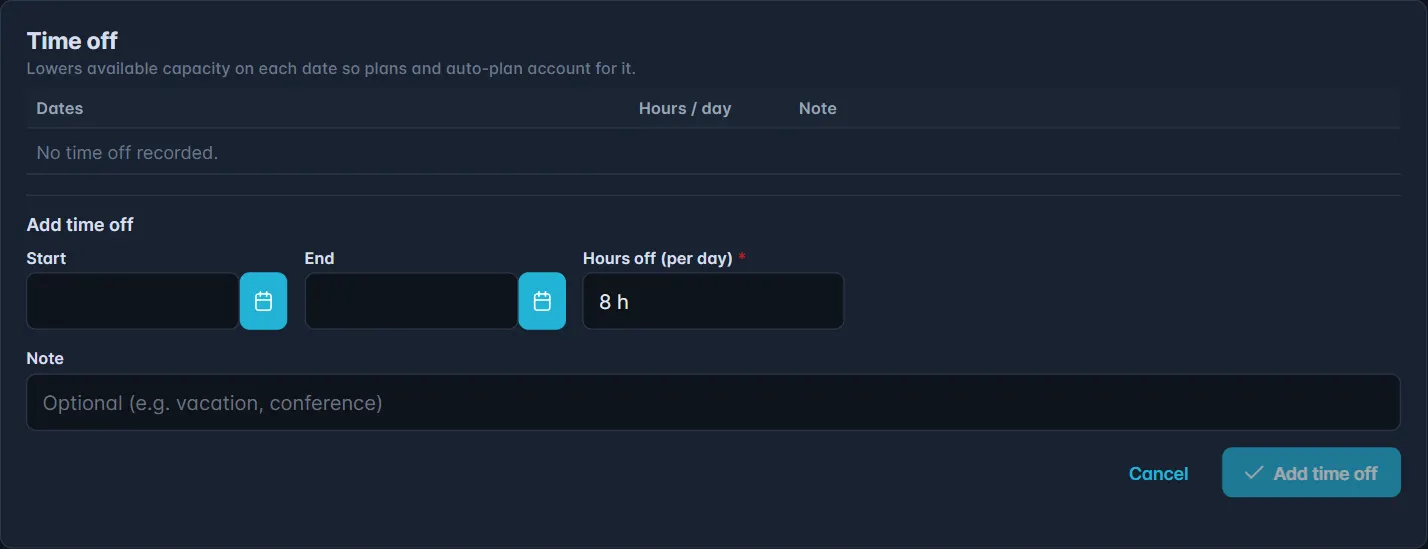
Time off is saved straight away; there is no approval step. To change or remove an entry, use the pencil or bin next to it.
Book time off for someone on your team
- Open the team (Teams in the left menu), or People.
- Select the calendar icon next to the person. On the People list it is labelled Assign / manage time off.
- Add the dates and hours as above, then select Add time off, and Close when you are done.
You can also use the Time off card on the person's own page.
What time off changes
On each day of time off, the person's available hours drop by the hours you entered. Plans, the capacity forecast and Auto-plan then work with what is left, and anyone who books them that day sees a warning. Time off also shows on the team and person calendars and in the calendar feed.
Set your company's holidays
- Open Companies in the left menu, under Admin, and choose your company. New organisations also reach this from the Finish setting up card on the Dashboard.
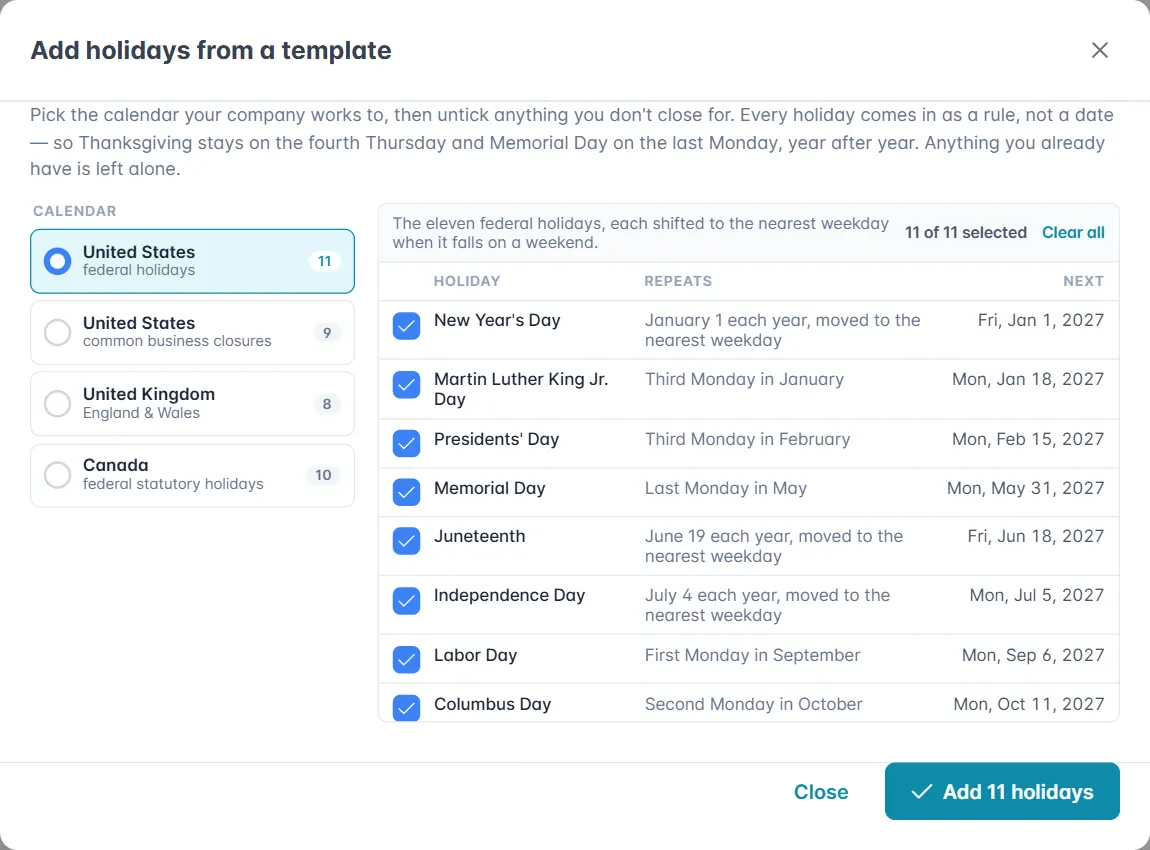
- In Company holidays & calendar, select Add from template.
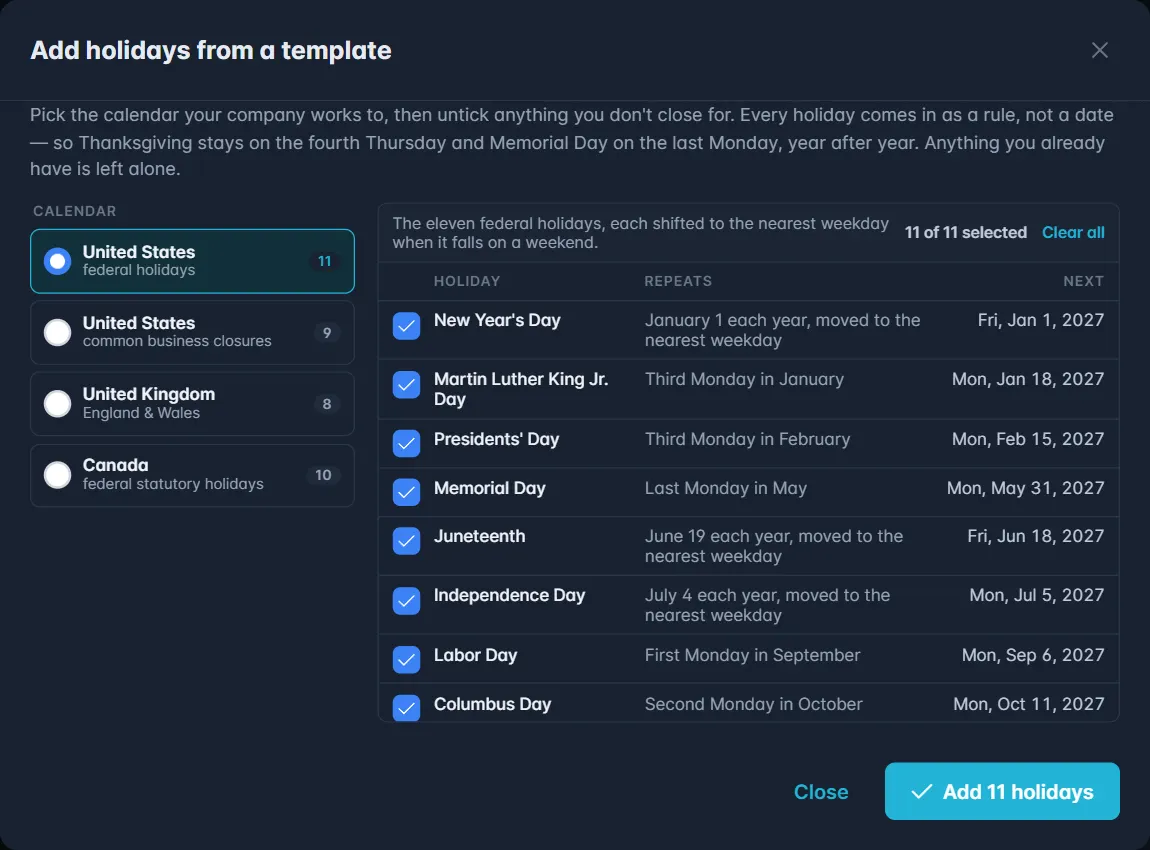
- Pick the pack for your country, such as United Kingdom, England & Wales or United States, federal holidays. Untick any holiday you do not observe.
- Select Add. Holidays you already have, matched by name, are left alone.
Add a holiday of your own
- Select Add holiday and give it a Holiday name.
- Under When does it fall?, choose how it repeats:
- The same date every year, such as 25 December.
- A particular weekday each year, such as the fourth Thursday in November. Then shift by (days) handles a day after, such as the Friday after Thanksgiving.
- The weekday before a date, such as the Monday before 25 May.
- Relative to Easter: −2 is Good Friday, +1 is Easter Monday.
- Once, on a single date, for a one-off closure.
- Choose what happens If it lands on a weekend: leave it, move it to the nearest weekday, or move it to the next weekday.
- Check the plain-words description of the rule, then select Add.
Holidays repeat every year on their own. The list shows when each one falls Next.
A company holiday is a day off for everyone in the company: on a working day their available hours drop to nothing, so plans, the capacity forecast and Auto-plan do not count on that day, and anyone booked on it gets a warning.
See who is away
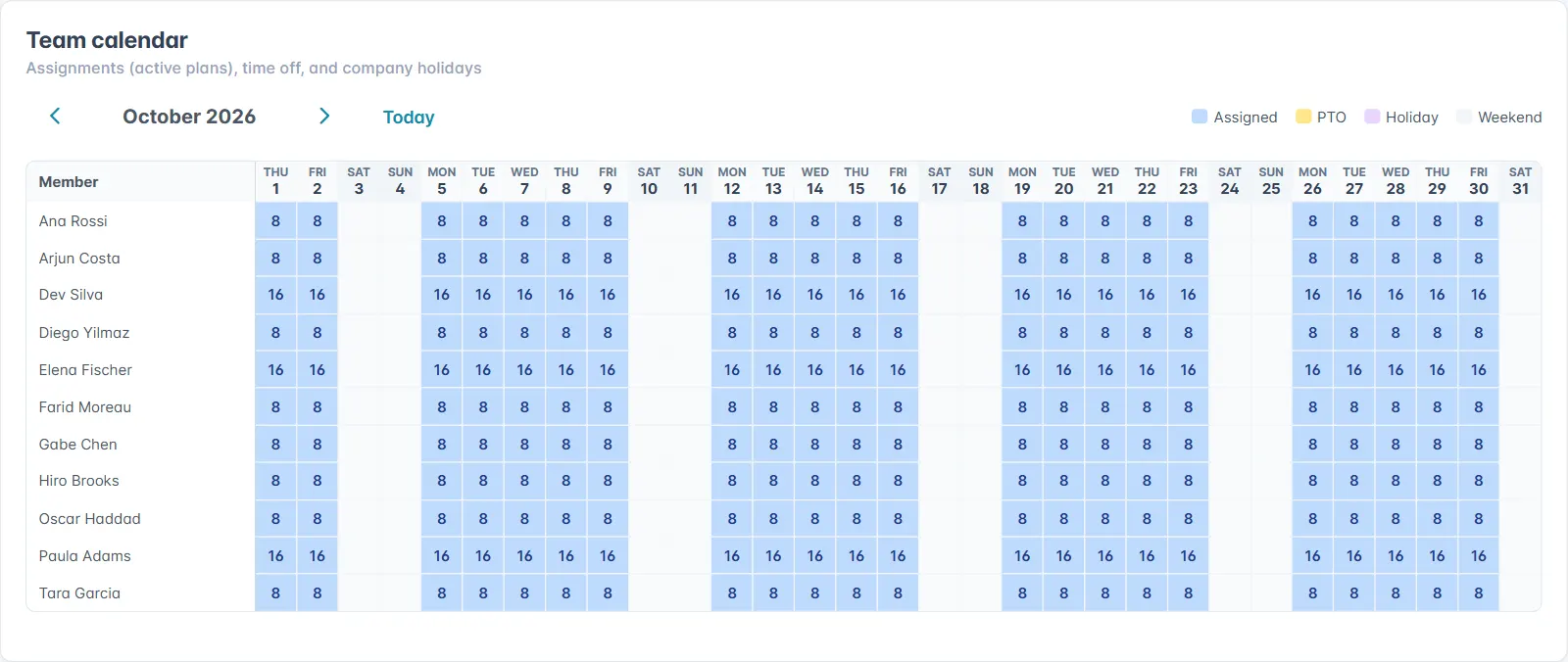
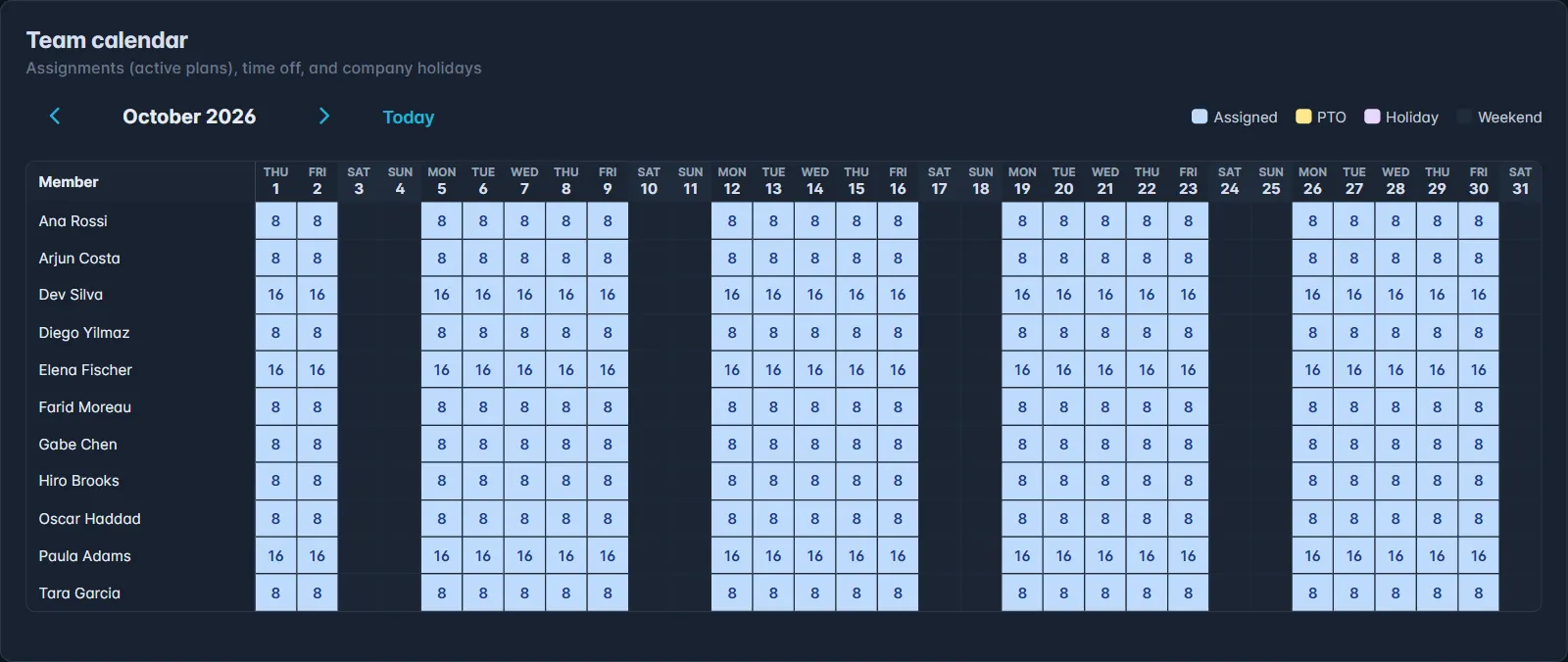
The Team calendar on a team's page, and the Calendar on a person's page, show a month at a time: hours each person is booked on active plans, their time off (PTO) and company holidays. Hover over a day for the detail. Use the arrows to move between months, and Today to come back.
Put it in your own calendar
Your Profile (the menu under your name, top right) has a Calendar feed: a link you can add to Google Calendar, Outlook or Apple Calendar to see your assignments, time off and company holidays alongside everything else. Select Copy, then in your calendar app choose to add a calendar from a URL.
WARNING
Anyone with the link can see what is in your feed. If it has gone somewhere it should not, select Reset link; the old link stops working.