
Appearance
Import your project history
Your organisation already knows how its projects went: in schedule files, in spreadsheets, in a folder somebody kept. Importing that history gives Perspective a track record from day one. Each project arrives with what was planned and what actually happened, so you can see how far off past plans were and forecast the next ones better.
Nothing is saved until the last step. You see every project, person and team the import found, and you can change or drop any of them first.
Before you start
- You need the Admin role.
- Finish the basics of your workspace first: your company holidays, at least one project status, one project type, one role and one person. The Finish setting up card on your Dashboard lists anything still missing. Importing comes last on purpose, so your projects can match the teams, types and statuses you already have.
- Gather your files. These work:
- Microsoft Project files (.mpp or .xml)
- Primavera files (.xer or .xml)
- Excel workbooks (.xlsx) and CSV files
- A .zip of a whole folder of any of these
- Each file can be up to 25 MB, and you can pick up to 20 at once. A .zip can hold up to 200 files.
TIP
If you have them, use the scheduling files rather than a spreadsheet of final numbers. A Microsoft Project or Primavera file keeps the original baseline next to what actually happened, and that pairing is what makes forecasting possible later.
If you are using a spreadsheet
- Put one project per row, with a heading row at the top. Perspective finds the heading row on its own.
- Include a column for the project's name, headed Project name or Name. Without it the import cannot start.
- Useful columns to add: status, project type, team, client, planned start and finish, actual start and finish, planned and actual cost, planned and actual effort, and budget. Any other column can come across as a custom field on the project.
- Only the first sheet of a workbook is read, up to 5,000 rows.
- An older Excel file ending in .xls cannot be read. Open it in Excel, choose Save As, pick Excel Workbook (.xlsx), and import that.
- Write dates as year, month, day (2025-03-14) and money as plain numbers (214500). A date like 03/04/2025 could mean March or April, and a number like 1.234,56 is read differently from what you might expect.
Steps
1. Upload
- Open Projects in the left menu and select Import history. You can also start from the Finish setting up card on your Dashboard, at Import your project history.
- Drop your files on the page, or click it to choose them.
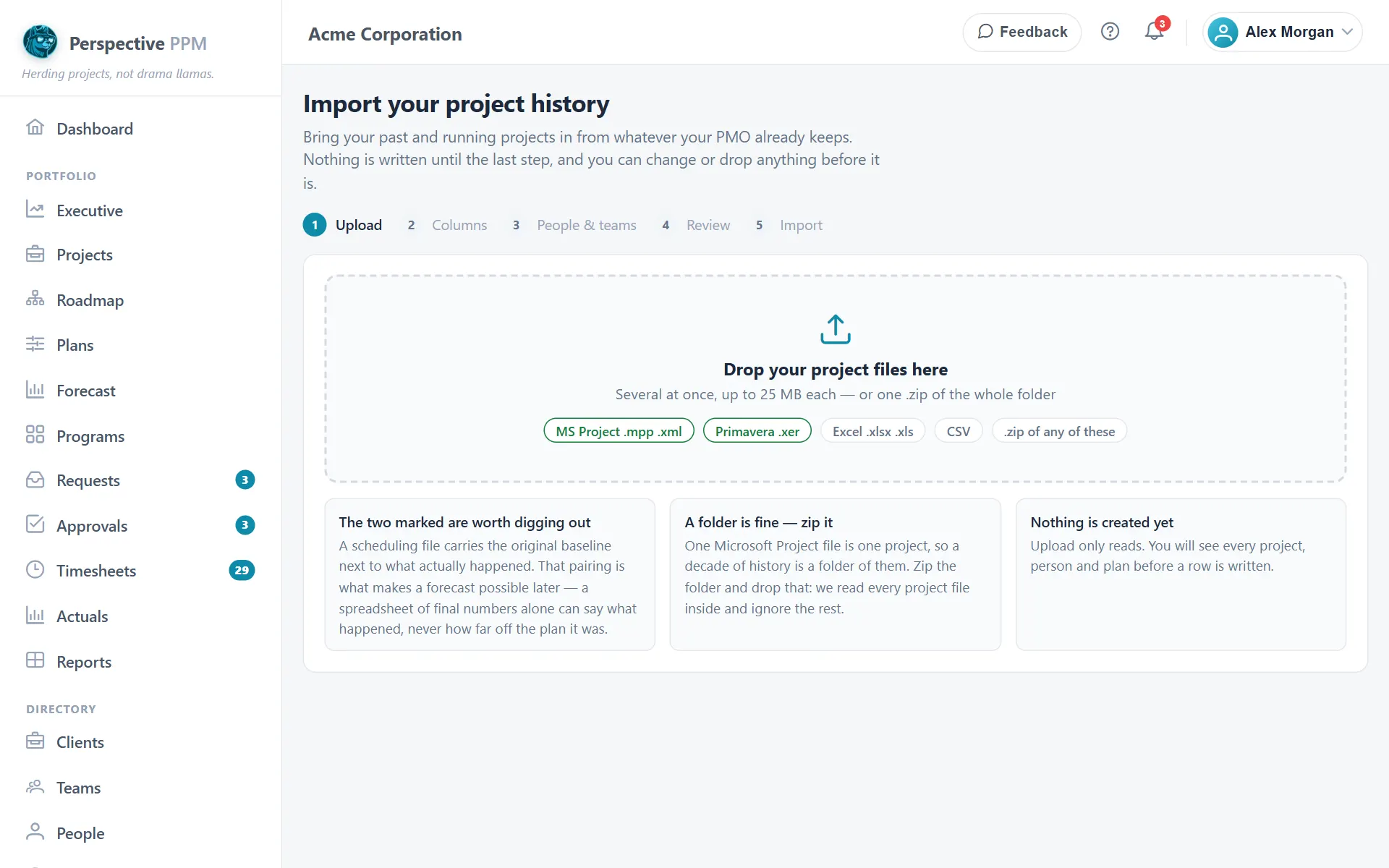
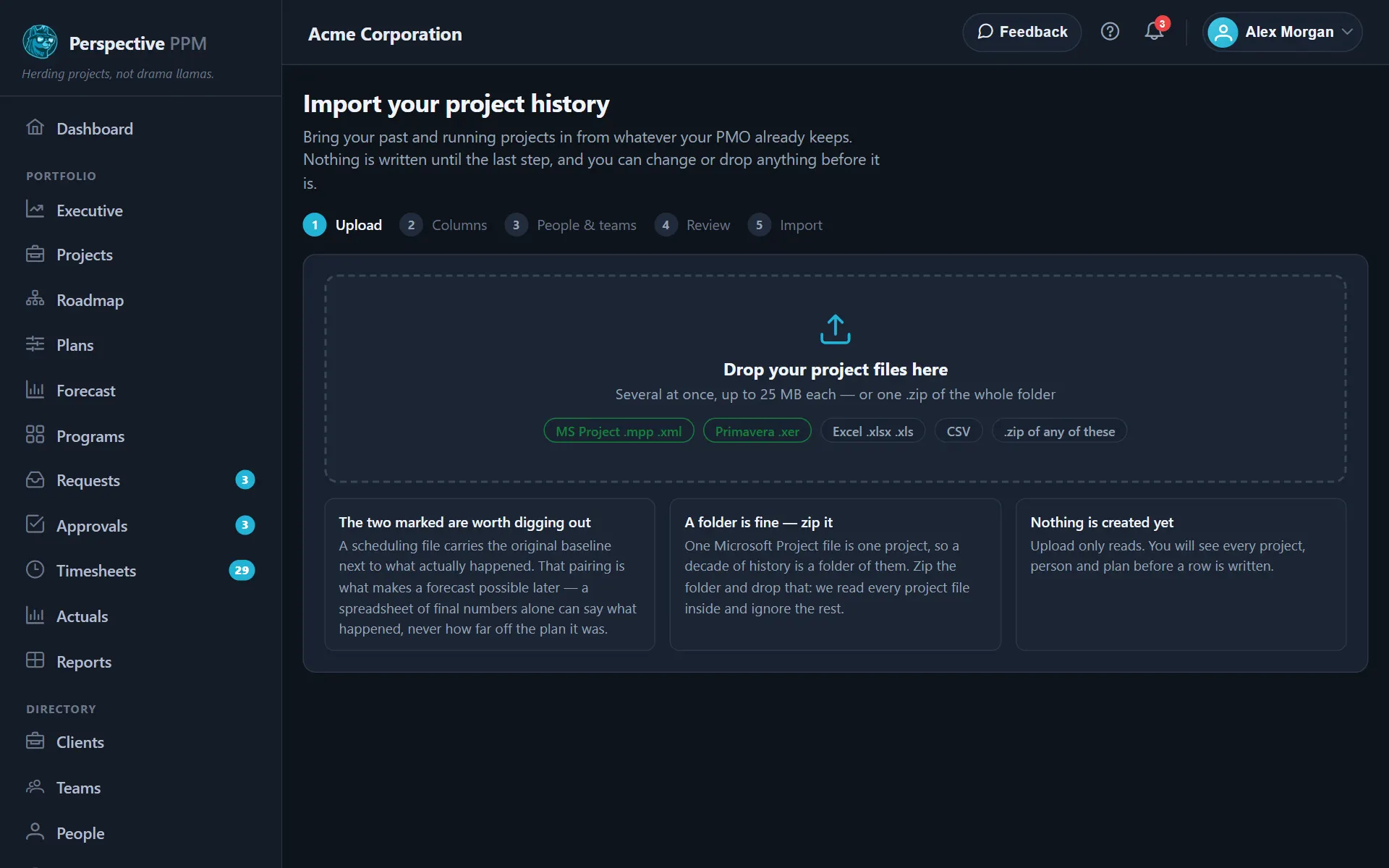
Stay on this page until the import is finished. Your files are held in the browser while you work through the steps, so leaving the page means starting again.
2. Columns
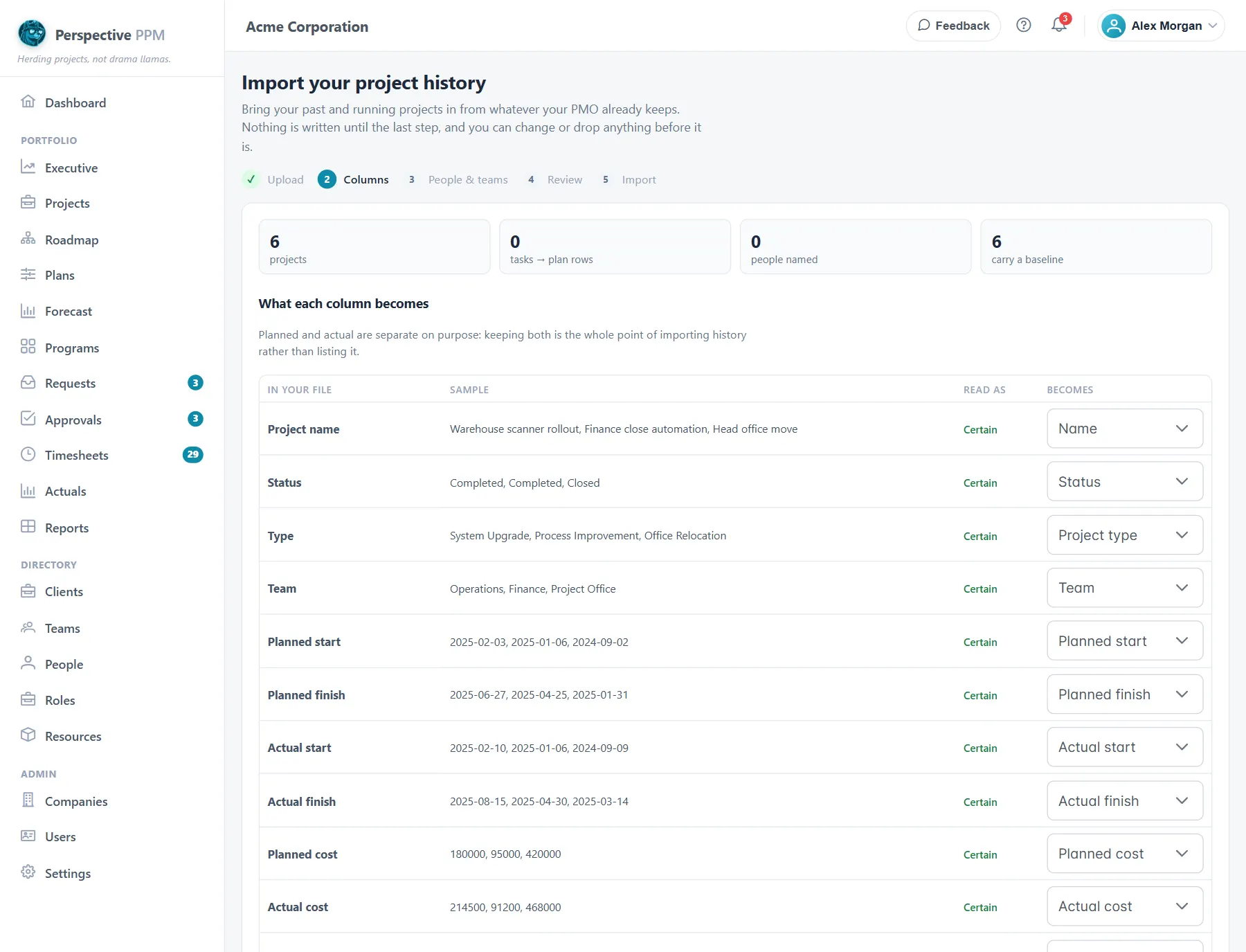
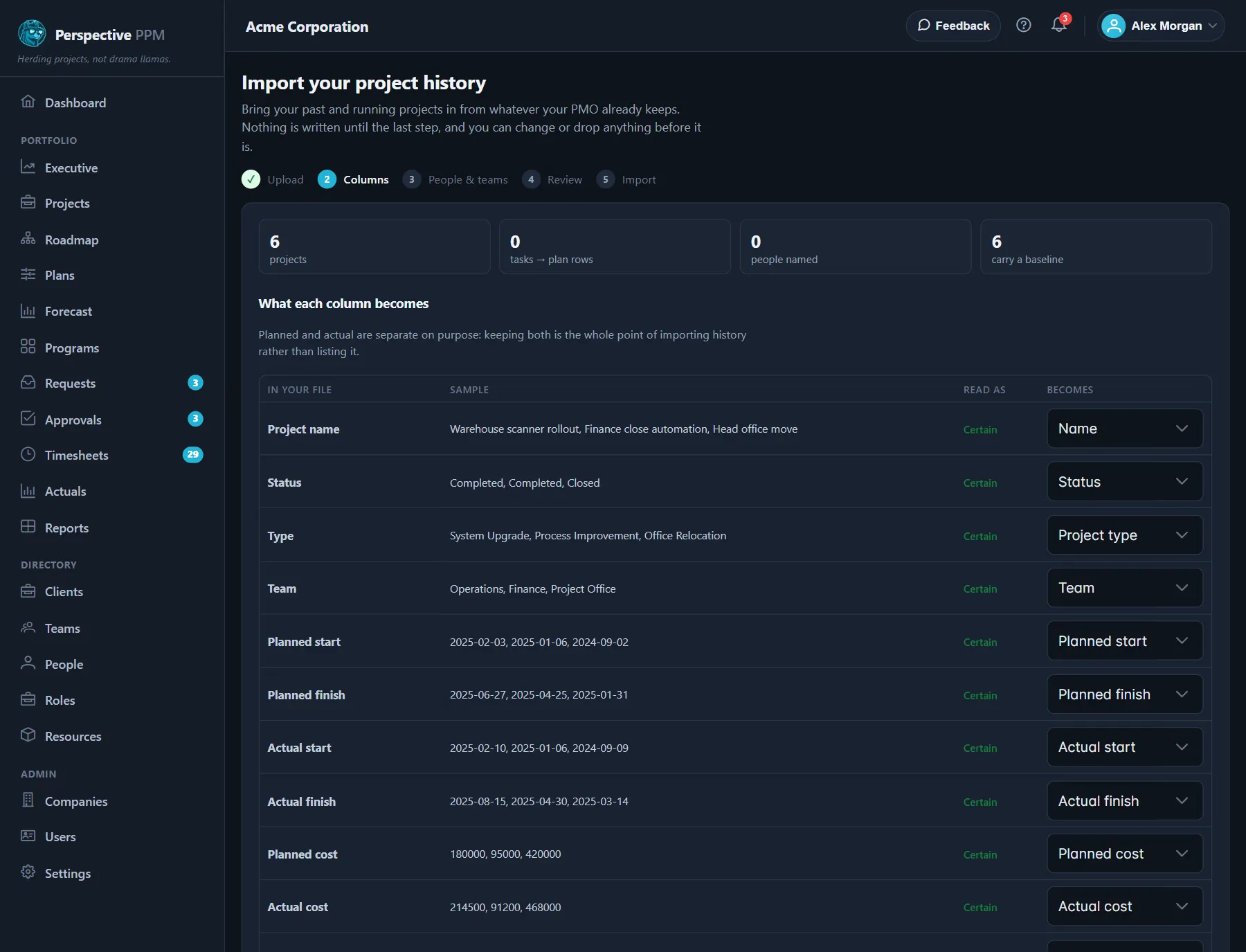
Perspective reads the files and shows what it found: how many projects, how many people are named, and how many projects carry a baseline.
For a spreadsheet, What each column becomes lists each of your columns with a few sample values, how sure Perspective is about it (Certain, Likely or Unsure), and what it will become. Change any that are wrong in the Becomes list, or choose Ignore to leave a column out. If you change one, select Read the files again to see the effect before you go on.
Below that, Words we don't have yet lists any statuses, project types or tags in your files that your company does not have. For each one, choose to add it, use one you already have, or not import it.
Select Next: people and teams.
3. People & teams
Perspective matches the people in your files to the people you already have, by email first and then by name.
- For each person, choose what to do: match them to someone you have, add them as a person, or leave their hours unassigned. Leaving someone out still imports the work they did, just without their name on it.
- If you add people, you can set their role, team and contract. A contract gives them a rate, and without one the imported plans have no cost.
- Tick Login for anyone who should be able to sign in. They get an email invitation once the import finishes.
- For each team named in your files, choose to add it, use a team you already have, or not create it.
Select Review (the button shows how many projects).
4. Review
Every project is listed on the left, ticked to be imported, with ok or a count of things to look at. Click one to see its details on the right.
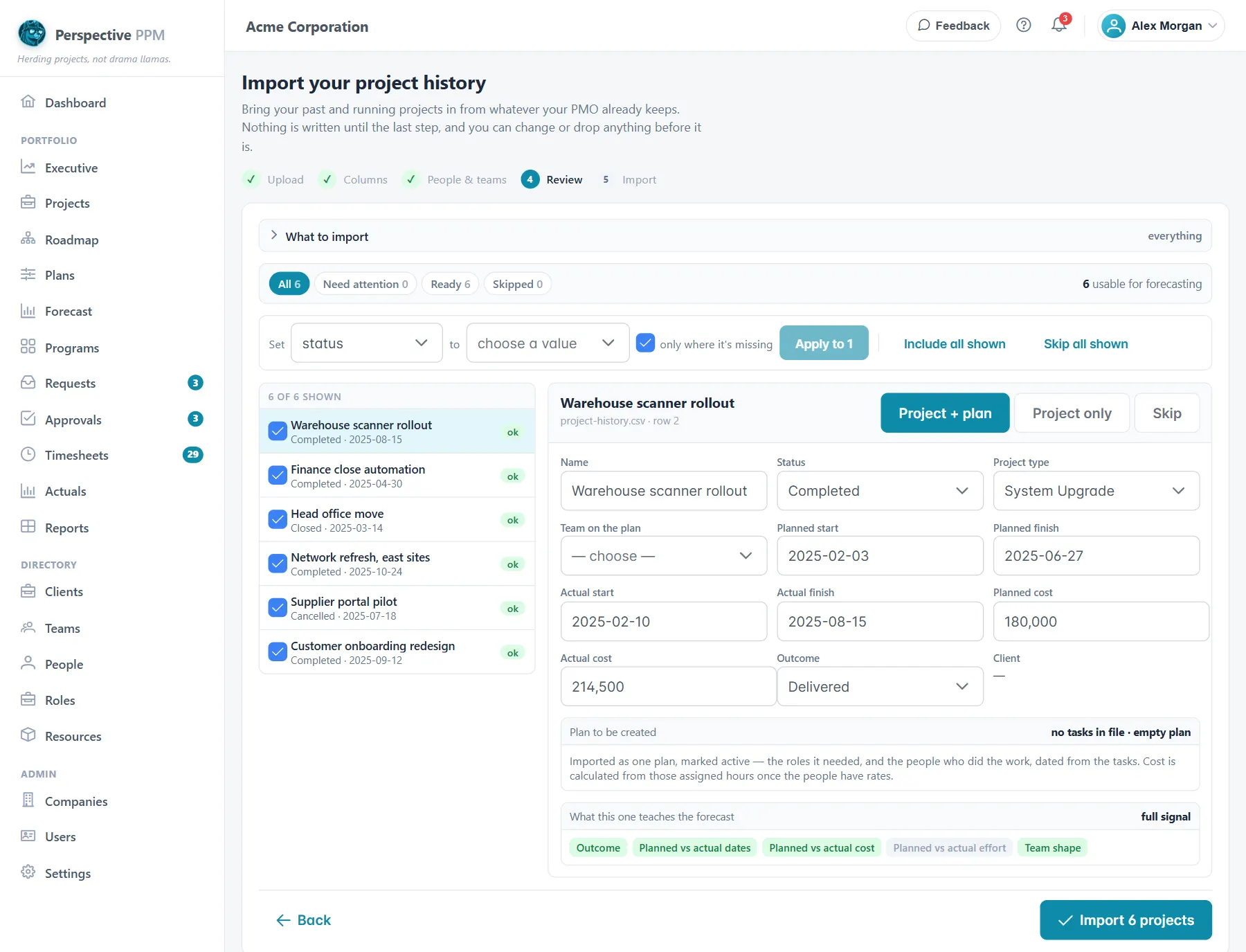
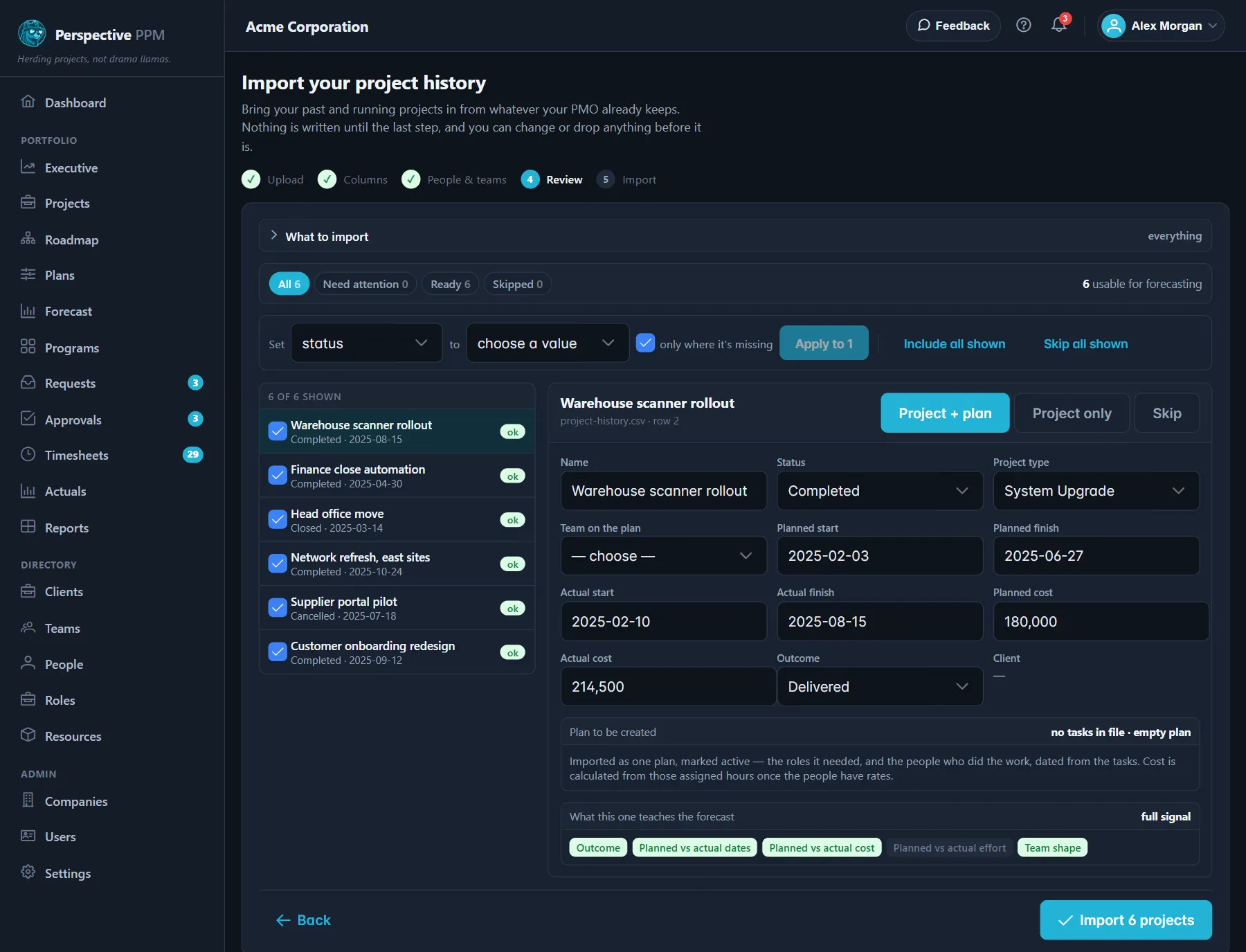
- Use the filters at the top, Need attention, Ready and Skipped, to work through the list.
- For each project, choose Project + plan, Project only or Skip, and correct any field: status, project type, team, the planned and actual dates and costs, and the Outcome (Delivered, Cancelled, Abandoned or Not known).
- To fix many projects at once, use the Set bar: for example, set the status to Completed only where it is missing, then select Apply.
- What to import at the top lets you leave out whole kinds of information, such as tags or custom fields, and choose the currency for figures that do not say which currency they are in.
Perspective unticks a project for you when it looks like a duplicate (you already have a project with that name, or the same name appears twice in your files) or when it has no tasks and no real content. You can tick it back if you do want it.
5. Import
Select Import 6 projects (the button shows your count). Everything is saved together, or nothing is.
The summary shows what was created, what was added to your settings (statuses, project types, teams, roles, tags, clients and custom fields), with a link to set each of them up, and anything Worth knowing, such as a project with no baseline cost.
Select Go to the project list to see your projects, or Import another file.
What you get
- A project for each one you ticked.
- An active plan called Imported plan, with the roles and people who did the work, spread across the dates the work happened. It is what lets past work show up in capacity and cost.
- A baseline called As imported, holding what was planned.
- Actuals: what actually happened and how the project ended.
WARNING
There is no undo. To take an import back, delete the projects one by one. Statuses, teams, people and other settings the import added stay until you remove them. Check the Review step carefully, and try a small file first if you are unsure.
Good to know
- Scheduling files never include a project status, so each project from one asks you to choose a status. Projects that finished in the past are set to a finished status for you. Use the Set bar to fill in the rest at once.
- Tasks from a schedule become plan time, not task list items. The project's Tasks & schedule card starts empty.
- Only the lowest level of a schedule is used, so summary rows are never counted twice.
- Effort in days, weeks or months is converted at 8 hours a day, 40 a week and 160 a month.
- Importing the same file again marks every project as a duplicate and unticks it, so you will not get copies by accident.