
Appearance
Manage your account
Everything about your own sign-in lives on your Profile: select your name at the top right, then Profile.
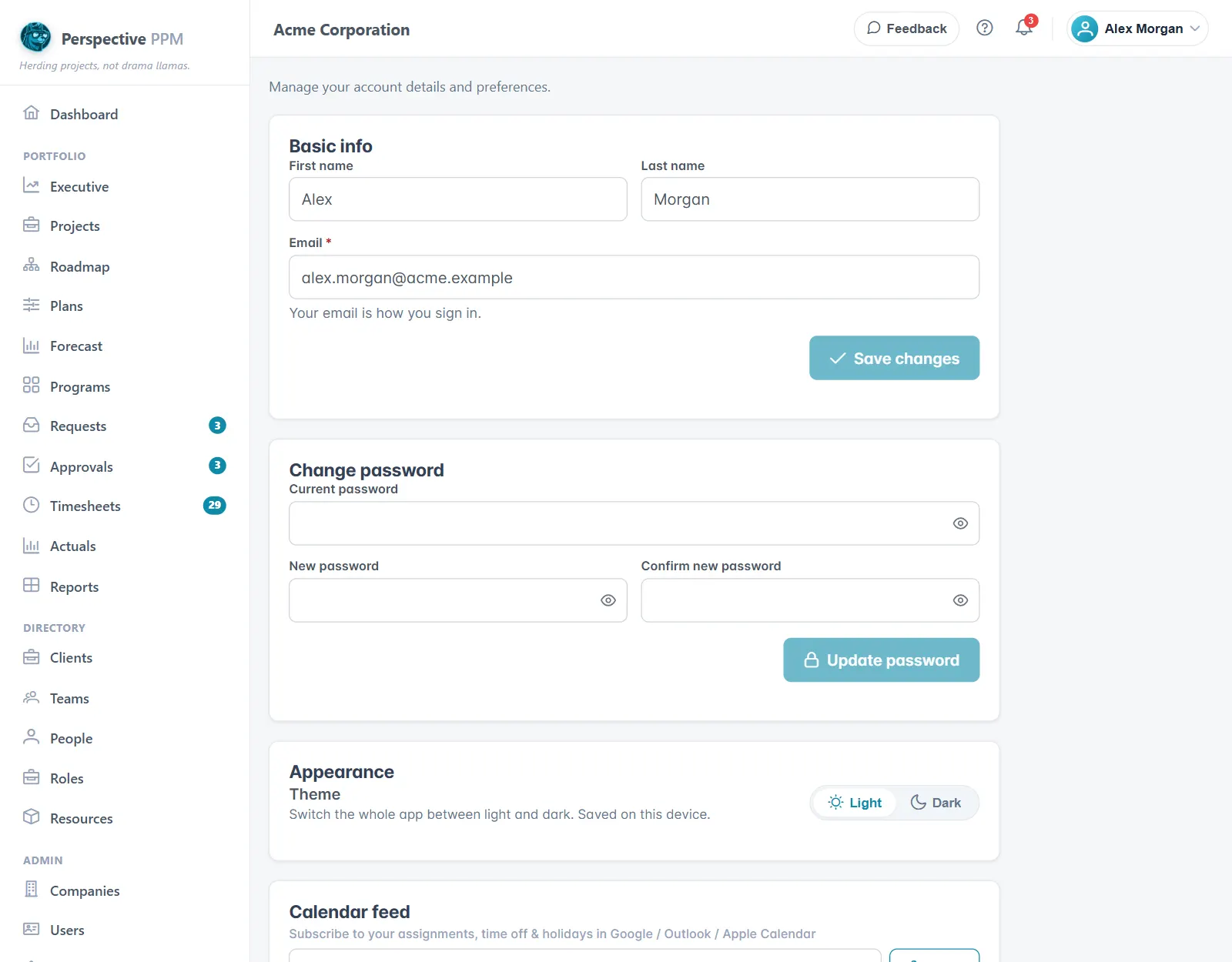
Change your name or email
Under Basic info, change your First name, Last name or Email, then select Save changes. Your email is how you sign in, so use one you can receive mail at.
Change your password
- Under Change password, enter your Current password.
- Enter the New password twice.
- Select Update password.
Your organisation may have rules for passwords, such as a minimum length or a number. If the new one does not meet them, the message says what is missing.
If you forget your password
- On the sign-in page, select Forgot your password?
- Enter your email and select Send reset link.
- Open the email and follow the link within 2 hours. Choose a password that meets the rules shown, then select Set password. You are signed in straight away.
If the link has expired, ask for another one.
Sign in with Google
If your organisation has Google sign-in, select Continue with Google on the sign-in page and choose your Google account. Its email must match the one your Perspective account uses; if you do not have an account yet, ask your administrator for an invitation.
When you are asked for a new password
Your administrator can ask everyone, or just you, to choose a new password, and passwords can be set to expire. When that happens, Update your password appears when you sign in. Enter your current password and a new one to carry on.
Light or dark
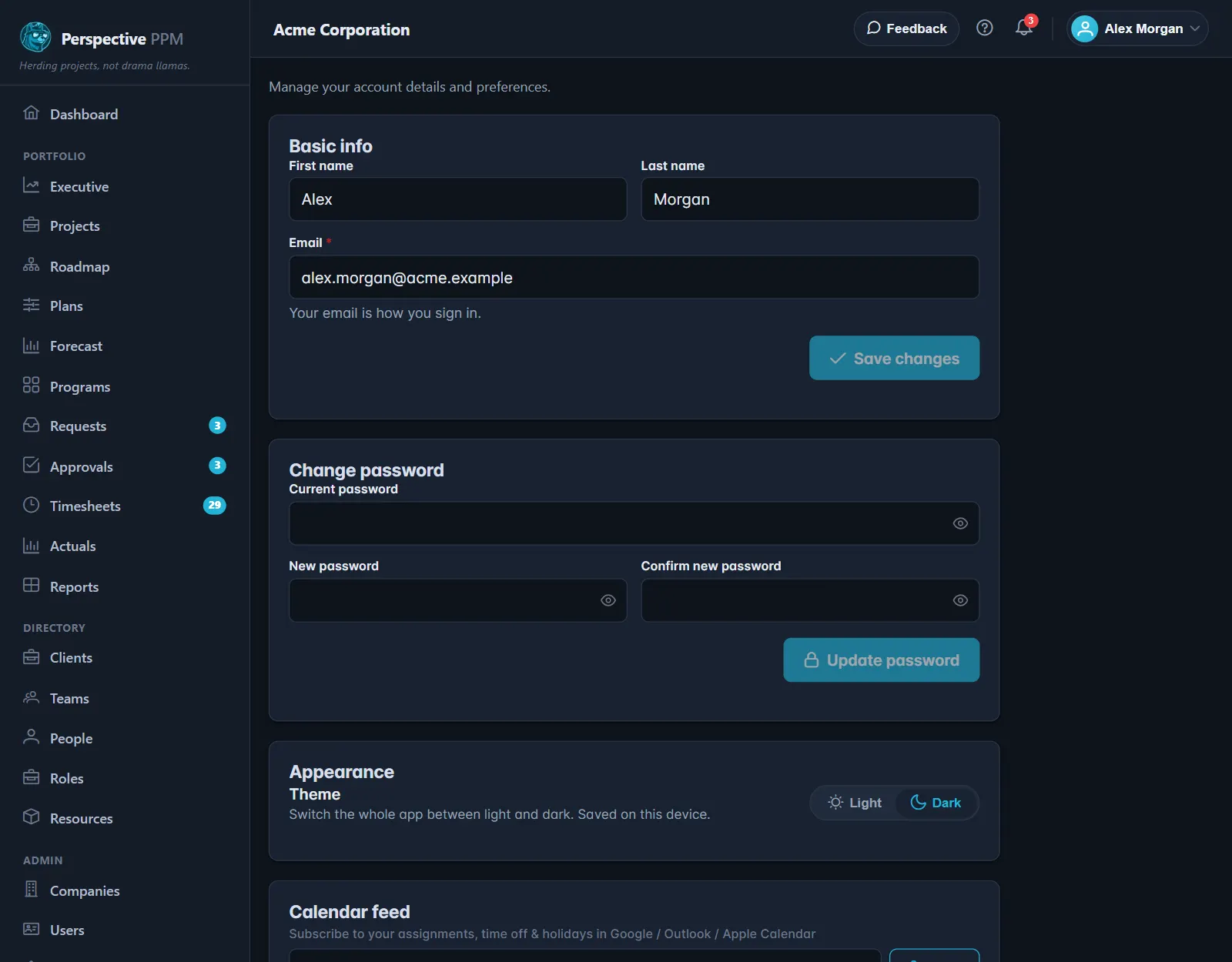
Under Appearance, choose Light or Dark. It is saved on the device you are using, and until you choose it follows your computer's own setting.
Your calendar feed
Calendar feed gives you a link to add to Google Calendar, Outlook or Apple Calendar, showing your project assignments, time off and company holidays. See Book time off and set holidays.
Work in more than one company
If you belong to more than one company, a Viewing list appears at the top of the page. Choose a company to switch to it. Your roles can be different in each one.