
Appearance
Set up your workspace
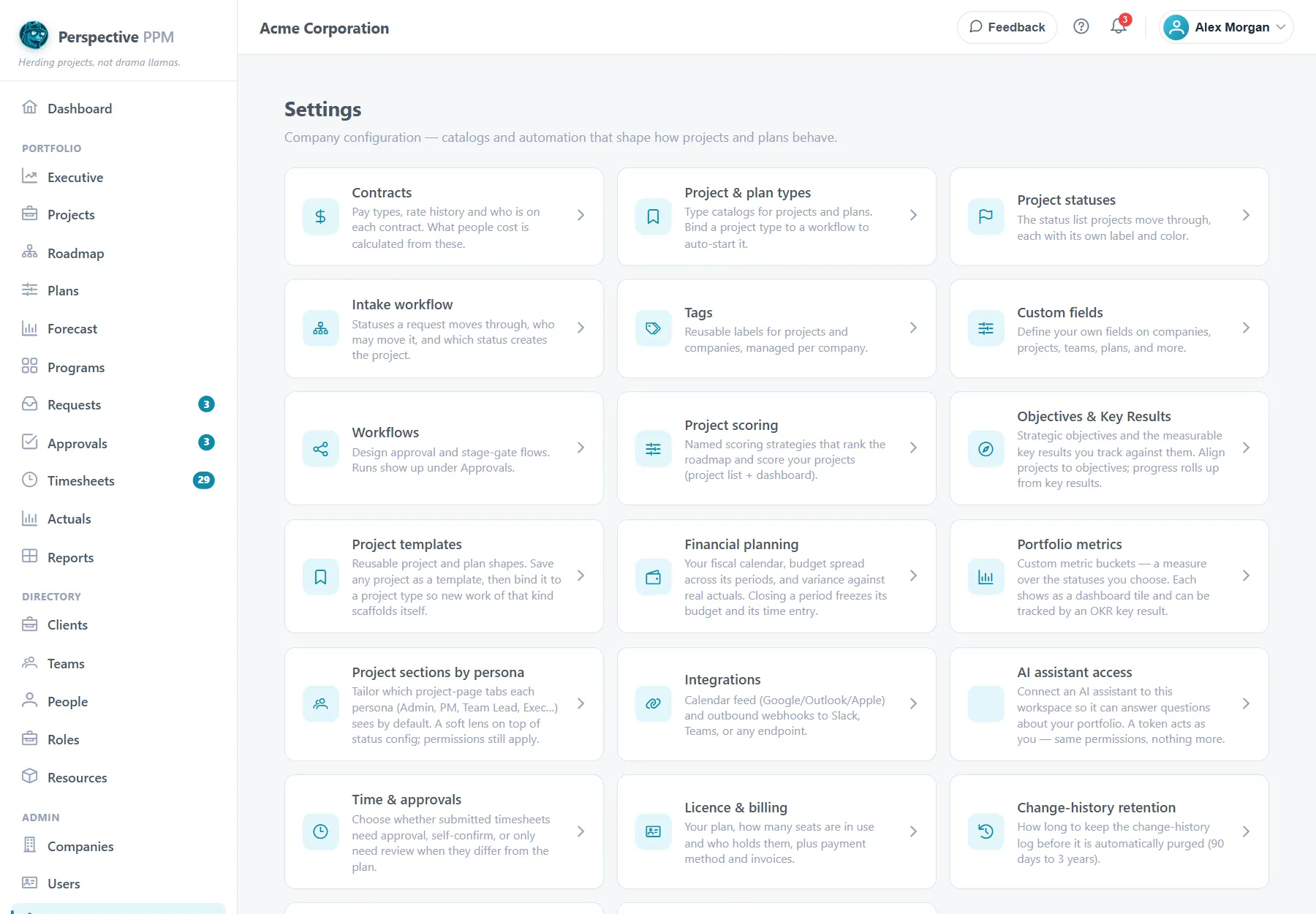
Most of what makes Perspective feel like your organisation's own is set up once, by an Admin, under Settings in the left menu. This guide goes through each part in the order most organisations need them.
Before you start
- Settings is for the Admin role.
- New organisations get a sensible starting set of statuses and types, so nothing here is required on day one. The Finish setting up card on the Dashboard suggests an order.
Project statuses
Settings, Project statuses lists the stages a project goes through. Select New status and set:
- Label and Color, shown wherever the status appears.
- Sort order: lower numbers come first in the status list.
- Lifecycle category: Not started, Active, On hold, Completed or Cancelled. This decides how projects at the status are counted on dashboards and in metrics. Projects at an Active status open in the Execution view, built for tracking delivery.
- Sections shown at this status: which parts of the project page appear at this stage. They start from the category's defaults, and money stays hidden from anyone without access to financials whatever you tick.
Deleting a status leaves any project at it with no status, so move them first.
Project and plan types
Settings, Project & plan types keeps two short lists. Every project has a project type; plans can have a plan type. Type a name and select Add.
Select the pencil on a project type to choose a workflow under Auto-start a workflow: every project created with that type then starts it. See Score projects and automate approvals.
Project templates
A template lets people start a project from one that went well: its fields, the shape of its plan, its tasks and more.
- Open a project you would happily run again and select Save as template on its details.
- Name it and choose what it carries: Project fields, Plan shape (roles and effort, optionally the named people and original dates), Tasks and dependencies, RAID entries and Custom field values.
- Optionally Make this the default for a project type, or Share with child companies.
- Select Save template.
People then use From template on the Projects list: name the project, pick the type and a Start date, and the tasks and dates shift to match. Admins manage templates under Settings, Project templates.
Custom fields
Settings, Custom fields adds your own fields to companies, projects, teams, people, resources, plans or requests. Select New field and choose:
- Domain: where it appears.
- Field type: text, number, a person, a toggle, checkboxes, radio buttons, a dropdown of your own choices, or a dropdown filled from your teams, people, projects or companies.
- Company: it applies to that company and every company below it.
- Who can see it and Who can edit it: leave empty to follow the usual rules.
- Required: a required project field is also asked for on the request form, and carries over when a request becomes a project.
The domain, type and company cannot be changed later, so get them right first.
Tags
Settings, Tags keeps a list of coloured labels you can put on projects and companies, such as "Regulatory" or "High priority".
Clients
Clients, under Directory in the left menu, records who the work is for. A PMO, PM or Admin can add one with New client: its name, a short Code, Status (prospect, active or former), Industry and, for a group, its Parent client. Open a client to add Contacts, and to see its projects, budget, revenue and margin across the whole group.
Link a project to a client by editing the project and choosing its Client. Deleting a client keeps its projects; they simply stop being linked to it.
Project sections by role
Settings, Project sections by persona narrows which parts of the project page each role sees by default, to keep pages focused. Untick a section for a role to hide it. This never gives anyone access they did not have, and people can still choose to show everything.
Portfolio metrics
Settings, Portfolio metrics adds your own number tiles to the Dashboard, such as "Budget in delivery" or "At-risk revenue". Select New bucket, choose what to Measure (a count of projects or a sum of budget, revenue or benefits), which statuses to Include, and an optional Target. Metrics can also feed objectives; see Group projects into programs and track objectives.
Passwords and history
- Password rules: minimum length, which kinds of character are needed, whether passwords expire and how many old ones cannot be reused. They apply the next time someone sets a password.
- Change-history retention: how long change history is kept, from 90 days to 3 years.
Seats and your plan
Settings, Licence & billing shows your plan, when it renews, and your seats:
- Full seats are for anyone with a role other than Contributor, including team leads and executives. Invitations count as soon as they are sent.
- Contributor seats are free and unlimited: contributors view their work and enter time, but cannot approve.
To free a full seat, disable the user on the Users page; removing their roles alone does not.
Companies, roles and resources
- Companies, under Admin: add companies below yours, such as divisions. Admin rights carry down to every company below, and a new company takes its parent's plan.
- Roles, under Directory: the kinds of work people do, such as Developer or Business Analyst. Plans ask for roles, and people are placed in them.
- Resources, under Directory: equipment and licences that cost money. See How costs are worked out.