
Appearance
Welcome to Perspective
Perspective helps your organisation decide which projects to do, plan who will do them, and see how the work is really going. This page gives you the big picture and a short path to get your workspace ready.
What Perspective does
Most organisations have more ideas than people. Perspective puts every project, every person and every hour in one place, so you can see what you have promised, who is free to take on more, and what it will all cost.
You plan the work, staff it with real people, and then compare the plan with what actually happens as time is logged.
The key ideas
A few words come up everywhere in Perspective. Once these make sense, the rest of the app follows.
Portfolio. Everything your company is working on or thinking about, seen together. The portfolio is where you rank projects against each other and decide what goes first.
Projects. A project is a piece of work you want done, such as a system upgrade or an office move. It carries the facts about the work: its name, status, type, budget and client.
Plans. A plan is one way of doing a project: which roles it needs, which people fill them, for how many hours, and over which dates. A project can have several plans, and one of them is the active plan. Projects and plans explains this in more detail.
People, teams and roles. People are the individuals you staff. Teams are the groups they belong to, such as Platform or Finance. Roles are the kinds of work you plan with, such as Developer or Business Analyst. A plan asks for roles, and you fill those roles with people.
Capacity. Capacity is how many hours someone is really available. Perspective works it out from their working schedule, company holidays, their own time off and what they are already committed to on other plans. When someone is booked beyond what they have, the totals turn red.
Time. People log the hours they actually worked. Those hours become actuals, so you can see plan against actual and spot a project drifting early. Time tracking is included on the Professional and Enterprise plans.
How the left menu is organised
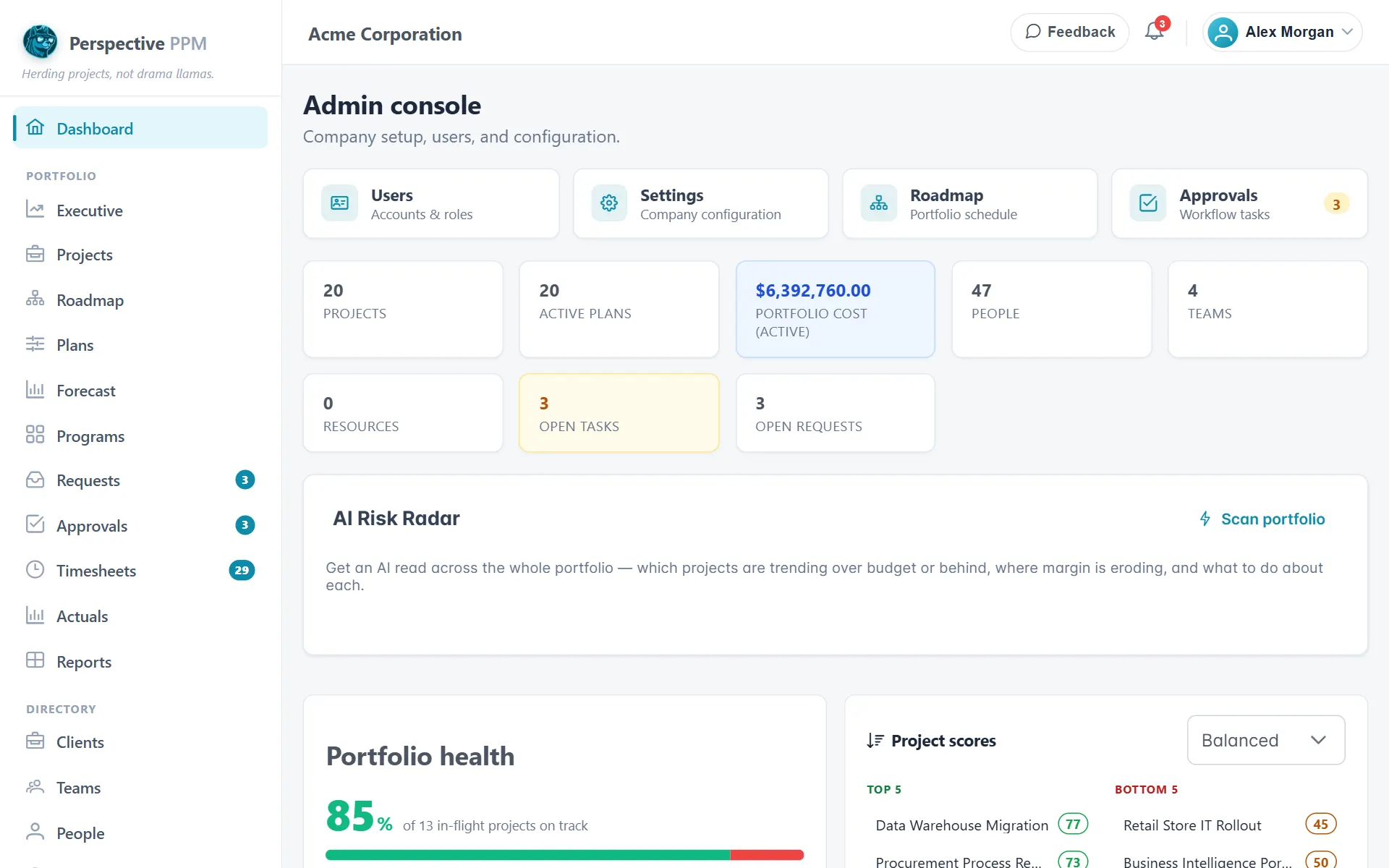
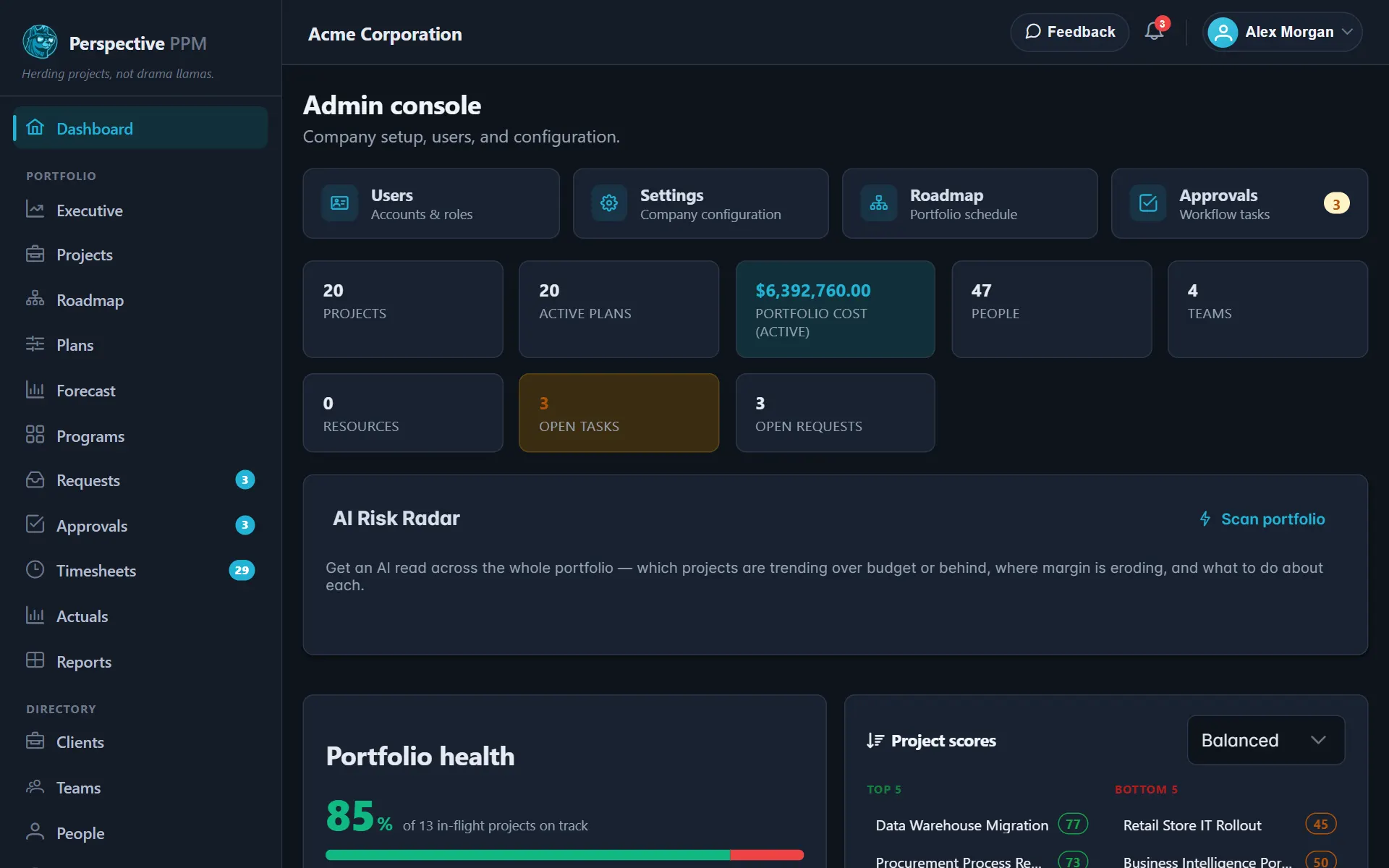
The left menu shows only what you can use, so it changes with your role and your company's plan. For most people it looks like this:
- Dashboard is your home page, with the widgets that matter for your role.
- Portfolio holds the work itself: the Executive view, Projects, the Roadmap, portfolio Plans, the capacity Forecast, Programs, Requests, Approvals, Timesheets, Actuals and Reports.
- Directory holds who and what gets staffed: Clients, Teams, People, Roles and Resources.
- Admin is for administrators: Companies, Users and Settings.
If you only log time, your menu is shorter: Dashboard, Enter time and Time off.
Your name in the top right corner opens a menu with Profile and Sign out.
TIP
If you expect to see a menu item and it is not there, it is usually your role or your company's plan. Roles and permissions lists who sees what.
Your first week
If you are setting Perspective up for your company, this order works well because each step gives the next one what it needs.
- Add your people. Import your roster from a spreadsheet, or add people by hand, so you have teams and roles to plan with. See Add your people.
- Invite your users. Give your project managers, team leads and executives a login and the right role. See Invite users and set roles.
- Create your first project. Walk through the project wizard and give the project a plan. See Create your first project.
As you go, the Finish setting up card on your Dashboard keeps track of what is done and what is left.