
Appearance
Build a roadmap
A roadmap answers "what should we start, and when?" for work that has not begun yet. The optimizer proposes a schedule that respects what each project waits on and who is available, and you shape the result by hand before anything changes on the real projects.
Before you start
- You need portfolio governance, which the PMO and Admin roles have.
- The optimizer can only be as good as what it knows. For each project, check:
- It has at least one plan with a duration.
- Blocked by lists the projects that must finish first.
- Schedule buffer is set if this project needs more slack than your company's default.
- Projects that are already active or closed cannot go on a roadmap. A roadmap plans work that has not started.
Steps
Create the roadmap
- Open Roadmap in the left menu, under Portfolio.
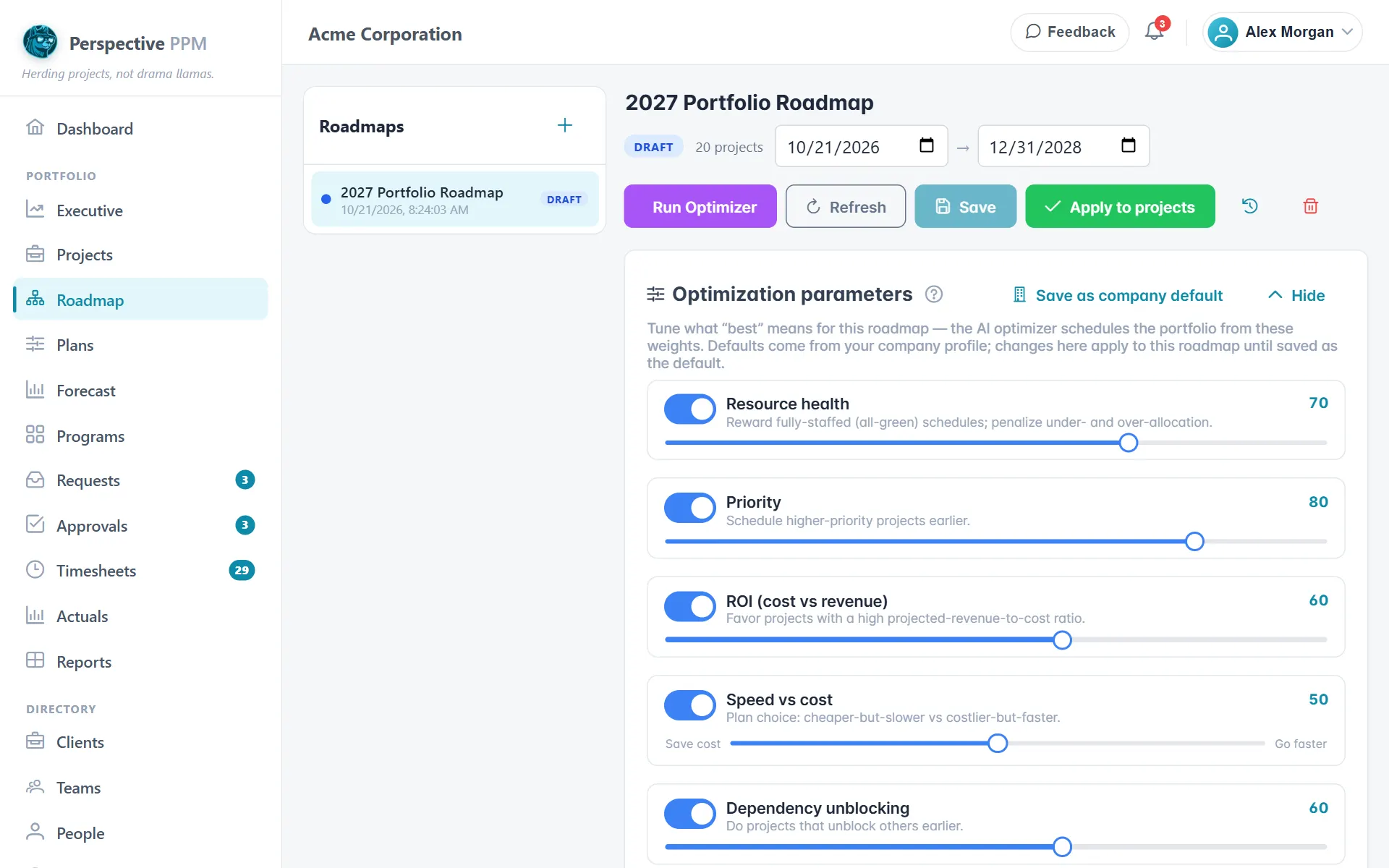
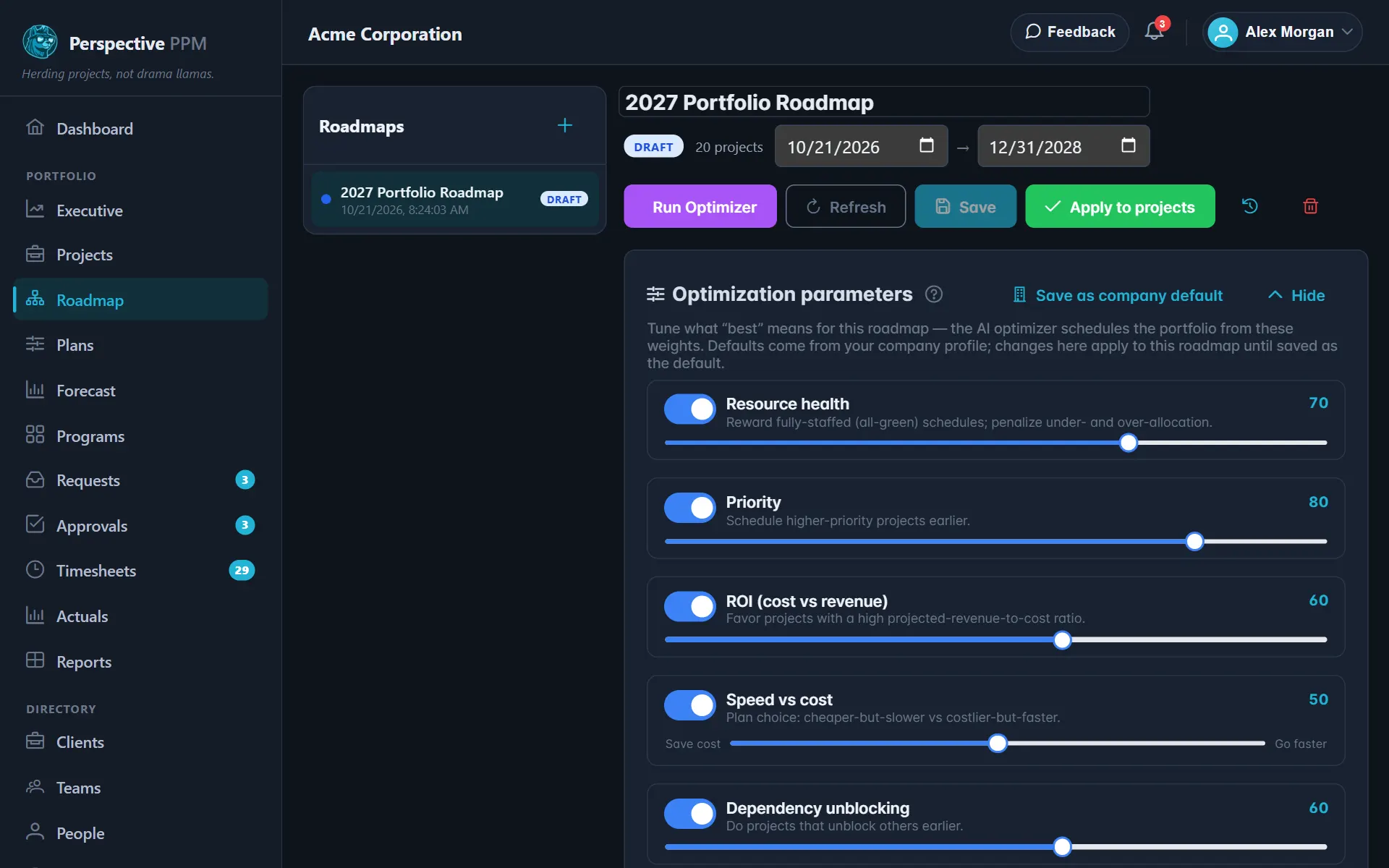
- Click the + button next to Roadmaps.
- Give it a Name, tick the Projects to include, and click Create roadmap.
- Set the date window at the top so the schedule shows the period you care about.
Tell the optimizer what matters
- Open Optimization parameters. Pick a Strategy such as Balanced, Max ROI, Fastest, Resource-safe or Strategic-first, or switch individual factors on and off and move their sliders.
- If you want every roadmap to start from these settings, click Save as company default. Only admins see this button.
Run the optimizer
- Click Run Optimizer and choose AI optimize. It usually takes under a minute, and you can leave the page while it works.
- When it finishes, Optimizer changes lists each project it moved and why. The changed projects are highlighted on the schedule.
- Click Save changes to keep this version, or Discard to throw it away.
Adjust it by hand
- On the Schedule, drag a bar to move a project, drag its right edge to change its length, or drag the handle on the left to change its priority.
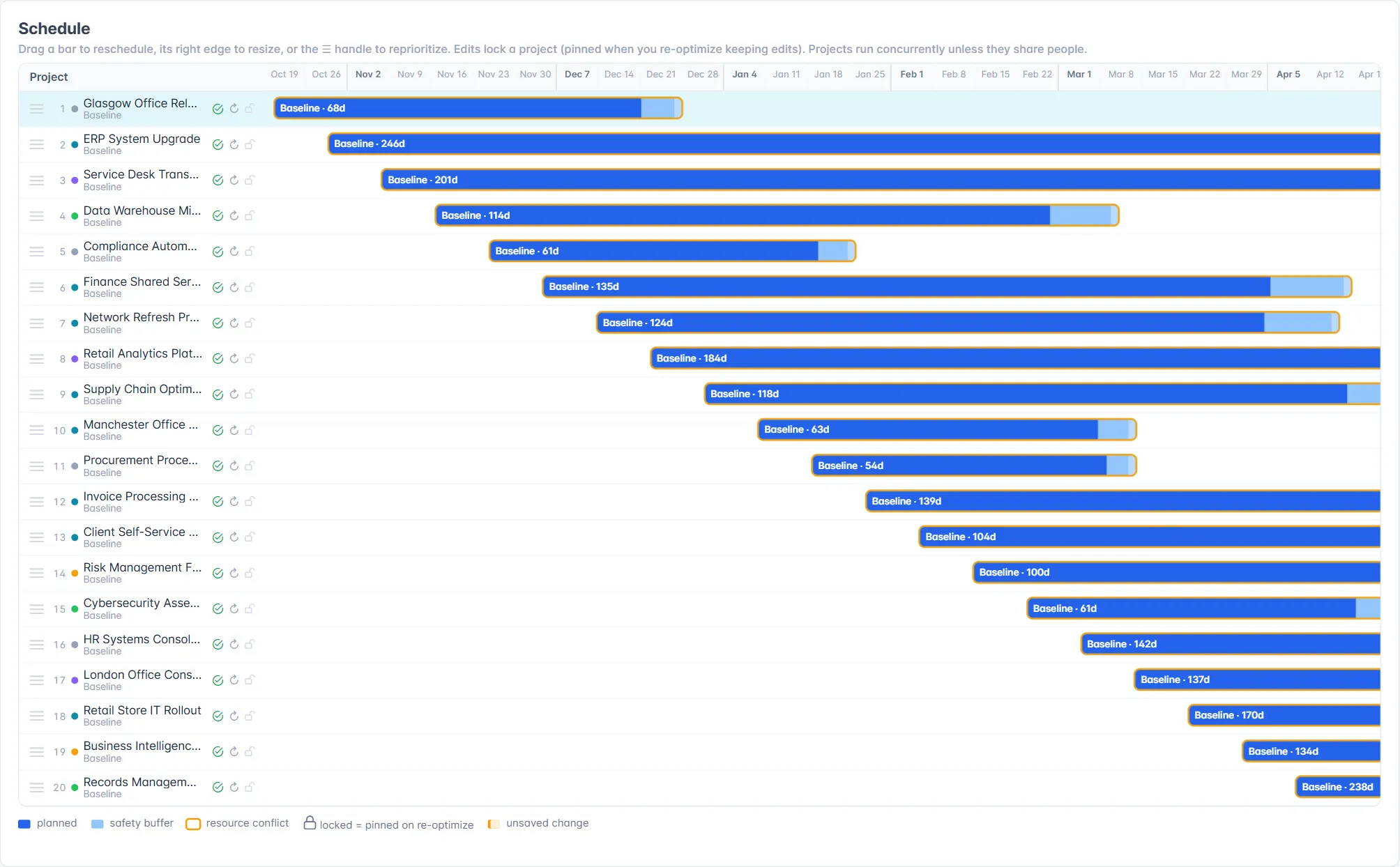
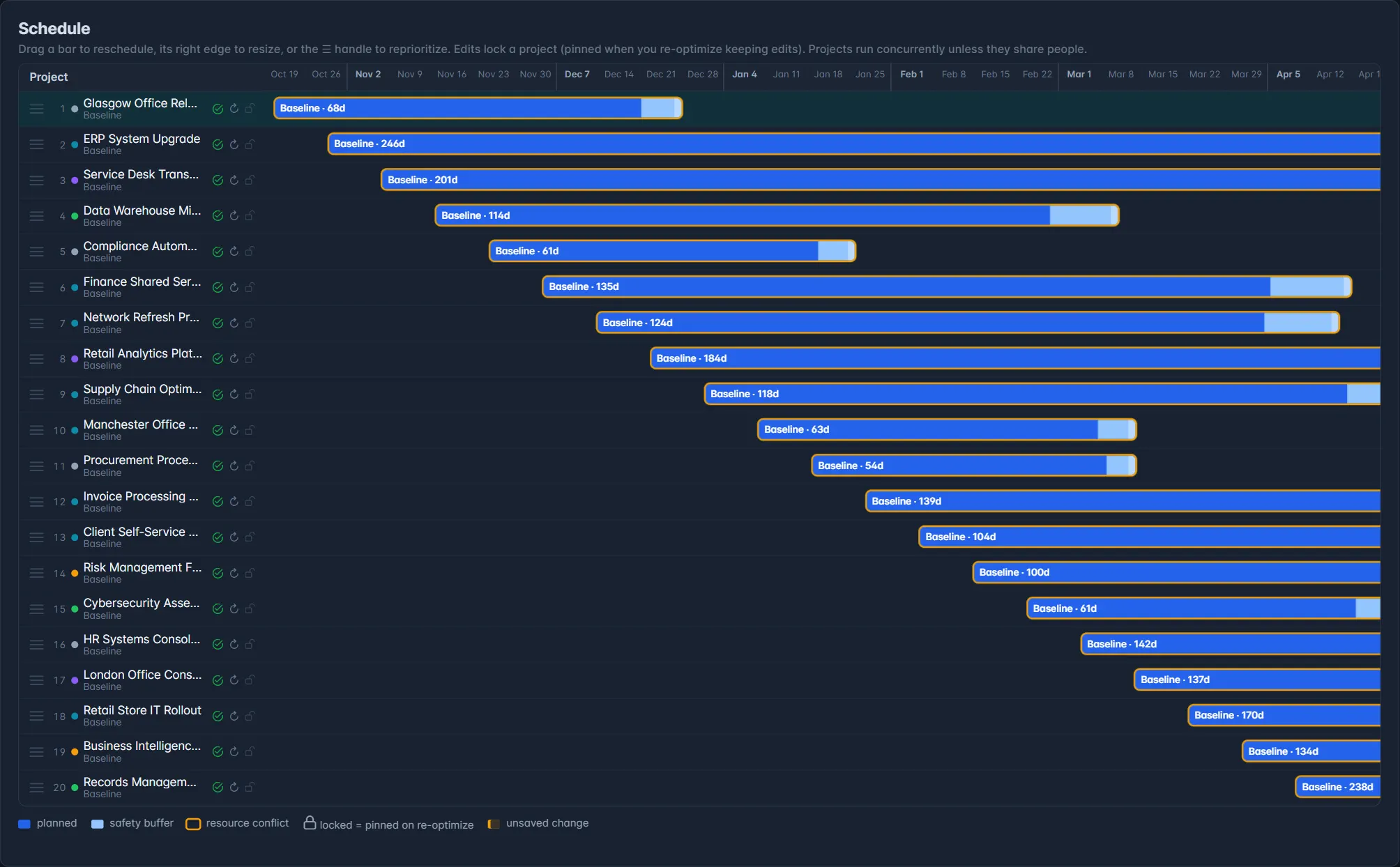
- Anything you move is locked, shown by a lock icon. Click the icon to lock or unlock a project yourself.
- To re-run the optimizer without losing your hand edits, click Run Optimizer and choose Keep my locked edits.
- Click Save to keep your changes.
What the optimizer considers
- Dependencies: a project never starts before every project it is blocked by has finished.
- People: projects run side by side unless they share teams. When Resource health carries real weight, projects that share teams are kept apart so no one is double booked.
- Buffer: each bar includes the project's schedule buffer, shown as safety buffer in the legend, so the plan is not packed to the last day.
- Your priorities: the strategy and factor weights you chose, such as Priority, ROI (cost vs revenue), Deadline urgency and Risk (RAID).
Review before you apply
Below the schedule, switch between Selected project plan, to see the staffing of whichever project you clicked, and Portfolio resource load, to see every person's weekly hours against their capacity across the whole roadmap. Use Plan to pick a different plan for a project if you prefer it to the optimizer's pick.
When you are confident, click Apply to projects.
WARNING
Applying changes the live projects. For each project, the plan the roadmap chose becomes its active plan, with the roadmap's start date. Everyone who works on those projects sees the change.
TIP
Every time you save, the roadmap keeps that version. Click the history icon to see Saved iterations and Restore an earlier one. Refresh reloads live data and discards unsaved edits, so save first.