
Appearance
Set up and run a team
Teams are how Perspective knows who works together and who leads them. A team's lead manages its people, books their time off and approves their timesheets, and plans draw on the team's people.
Before you start
- A Team Lead or Admin can create a team. After that, a team is managed by its lead and by Admins.
- Everyone with access to planning can see teams and their members.
Create a team
- Open Teams in the left menu, under Directory, and select New team.
- Enter a Team name and, if you like, a Description.
- Under People, pick anyone you already have who belongs on the team. They join at 100% of their time; you can change that on the team's page.
- Select Create team.
Then set its lead:
- On the team's page, select Edit team.
- Choose the Lead. The list shows the team's members, so add the person to the team first.
- Select Save.
TIP
If you are a Team Lead creating a team, ask an Admin to make you its Lead. You see the teams you lead, so a team without you as lead will not appear in your list.
Add people
In the Members card on the team's page:
- New person creates someone and adds them to the team in one step. Enter their name, Email, Role, Skills and Allocation % on this team. Tick Create a login & email an invite if they should be able to sign in and log their time.
- Add existing adds people you already have.
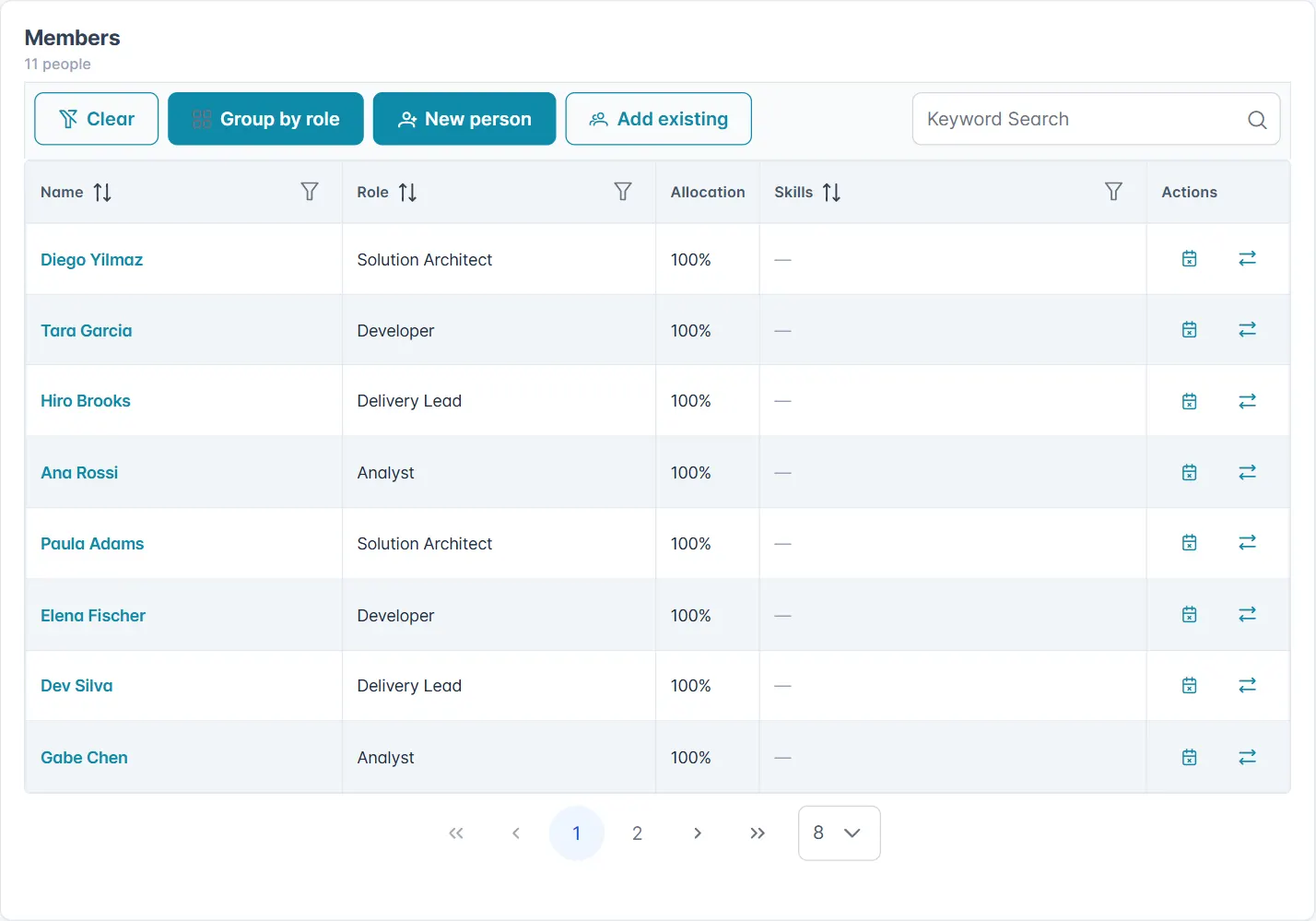
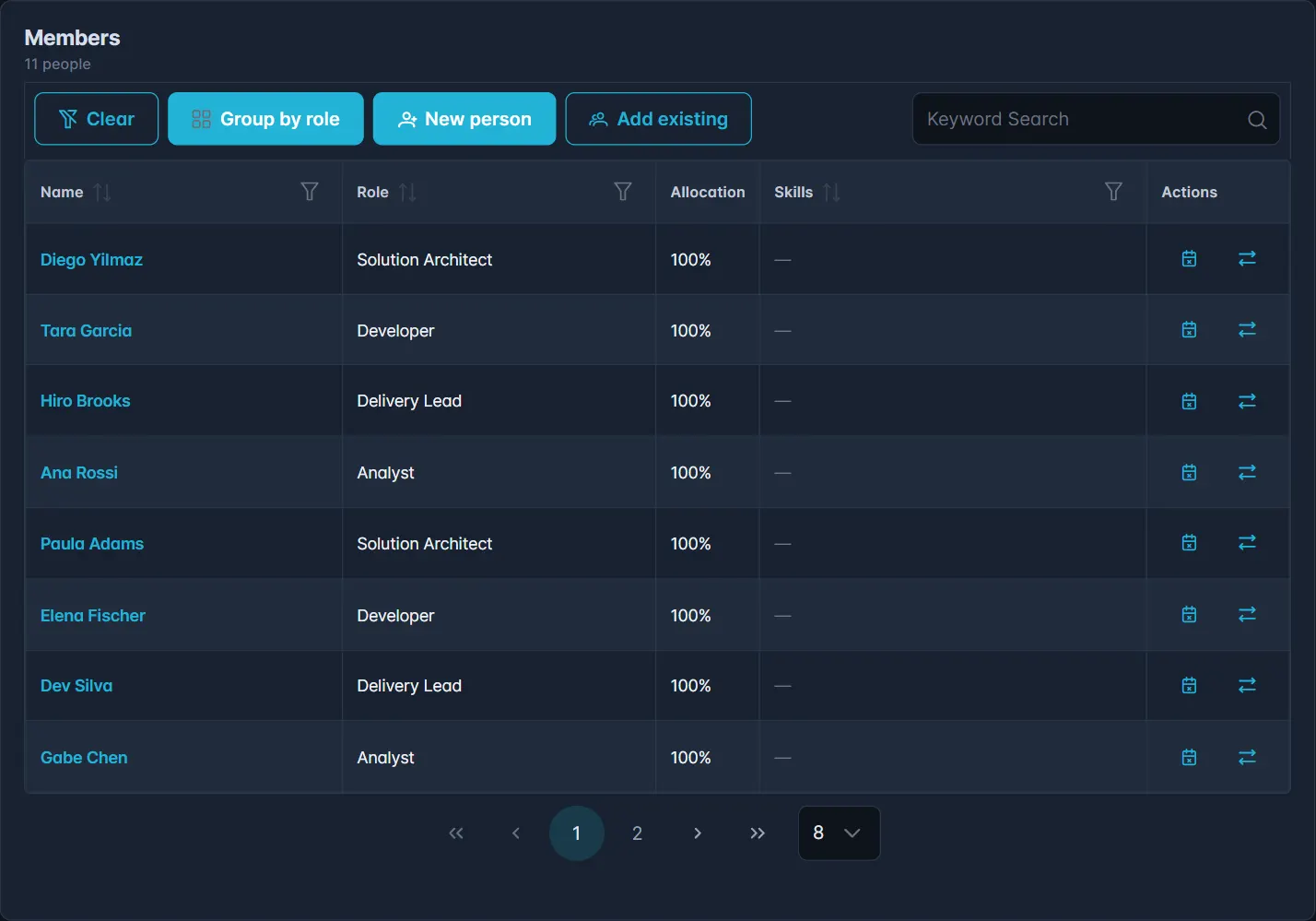
Allocation is the share of each person's time that belongs to this team, for people split across teams. Group by role sorts the list by role. Click a name to open the person's page, where you can change their role, skills and working hours.
Add equipment and licences
Under Resources & equipment, select New resource to record something the team uses that costs money: a software licence (a cost per unit) or equipment (a yearly cost). Resources can then be added to plans, so their cost shows in the plan's total.
Lend someone to another team
When someone has time to spare, lend part of it to another team for a while.
- In Members, select the loan icon next to the person.
- Choose the team To team, the Start and End dates, and % of time.
- The window shows the most you can lend: what is left after their time off, plan bookings and other loans. Stay within it.
- Select Loan out.
The person appears on the other team as a Temporary member for those dates, and that team can book them on its plans.
To move someone to another team for good, turn on Transfer permanently (move to this team) and select Move to team. This cannot happen while the person is still booked on plans from the start date onward: the window lists those plans so you can take them off first.