
Appearance
Share and schedule a report
A report is private to you until you share it. You can share it in three ways: with everyone in your company, by a public link anyone can open, or by email on a regular schedule.
Before you start
- The report must be saved. Sharing and Email schedule appear once it is.
- Anyone who can build a report can share it inside the company.
- A public link needs the PMO or Admin role.
- Email schedules need the PM, PMO or Admin role, and you must own the report (a PMO or Admin can schedule any report).
Share it with your company
- Open the report and select Sharing.
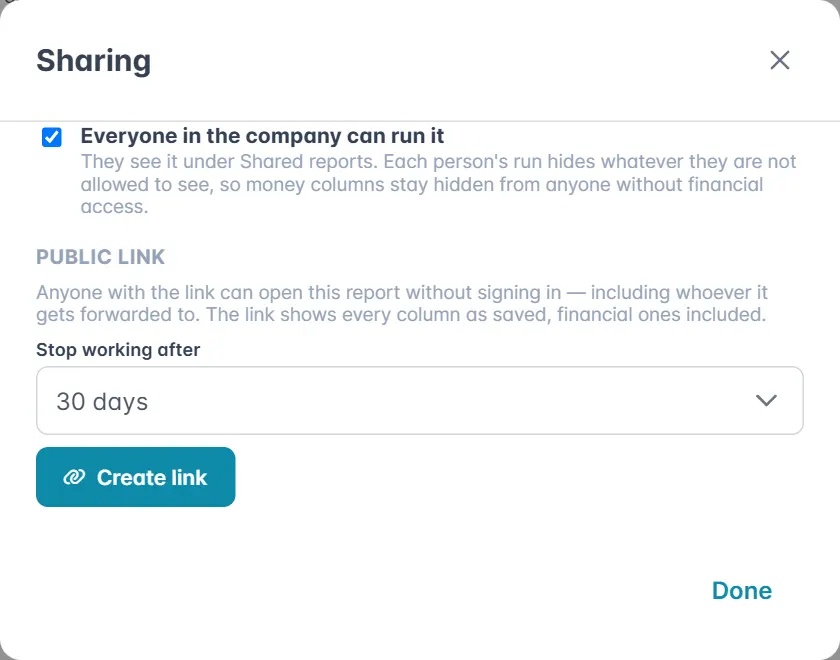
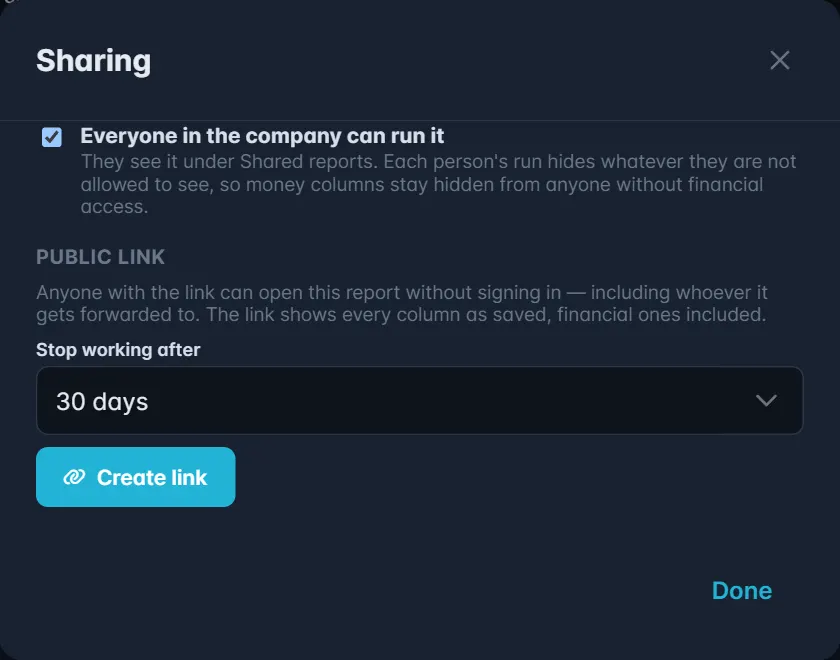
- Tick Everyone in the company can run it. It is saved straight away.
The report appears under Shared with me on everyone else's Reports page. Each person sees it through their own permissions, so money columns stay hidden from anyone without access to financials.
Share it by public link
A public link opens the report without signing in, for people outside Perspective such as a sponsor or a client.
- In Sharing, under Public link, choose when it should Stop working after: 7 days, 30 days, 90 days or Never.
- Select Create link, then copy it and send it.
Whoever opens the link sees a read-only page with the report's chart and rows, as they are at that moment. The data is live: each time the link is opened, the report runs again.
WARNING
A public link shows every column as the report was saved, including money columns, to anyone who has the link, including anyone it is forwarded to. Remove columns you would not want shared before you create the link.
Sharing also shows when the link expires and how many times it has been opened.
- Turn off stops the link working.
- Replace link gives you a fresh link and stops the old one. Use it if a link has gone somewhere it should not have.
Someone who opens a link that has expired or been turned off sees a page saying the link is not available.
Email it on a schedule
- Open the report and select Email schedule, then Add a schedule.
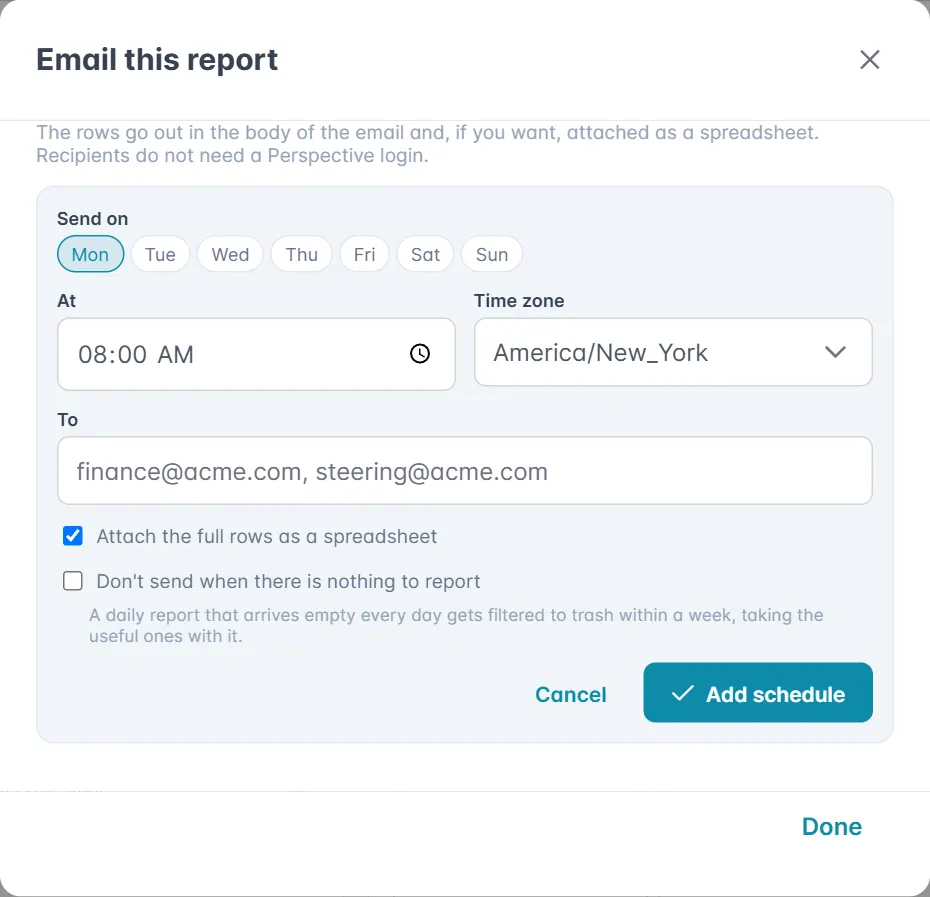
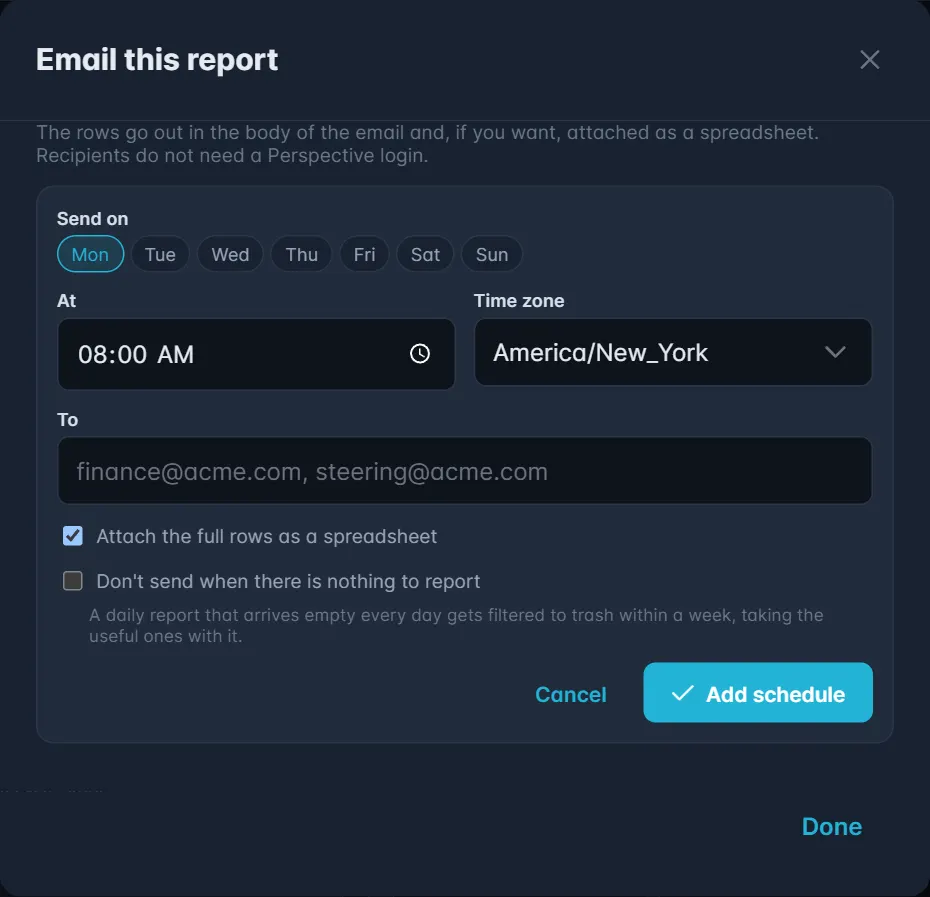
- Under Send on, pick the days of the week.
- Set the time under At and choose your Time zone.
- Under To, type the email addresses, separated by commas. Recipients do not need a Perspective sign-in.
- Choose the options:
- Attach the full rows as a spreadsheet adds every row as a file the recipient can open in Excel.
- Don't send when there is nothing to report skips the email when the report is empty. Good for a daily report that is usually empty.
- Select Add schedule.
The email shows the first rows of the report, with a link to open it in Perspective. It goes out at the time you chose or within a few minutes after.
To stop a schedule for a while, untick On next to it; tick it again to restart. To stop it for good, delete it with the bin icon.
WARNING
Like a public link, a scheduled email includes every column as saved, money columns too, and it can go to any address. Check the columns and the recipients before you add it.
See who has used a report
The Activity panel at the bottom of a saved report lists the latest views, exports, link opens and emails, so you can see how a shared report is being used.