
Appearance
Add your people
Plans are staffed with real people, so your roster is the first thing Perspective needs. The quickest way is to import the spreadsheet you already keep. You can also add people one at a time.
Before you start
- To add people you need the Admin or Team Lead role.
- Any spreadsheet works: an export from your HR system, a directory export, or a list you keep yourself. There is no template to fill in.
Roles and teams are different things
It helps to know these two ideas before you import, because your spreadsheet probably has a column for each.
Roles are the kinds of work you plan with, such as Developer, Designer or Business Analyst. A role is the capability, not the person. When you build a plan, you ask for roles, and then fill them with people. Your roles live on the Roles page in the left menu.
Teams are the groups people belong to, such as Platform, Finance or Support. A team has members and a lead, and teams are attached to plans to say who is doing the work. Your teams live on the Teams page.
So one person has a role (what they do) and belongs to one or more teams (who they work with). A Developer might sit in the Platform team, and another Developer in the Mobile team.
Import a roster from a spreadsheet
When you first sign in to a workspace that has no people yet, Perspective opens a screen called Let's fill your workspace. You can also start an import later from the Finish setting up card on your Dashboard: select Import next to Roles, teams and people.
- On Let's fill your workspace, choose Import a file.
- Drop your file into the box, or click it to choose one. Perspective accepts CSV, XLSX or XLS files up to 5 MB, with any columns in any order.
- Check the mapping. For each of your columns you see Your column, a few Sample values, and what Perspective thinks it Maps to. The Confidence column shows Certain, Best guess or No match.
- Change any mapping that is wrong using the Maps to list. You can map columns to Person name (or First name and Last name), Email, Role, Team, Capacity, Pay type, Annual salary, Hourly rate, Cost rate and Start date. Choose Ignore for a column you do not need, or Custom field to keep it as an extra field on every person.
- Select Preview. You see how many people will be added or updated, and how many teams and roles will be created from your file.
- Decide whether to tick Give these people a login. With it ticked, each person with an email address gets an invitation to sign in and record their own time. These are contributor logins, which are free, so they do not affect your bill.
- Look over any rows that will be skipped, and the reason for each. If something looks wrong, select Back to mapping.
- Select the Import button. It shows how many people will be imported.
- When the summary appears, select Done, or Import another file if you have more.
A name is the only thing every row must have. Without an email column, people are still added for planning, they just cannot be given a login.
TIP
Include a Role and a Team column if you can. Perspective creates any roles and teams it does not have yet, so one import sets up all three at once.
TIP
If you choose I'll set it up myself on the setup screen, you go straight to the app. You can still import later from the Finish setting up card.
Add a person by hand
- Open People in the left menu.
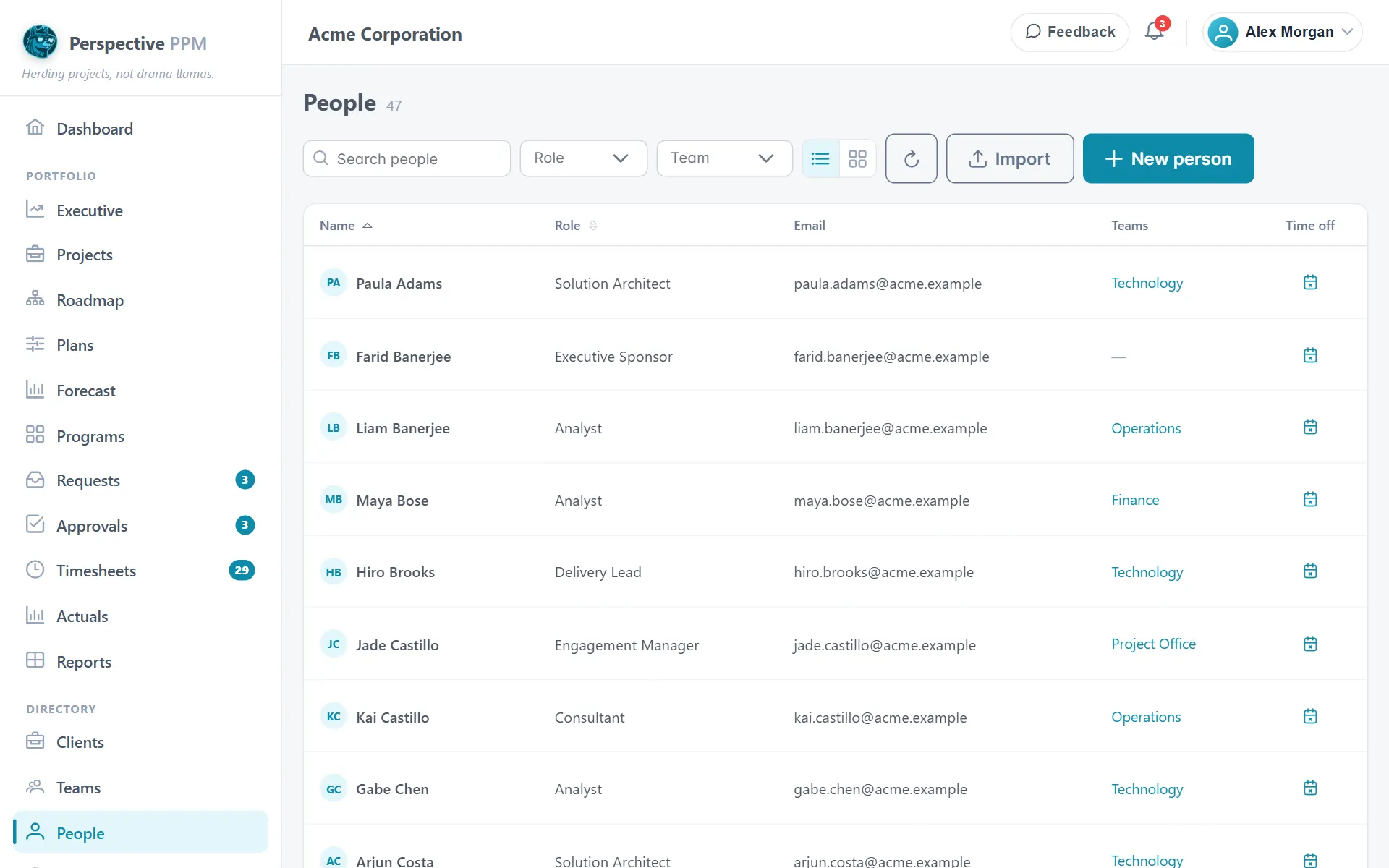
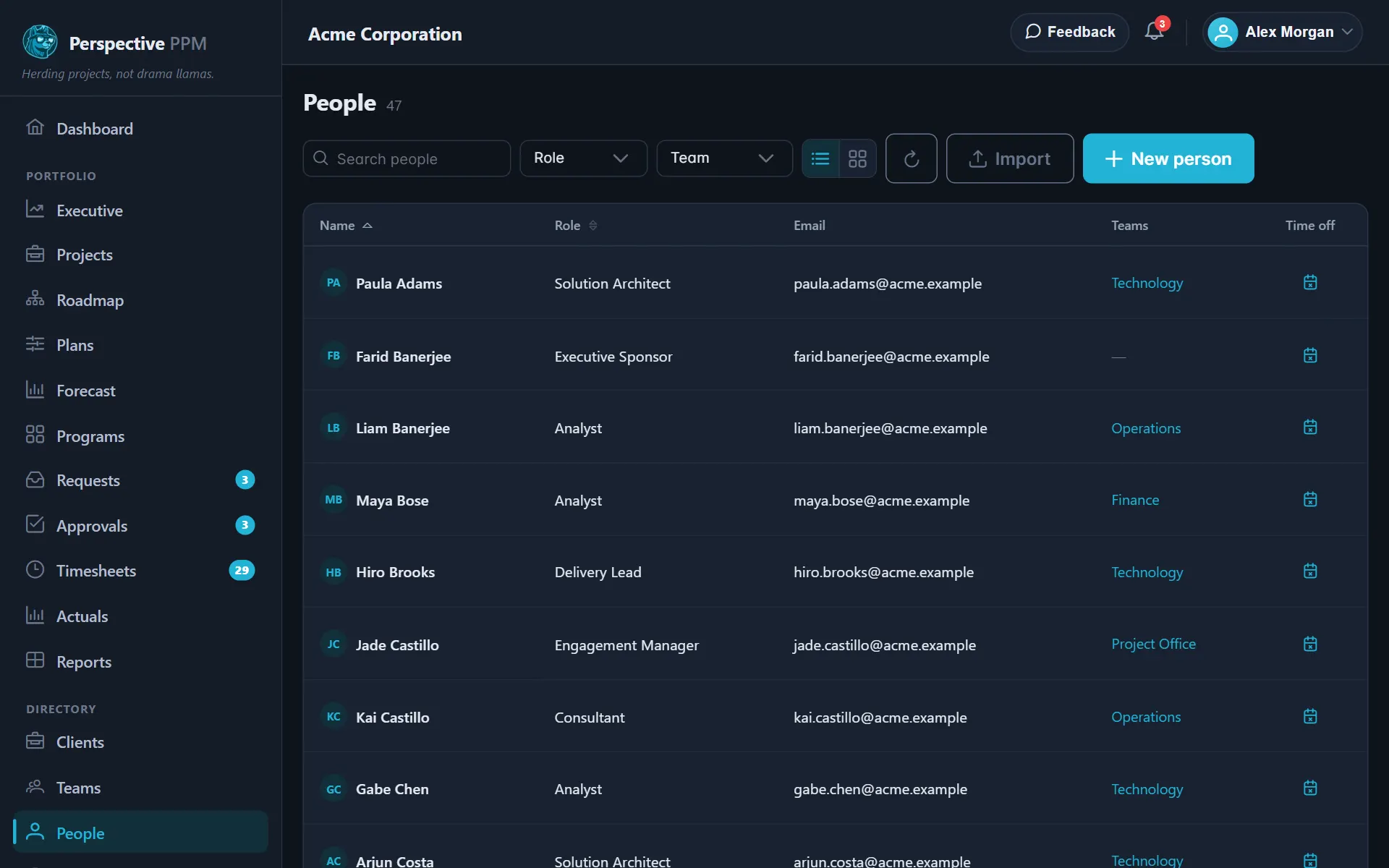
- Select New person.
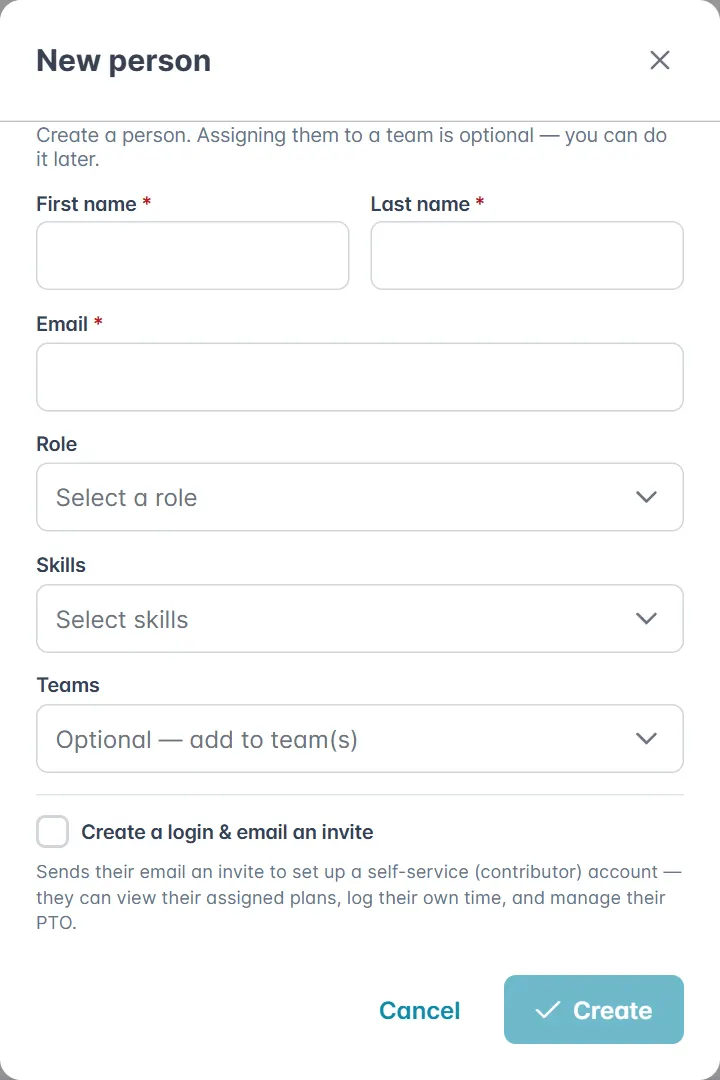
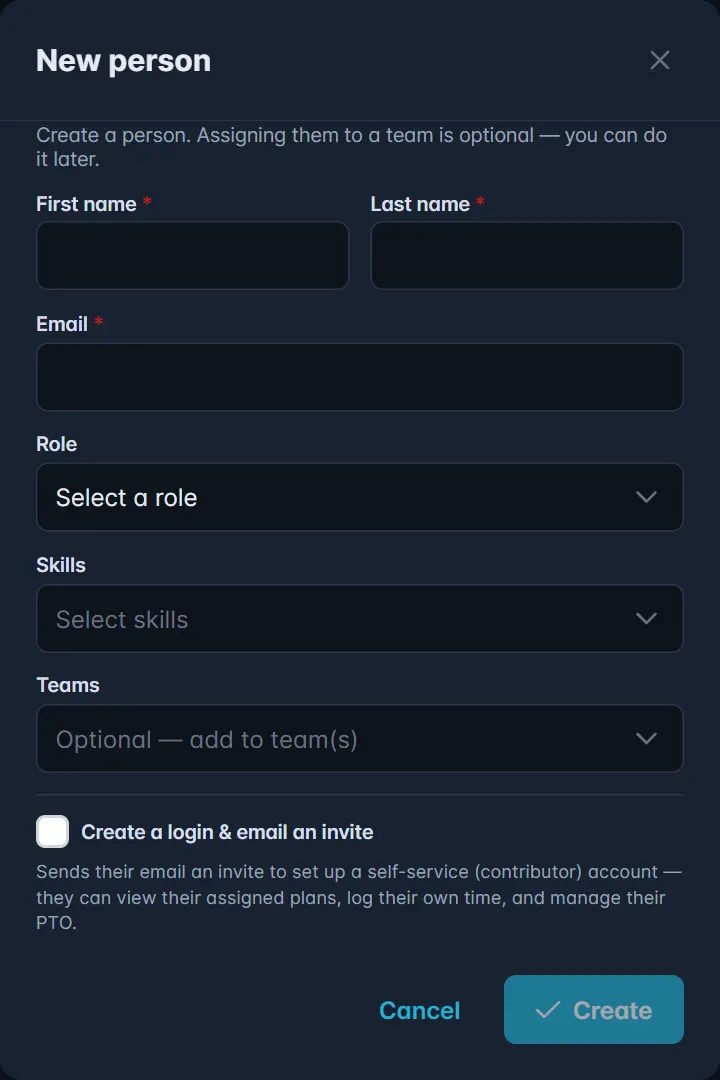
- Fill in First name, Last name and Email.
- Choose their Role, any Skills, and the Teams they belong to.
- To let them sign in, tick Create a login & email an invite. They get an email inviting them to set up a contributor account, so they can see their assigned plans, log their own time and manage their time off.
- Select Create.
You can also add someone from a team's page: open the team, then in the Members card select New person, or Add existing to add someone already in Perspective.
Add a role
If you need a role that is not on the list yet:
- Open Roles in the left menu.
- Select Add role.
- Give it a Name that describes the work, such as "Data Engineer", not a person's name.
- Add a Description and a Category if you like. The category groups roles together when you staff a plan, so it is worth keeping consistent.
- Select Save.
Adding roles needs the Admin role.