
Appearance
Compare portfolio options and plan the budget
Three screens help leaders decide where the money goes: the Executive portfolio shows where it goes today, portfolio plans model what to fund under a budget, and Financial planning spreads the budget across the year.
The executive portfolio
Open Executive in the left menu. For a C-suite user, Dashboard opens it directly. It needs the Enterprise plan and access to financials.
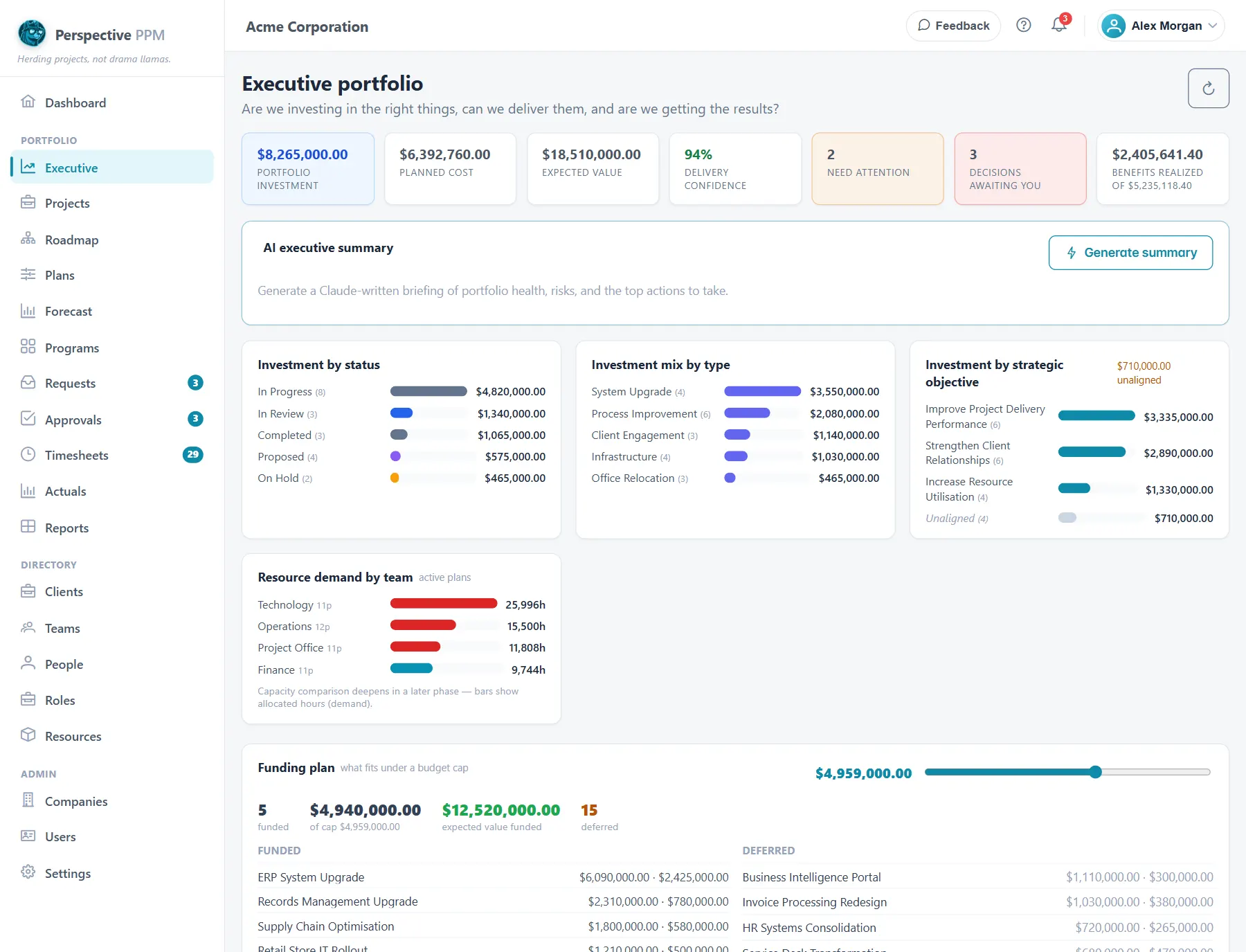
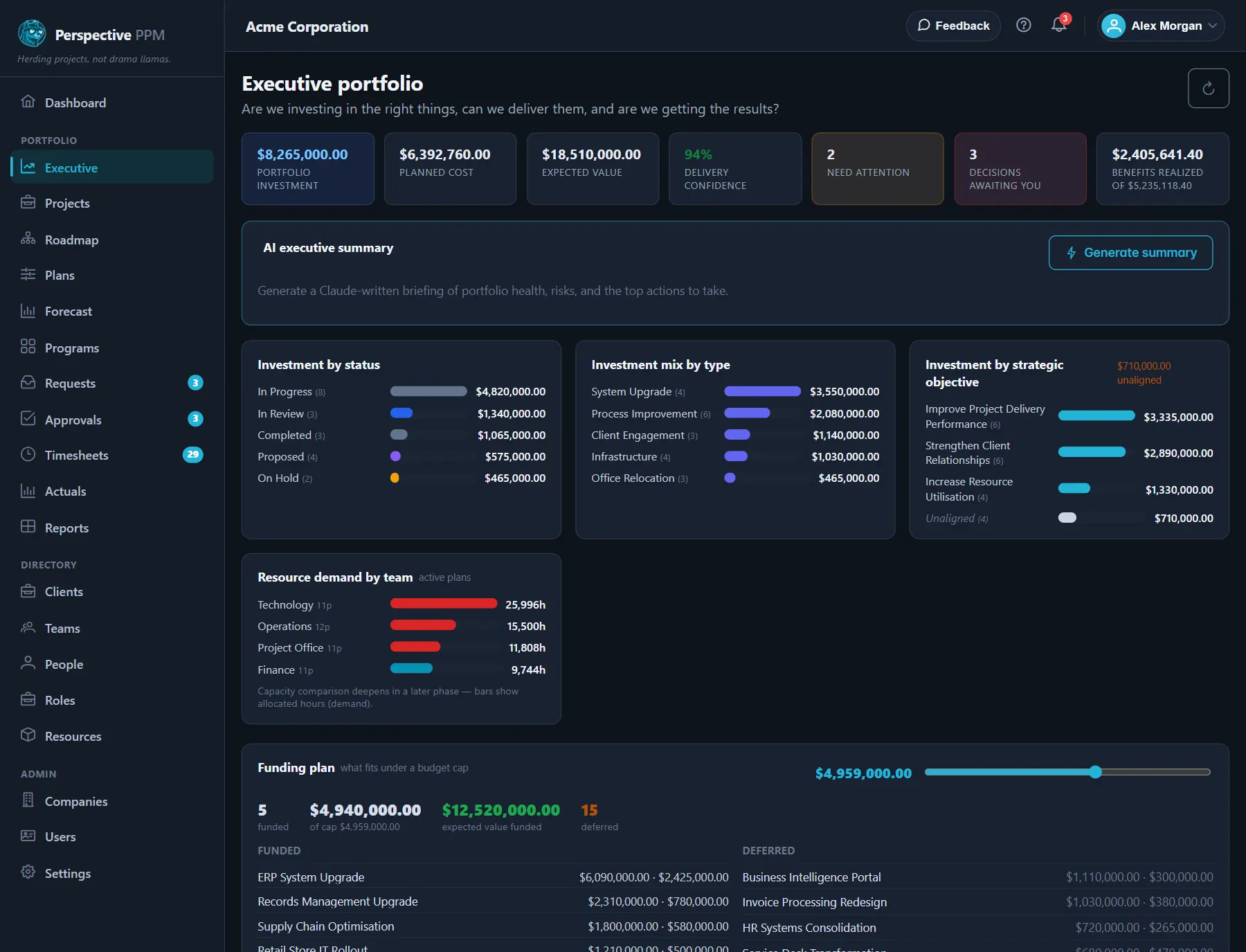
- Headline numbers: total investment, planned cost, expected value, Delivery confidence (how much of the investment is in projects that do not need attention), and the decisions waiting for you.
- Where the money goes: investment by status, by project type and by strategic objective, with any unaligned amount, and demand on each team.
- Initiatives needing attention: projects on hold, at risk, over budget or with no active plan.
- Top portfolio risks and dependencies between projects.
- Funding plan: drag the slider to a budget and see which projects would fit, best value first. It is a quick sketch and is not saved; use a portfolio plan to keep one.
- Generate summary writes a short summary of the portfolio for you.
Model what to fund with portfolio plans
A portfolio plan answers "if we had this budget, which projects would we fund?" It never changes your projects, so you can try as many as you like. You need the PMO or Admin role.
- Open Plans in the left menu, under Portfolio, and select New plan.
- Give it a Name and a Description.
- Set a Budget cap, or leave it empty to fund everything.
- Choose how to Rank by: Value per unit of budget, Expected value or Priority.
- Set Horizon from and Horizon to: the window to check staffing over.
- Select Save, then click the plan's name to see the result.
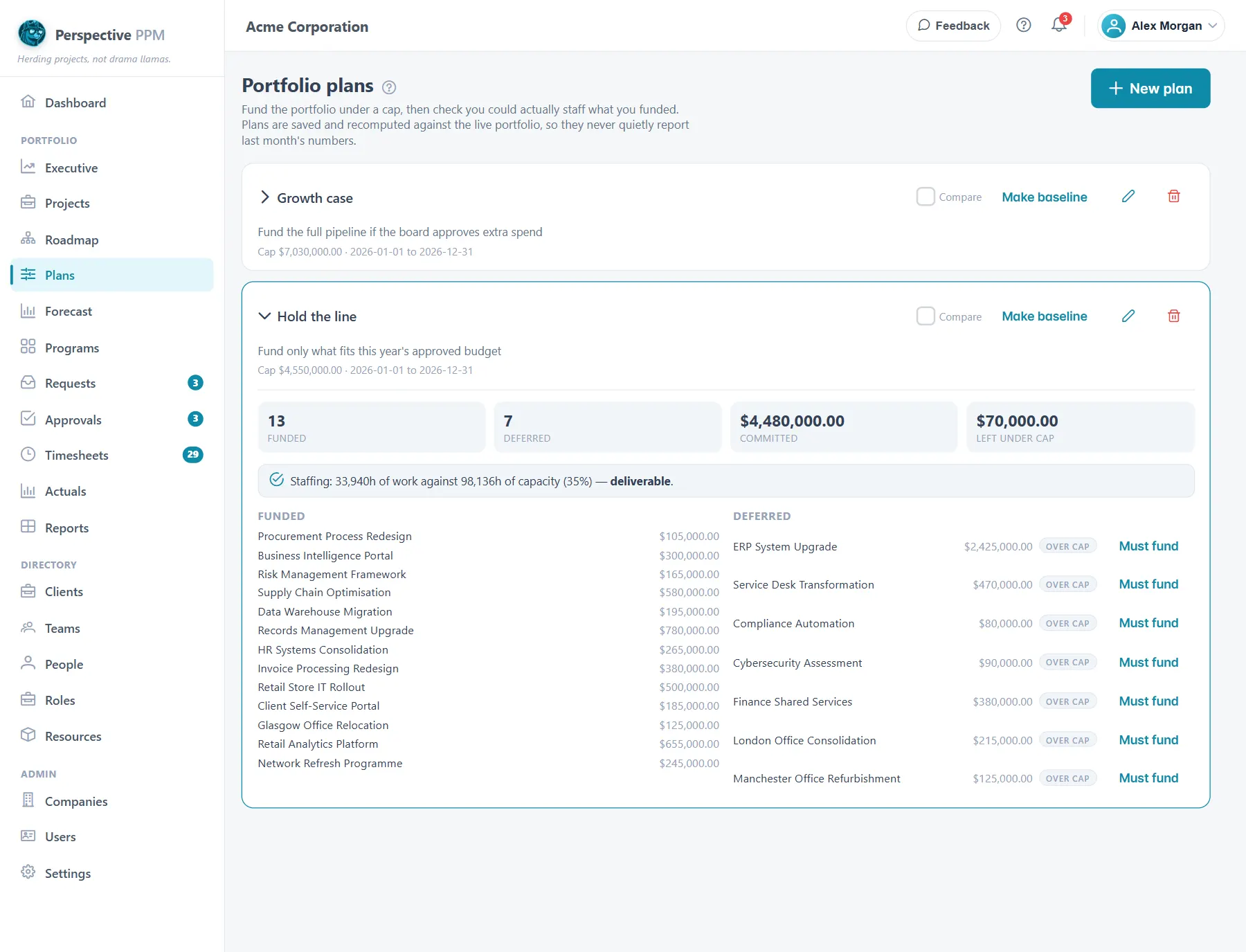
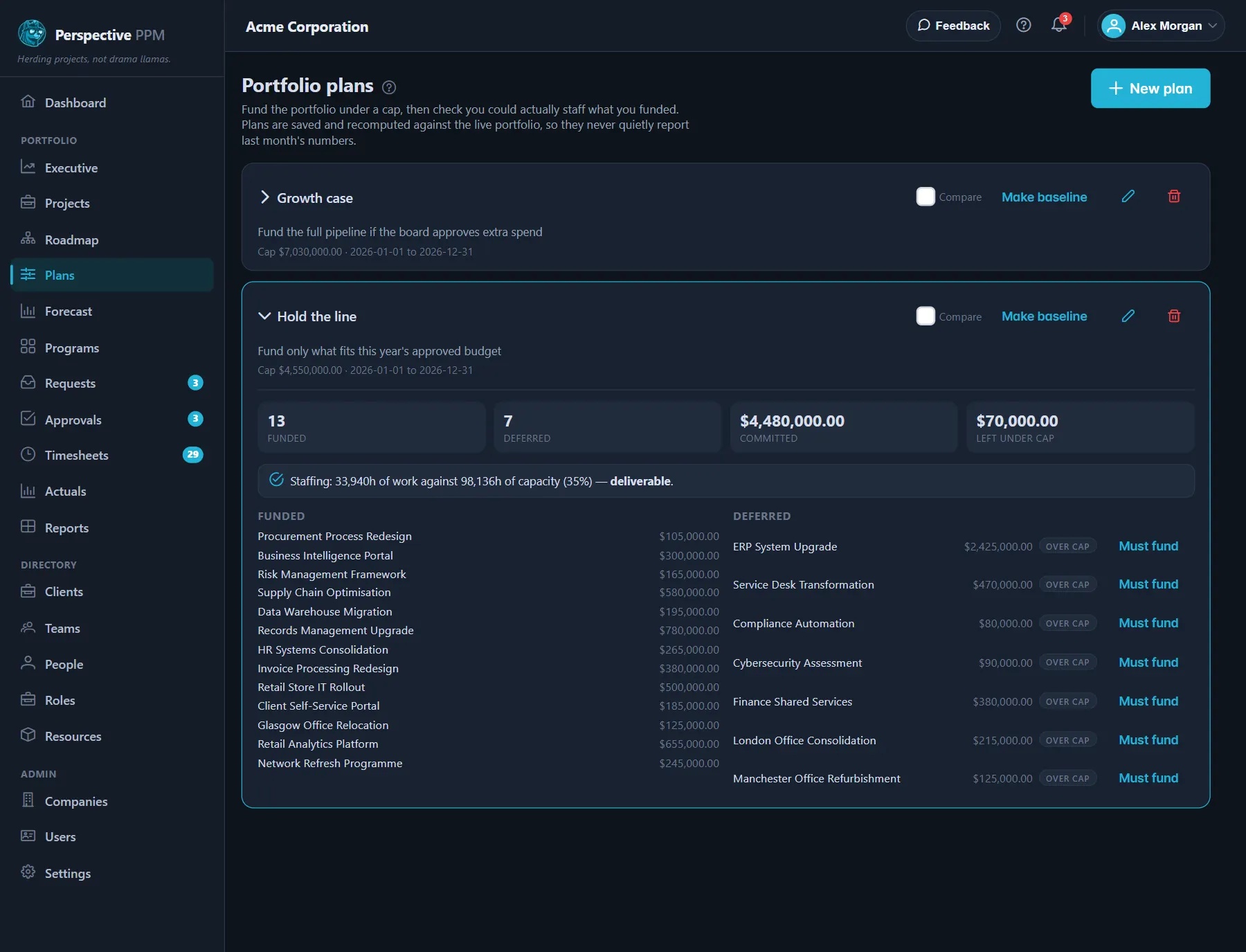
The plan funds projects in rank order until the budget runs out, and shows:
- Funded and Deferred projects, with what is Committed and Left under cap.
- Staffing: the work in the funded projects against the capacity you have in the window, and whether that is deliverable, tight or more work than people.
To fund a deferred project anyway, select Must fund on it. Must-fund projects come first, even if that goes over the cap.
Compare plans
Tick Compare on two or more plans, then select Compare. The table shows what each funds, what it commits, its expected value and its staffing, and Where they disagree lists the projects one plan funds and another does not.
When a plan is agreed, select Make baseline to mark it as the one you are working to.
TIP
Plans recalculate from live data each time you open them, so a plan made last quarter shows today's numbers. Value is each project's potential revenue, so keep that up to date for the ranking to mean something.
Spread the budget across the year
Financial planning sets each project's budget for each month or quarter, and compares it with what was actually spent. It is part of the Professional plan. An Admin sets it up; people who can see financials can look.
- Open Settings, Financial planning.
- Set Fiscal year starts in, then select Generate periods. This creates the year's months and quarters.
- Choose the year and Months or Quarters.
- Type each project's budget into its periods, then select Save.
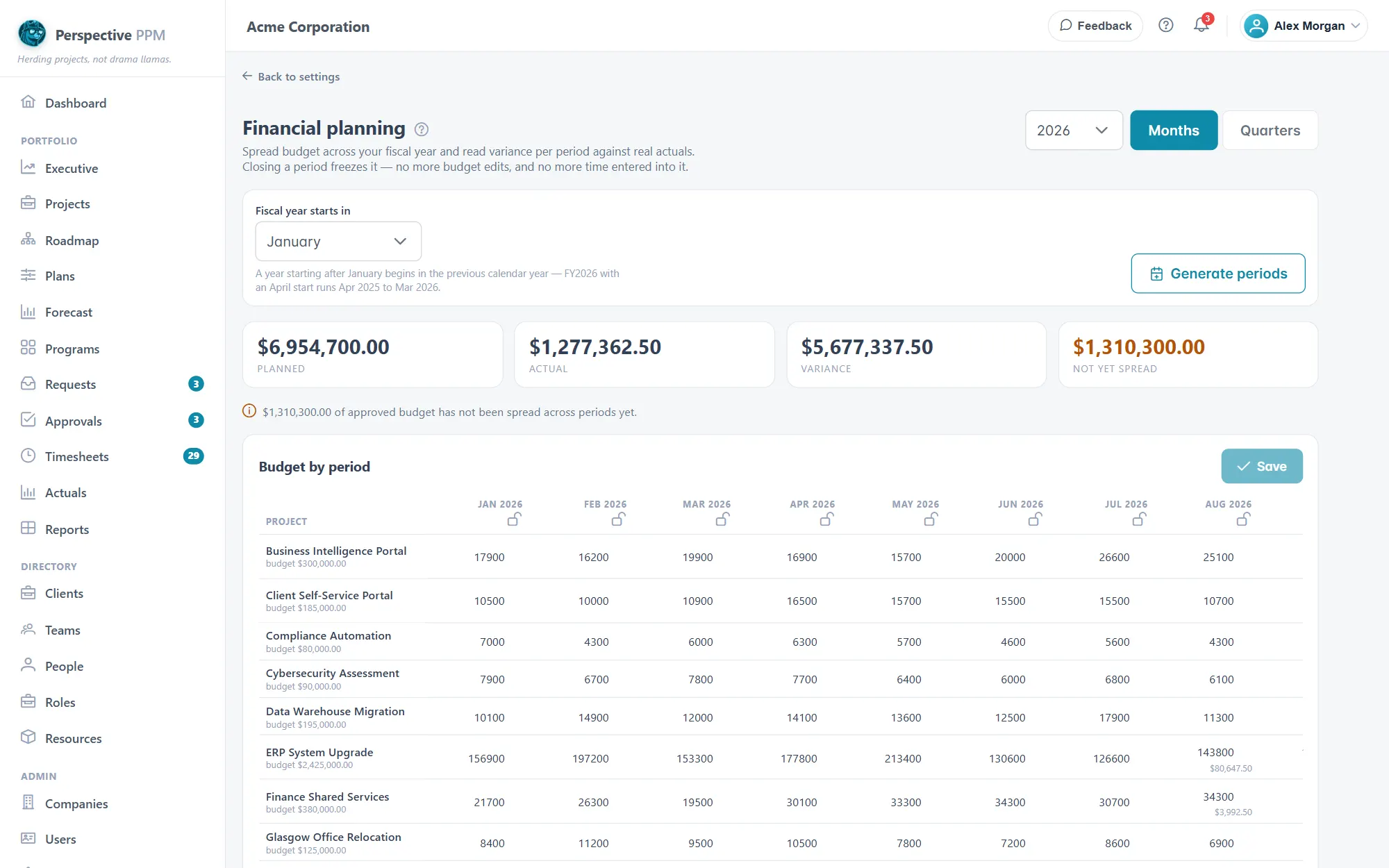
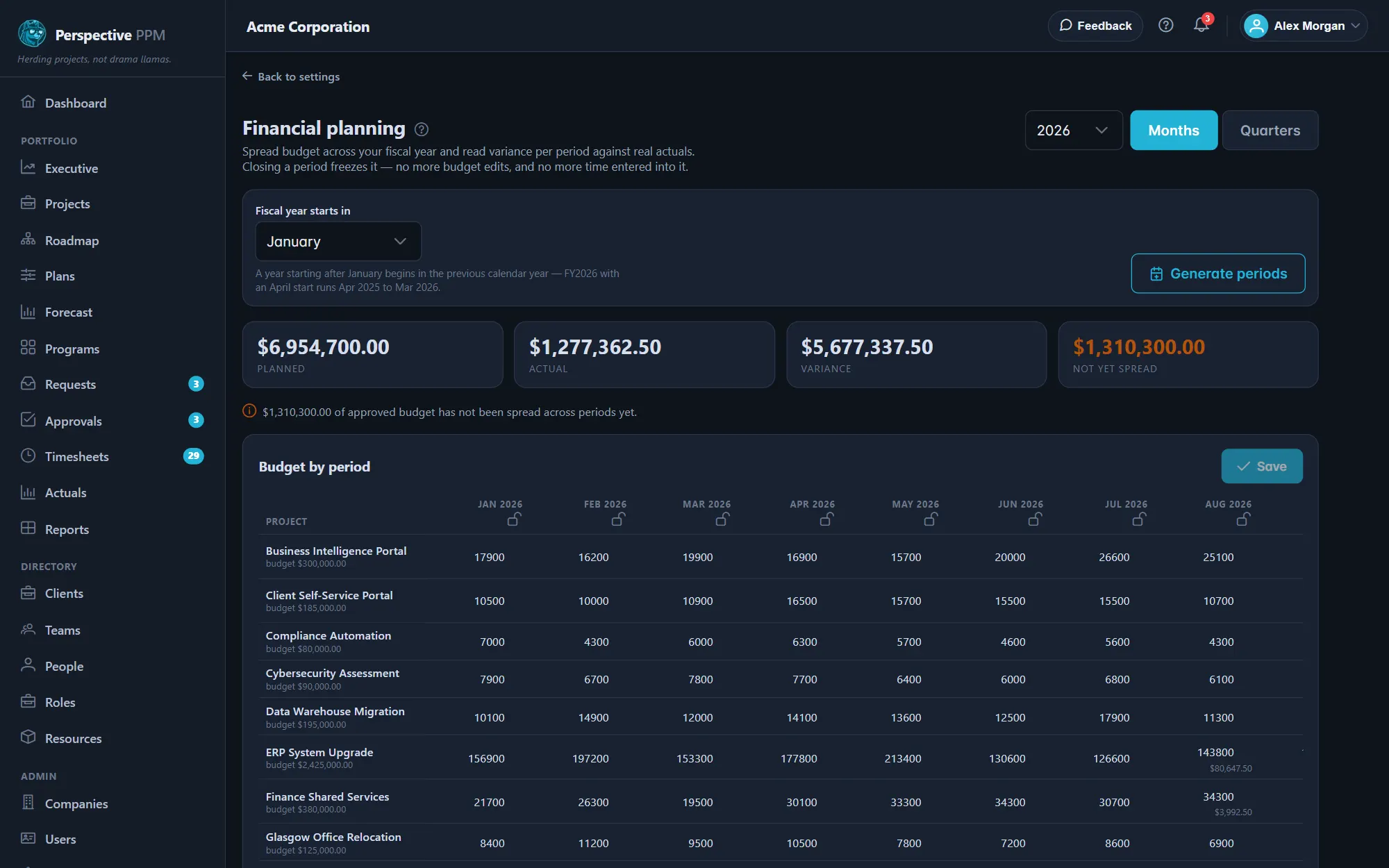
The tiles show Planned, Actual, Variance (planned minus actual, so positive means underspent) and how much of the approved budget is Not yet spread across periods. Actual is priced from approved time at each person's cost rate.
Close a period
At month or quarter end, select the lock on that period's column to close it. A closed period's budget cannot be changed, and nobody can change timesheets for weeks in that period. Select the lock again to reopen it.
WARNING
Months and quarters are budgeted separately: a quarter does not add up its months. Pick the one your finance team works in.