
Appearance
Find your way around
A few things work the same way everywhere in Perspective: the dashboard you land on, the bell, comment threads, change history, and the notice that someone else is editing. This page covers them all.
Your dashboard
Dashboard is the first item in the left menu. What it shows depends on your role:
| Your role | You see |
|---|---|
| Admin | Admin console: shortcuts to users, settings, the roadmap and approvals, plus the portfolio cards |
| PMO | Portfolio workspace: the roadmap, requests, approvals and projects |
| PM | Project workspace: your projects, approvals and actuals. Tick Include view-only projects to widen it |
| Team Lead | Team workspace: timesheets waiting, your teams and people |
| C-suite | The Executive portfolio instead of a dashboard |
| Contributor | My work: your timesheet, your projects and this week |
If you have several roles, you get the dashboard of the most senior one.
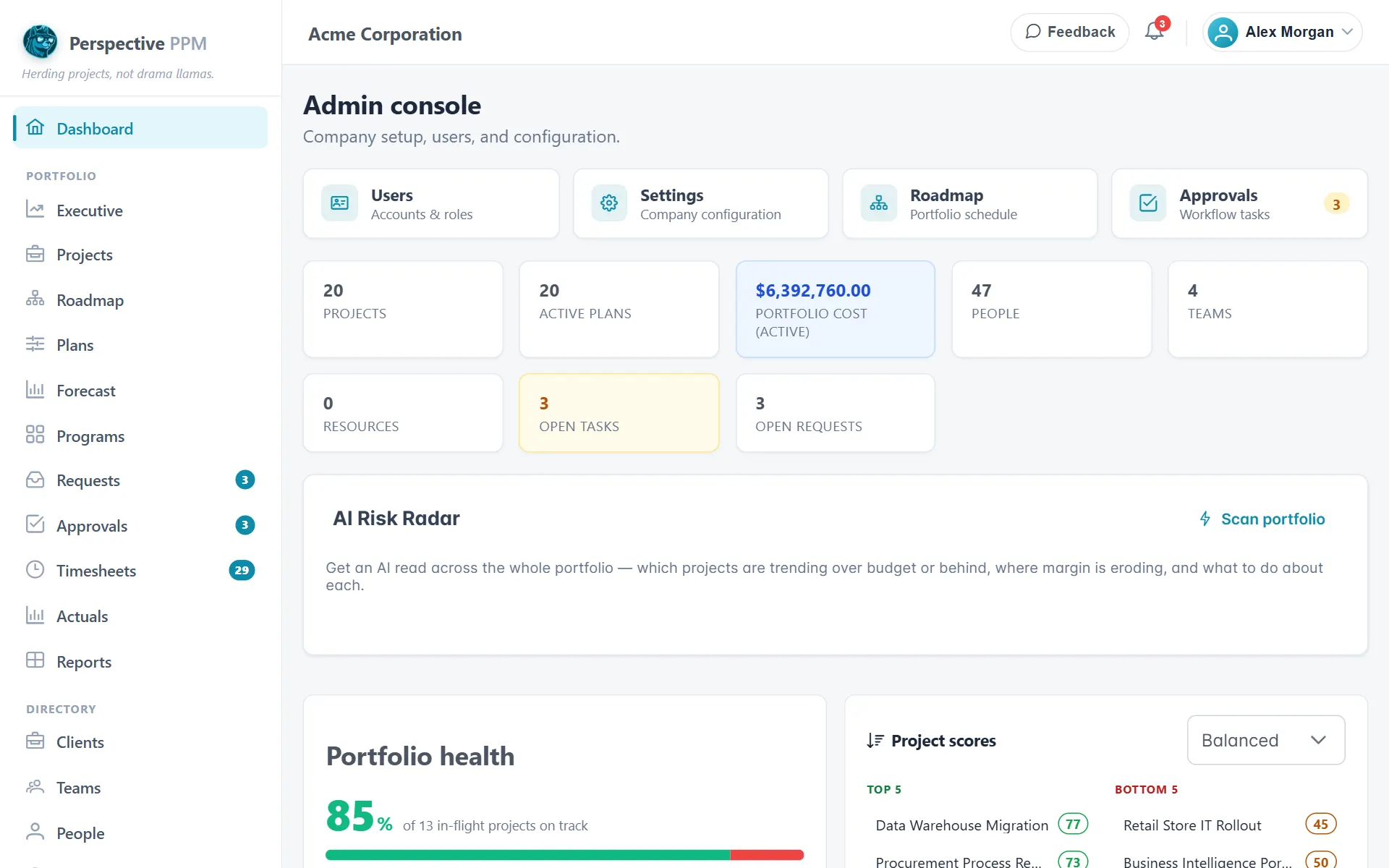
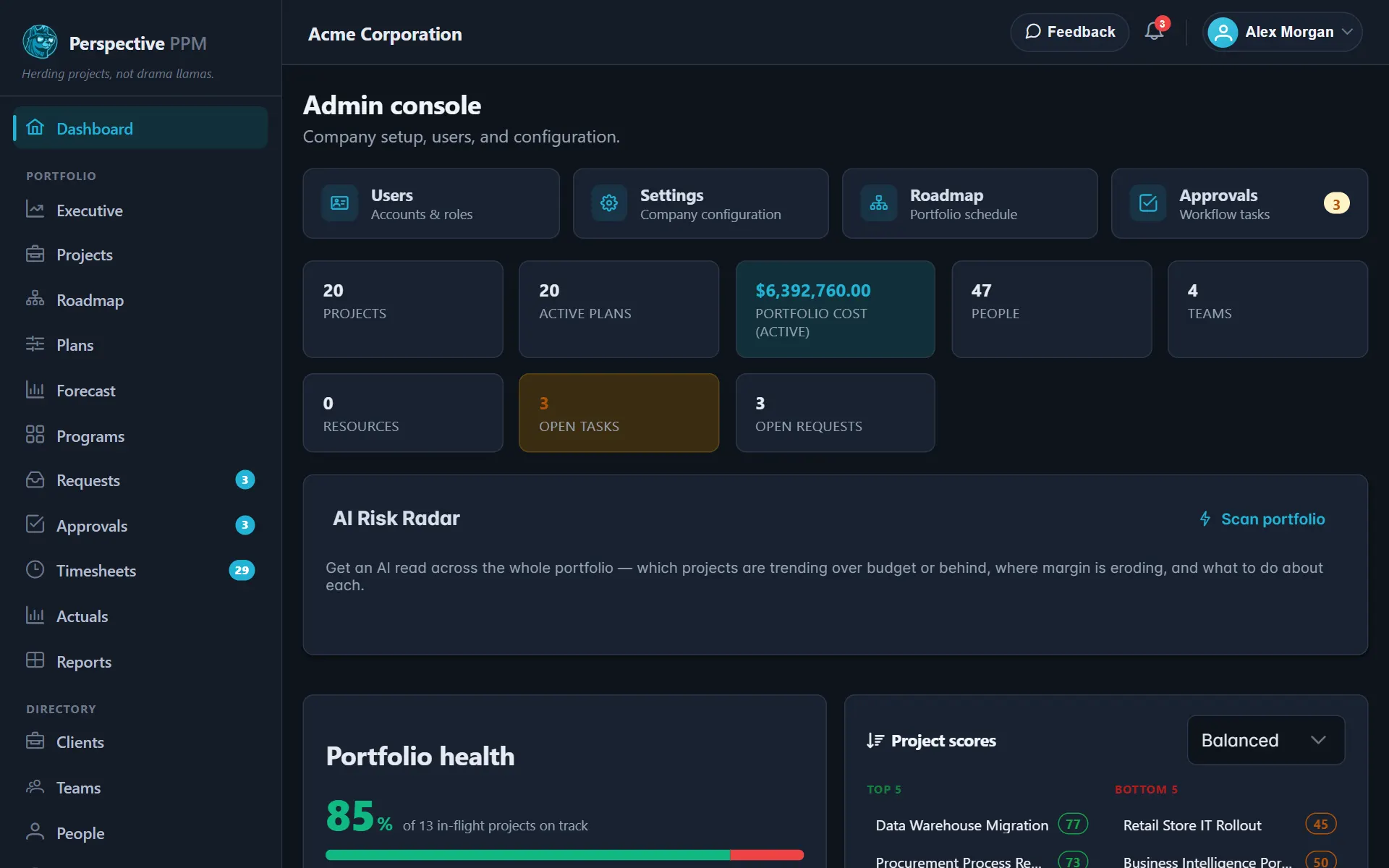
Below the shortcuts are cards that appear when there is something to show, such as Portfolio health, Project scores, Portfolio metrics, Objectives & Key Results, Programs, your workflow tasks and the cost of active work. Money is only shown to people who can see financials. The dashboard refreshes itself every minute.
Pinned reports sit near the top. To add one, open a report and select Pin to dashboard. Pins are your own; see Build a report.
Finish setting up
Admins, PMOs, PMs and Team Leads in a new organisation see a Finish setting up checklist, in the recommended order. A step counts as done once someone opens it or ticks it, for the whole organisation. Select the cross to hide the card for yourself.
TIP
Most setup steps are for Admins. If you are not one, leave the steps to your Admin: opening a step marks it done for everyone, even if the page sends you back.
Notifications
The bell at the top right shows a count of things waiting for you:
- Mentions: someone named you in a comment. Click one to go straight to it; it is then marked as read.
- Workflow tasks: approvals and reviews you can act on. A task leaves the list once someone acts on it.
Timesheets to approve, project requests and approvals also show as counts next to those items in the left menu.
Comments and @mentions
Projects, plans and project requests have a comment thread, for questions and decisions to stay with the work they are about.
- Click in the comment box.
- To bring someone in, type @ and the start of their name, then choose them from the list.
- Select Comment.
The person you mention gets a notification in the bell and an email with a link straight to the comment.


WARNING
Always pick the person from the list. A name typed out in full by hand does not notify them.
Some comments are added for you: an approval note (unless you untick Add this note to the comments), a decision on a request, or an AI status update you choose to post.
See and undo changes
Projects, plans, teams, people, roles, resources, requests and company details keep a history of every change. It is part of the Professional plan.
- Select History on the screen.
- Each save shows who made it, when, and each field's old value and new value. Filter by person, dates or field.
- To put one field back, select Undo on its row. To put back everything in one save, select Restore this change.
You can undo a change if you are allowed to edit that item. An Admin chooses how long history is kept under Settings, Change-history retention.
When someone else is editing
If you start editing a project, plan, team, person or request while someone else has it open for editing, you see "Name is editing this right now" and Save is greyed out. That stops you overwriting each other.
- Wait: when they finish, Save comes back on its own.
- Or cancel and come back later.
- If they closed their window without finishing, it frees up within about a minute and a half.
Everything else on screen updates by itself as other people make changes, so there is no need to reload.
Help as you go
- ? beside a complicated screen, such as the planning grid or the report builder, opens a short explanation at the side, with Read the full guide for more. On the Enterprise plan you can also ask a question about that screen.
- ? at the top of every page opens this Help Center.
- Feedback at the top lets you tell us what happened or what could be better.