
Appearance
Track a running project
Once a project is under way, its page becomes the place to see how it is really going: whether it is on track, what needs attention, how actual hours and cost compare with the plan, and what is likely to happen next.
Before you start
- Everyone who can see a project can follow it. To change it you need to manage it: the PMO or Admin role, or the PM role as one of its managers.
- Money, the cost forecast and baselines are only shown to people who can see financials: Admin, PMO, PM and C-suite.
- Actual hours come from approved timesheets, which are part of the Professional plan. Baselines also need Professional, and benefits need Enterprise.
The project page at a glance
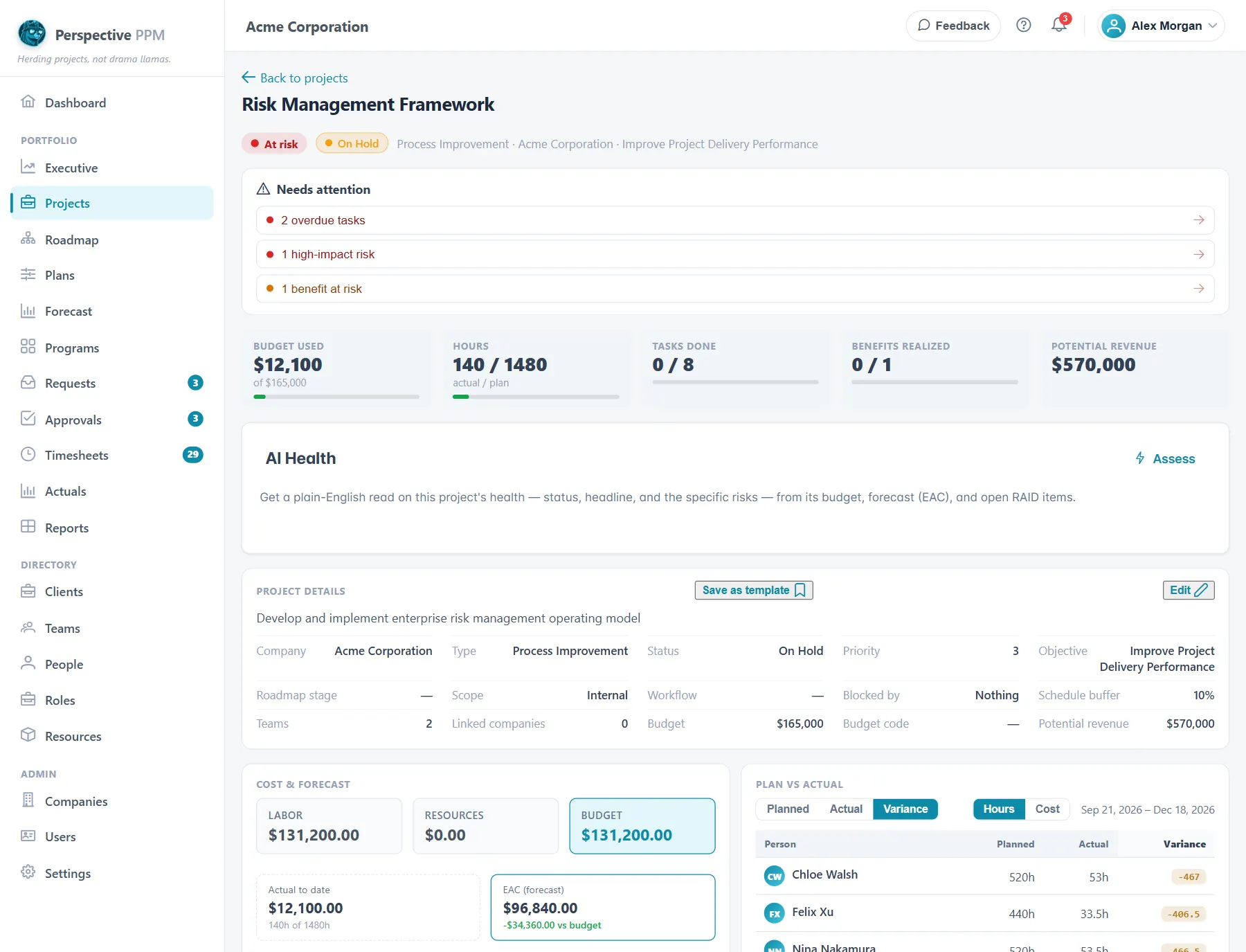
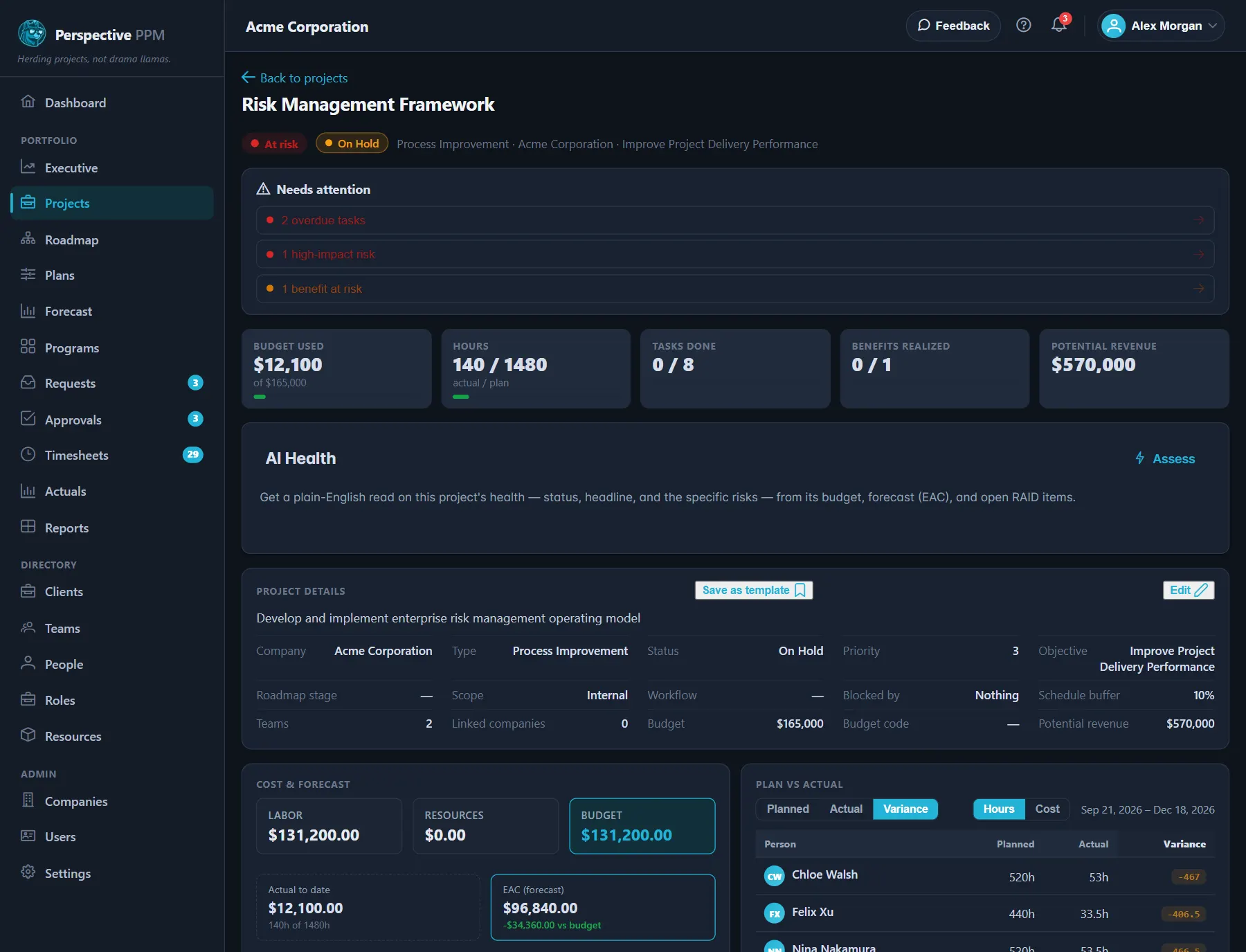
At the top of the page:
- Health: On track, Watch or At risk, worked out from what needs attention.
- Needs attention: anything worth acting on, such as Over budget, overdue tasks, high-impact risks, open staffing requests, or No active plan. Click an item to go straight to it.
- Headline numbers: Budget used, Hours (actual against plan), Tasks done, Benefits realized and Potential revenue.
Below that are the project's details, cost and plan comparison, plans, tasks and risks. Everything else is under More sections: click a tile to open it at the side of the page.
When a project is in progress
When a project's status is one your organisation counts as active, its page switches to an Execution view built for tracking delivery. It leads with Complete, Time elapsed, the cost forecast (EAC) and efficiency (CPI), and warns you if the forecast is over budget or the work is falling behind the calendar. Select Full project details to see everything else.
Which sections a project shows can depend on its status and on your role. An Admin sets this up; see Set up your workspace.
Keep the RAID register up to date
The RAID register holds the project's Risks, Assumptions, Issues and Dependencies, side by side.
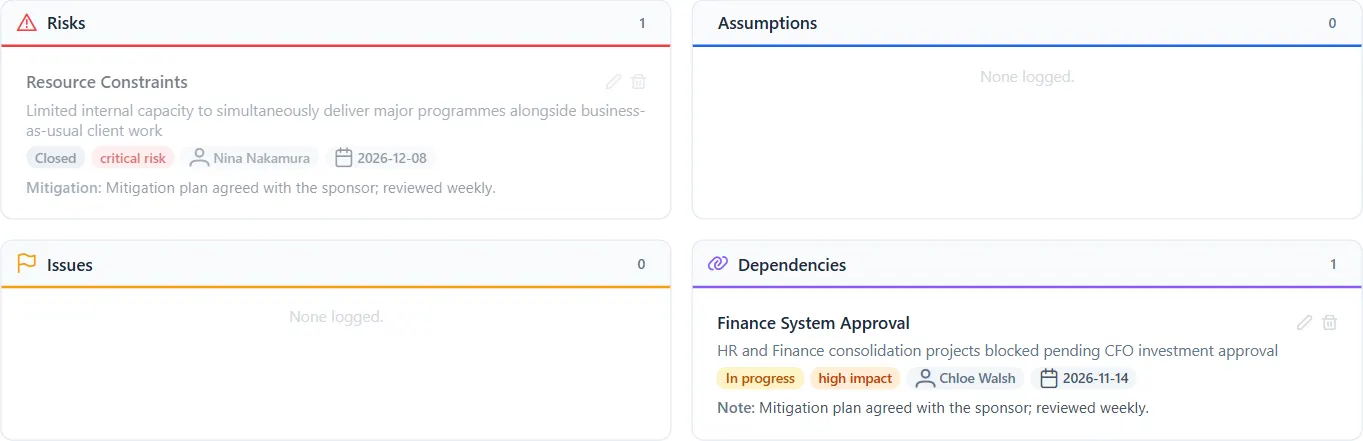
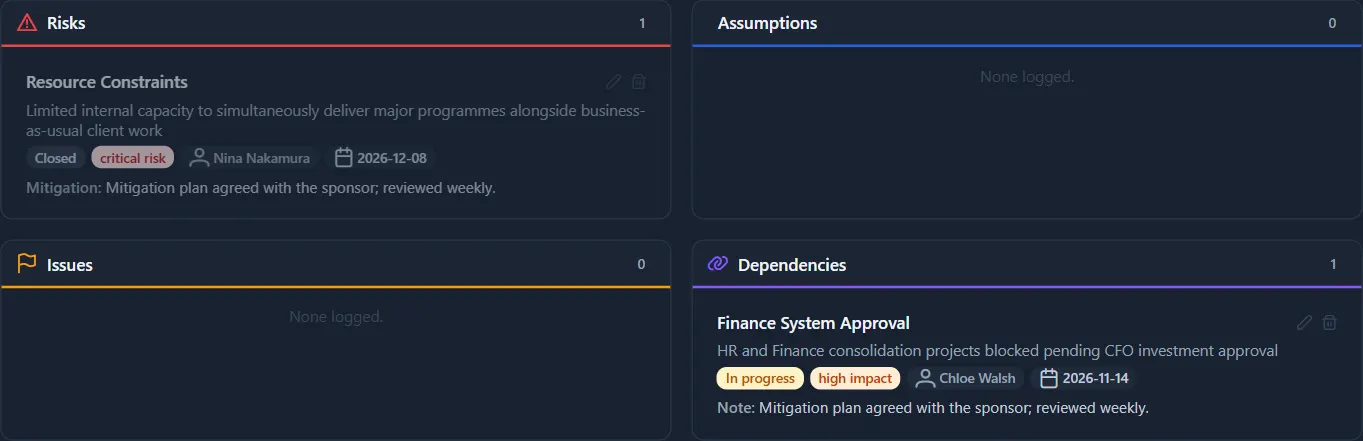
- Select Add item.
- Choose the Type and Status (Open, In progress or Closed), and give it a Title.
- Rate its Impact and Likelihood as Low, Medium or High. Together they set its severity, from low to critical.
- Add an Owner, a Due date and the response: the mitigation for a risk, how you will validate an assumption, the action for an issue.
- Select Add.
An item past its due date and not closed shows its date in red. Close items when they are dealt with; they stay in the register, faded, as a record.
Compare the plan with what happened
Plan vs Actual shows each person's planned hours against the hours they actually logged, and the difference: red for over, amber for under. People who can see financials can switch from Hours to Cost to see revenue and margin too.
Planned hours come from the project's active plans. Actual hours come from approved timesheets only, so hours still waiting for approval do not show yet.
Read the cost forecast
Cost & forecast compares the active plan's cost with what has been spent and forecasts where the project will finish:
- Actual to date: the cost of approved hours so far.
- EAC (forecast): what the project is likely to cost in total: what has been spent, plus the cost of the planned work still to come. Shown against budget.
- Earned value figures such as CPI (cost efficiency) and SPI (schedule efficiency). Below 1 means over cost or behind schedule. They need task estimates and progress to work.
- Cost forecast over time: the forecast line against the baseline.
TIP
There are two budgets to be aware of. Budget used at the top of the page compares spending with the budget entered on the project. Cost & forecast compares it with what the active plan costs. If the two disagree, check that the project's budget and its plan still match.
If you see items not costed (missing rate), someone on the plan has no pay rate. An Admin can fix it by giving them a contract.
Take a baseline
A baseline is a snapshot of the plan to measure drift against.
- Open Baselines & variance from More sections.
- Select Set baseline. It records the project's budget, the planned hours and the start and finish dates of its active plans.
From then on, the card shows how the Budget, Planned hours and Finish have moved since the latest baseline. Take one when the plan is agreed, and again after any approved change.
Track the benefits
Benefits realization records the business value the project is meant to deliver, and how much it has.
- Select Add benefit.
- Give it a Name, say How it's measured, and set a Unit, a Target, a Due date and a Status (Planned, On track, Realized, At risk or Missed).
- Update Actual as results come in. The bar shows how close you are to the target.
Mark a benefit Realized yourself once it is achieved; reaching the target does not change the status on its own.