
Appearance
Invite users and set roles
A user is anyone who signs in to Perspective. You invite people from the Users page, and the role you give each one decides what they can see and change.
Before you start
- Only an Admin can open the Users page.
- Have the person's email address ready. They need access to that inbox to accept the invitation.
Invite someone by email
- Open Users in the left menu, under Admin.
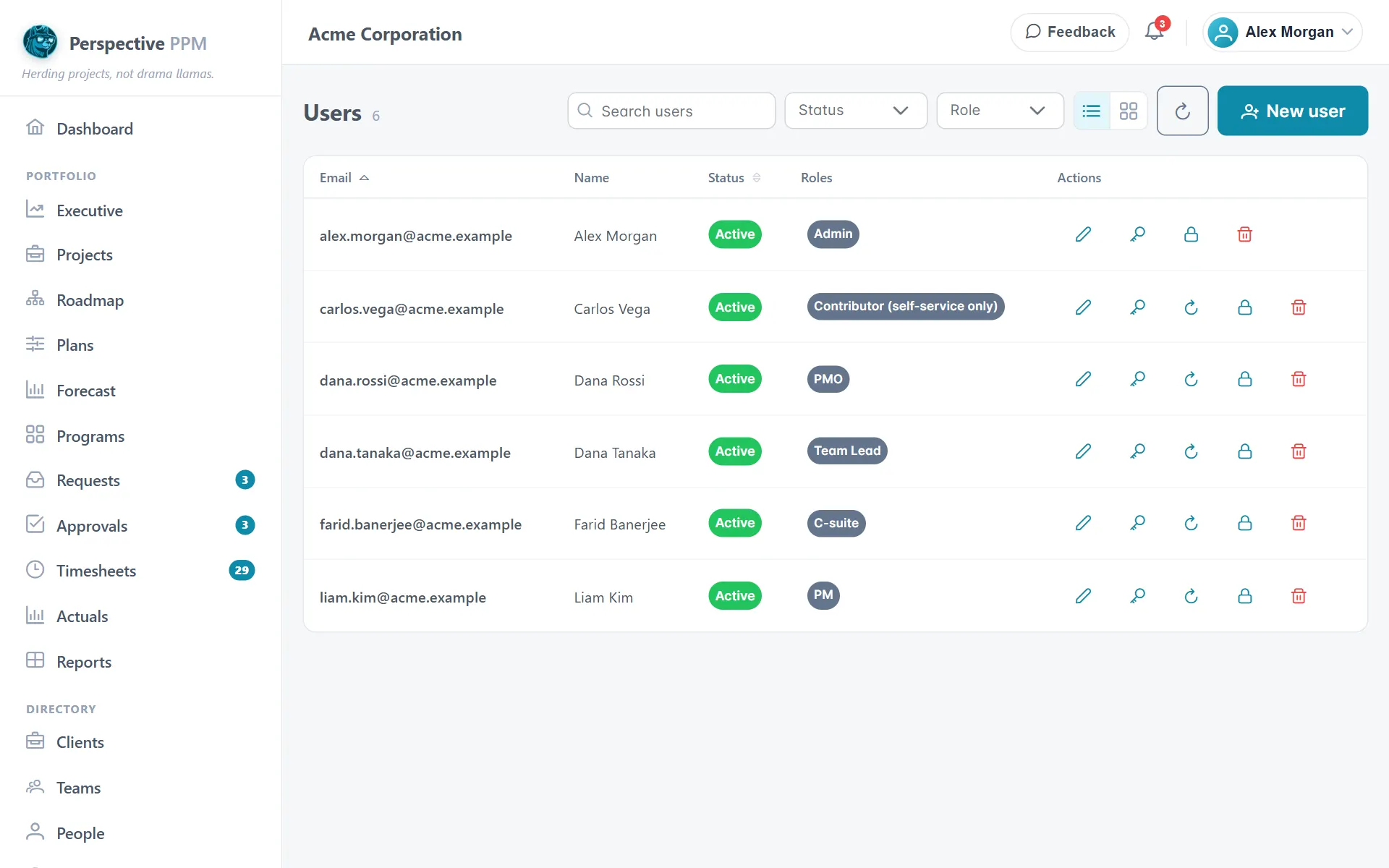
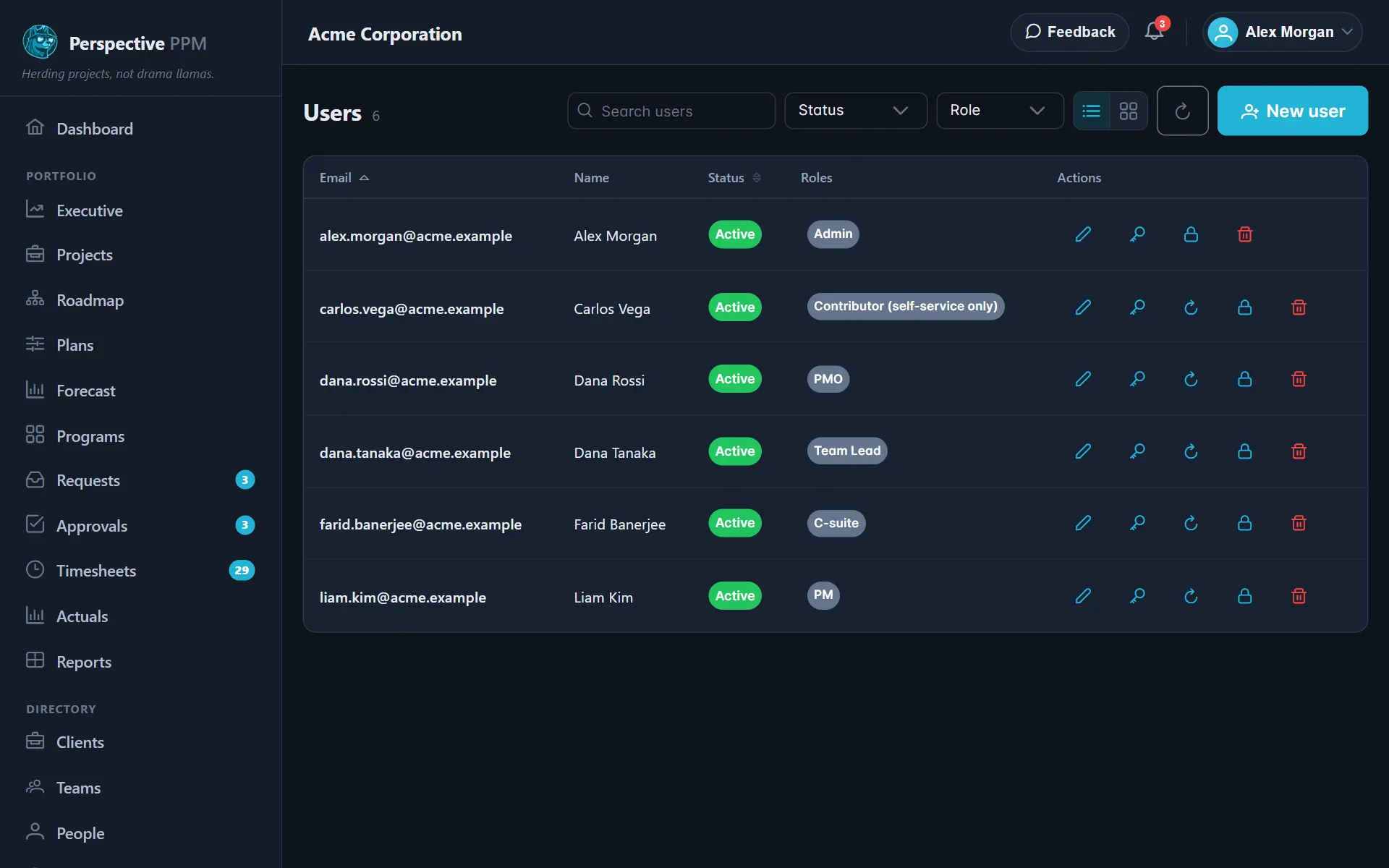
- Select New user.
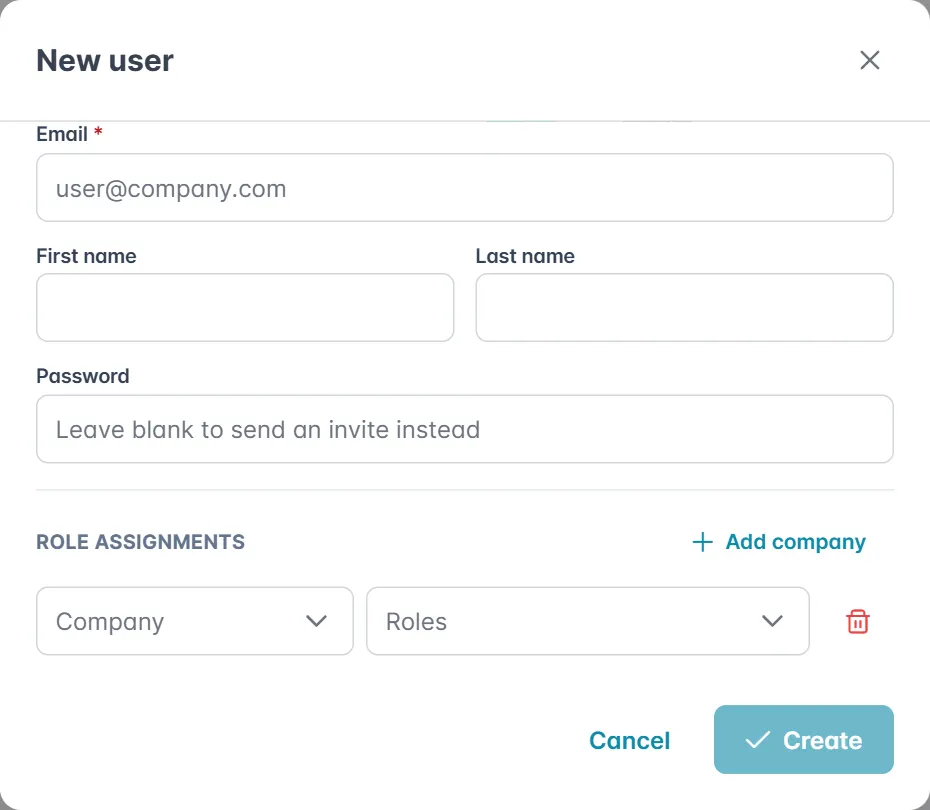
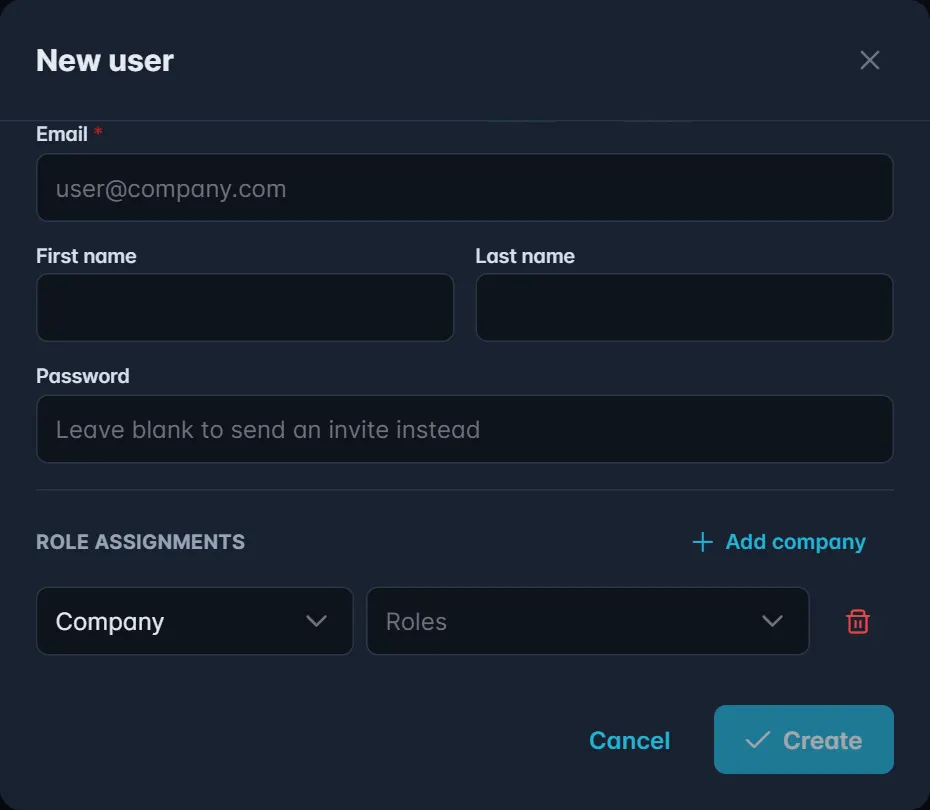
- Type their Email, and their First name and Last name.
- Leave Password blank. That tells Perspective to send an invitation instead of setting a password for them.
- Under Role assignments, choose the Company and pick one or more Roles for them there.
- To give them roles in another company as well, select Add company and repeat.
- Select Create.
Perspective emails them an invitation titled "You're invited to Perspective PPM" with a Set your password button. They choose a password and they are in. A Share this link window also opens, so you can copy the same link and send it yourself if you prefer.
The invitation link works for three days. Until they accept it, their status on the Users list shows Invited.
TIP
If the invitation has expired or gone astray, find the person on the Users list and use Resend invite in their row. They get a fresh link.
What each role can do
A person can hold more than one role, and they get everything each of those roles allows.
| Role | In one line |
|---|---|
| Admin | Everything, including users, company settings, roles, resources and pay rates. |
| PMO | Runs the portfolio: every project and plan, the roadmap, project requests and financials. |
| PM | Creates projects and manages the ones they are a manager of, including plans, tasks and cost. |
| Team Lead | Manages the teams they lead: members, allocations, time off and timesheet approval. |
| C-suite | Sees the whole portfolio and its financials, read only, and signs off approvals they are named on. |
| Contributor (self-service only) | Sees their own work, logs their own time and books their own time off. |
Roles and permissions explains each role in more depth.
Change someone's roles
- On the Users list, select Edit in the person's row.
- Change their Role assignments.
- Select Save.
WARNING
Every company must keep at least one Admin. Perspective will not let you remove the last one, so give someone else the Admin role first if you are handing over.
Seats and your plan
Every user takes a seat on your company's plan, except contributors, who are free. If you reach your seat limit, Perspective tells you when you try to add someone. An Admin can see seats in use, and change the plan, under Settings in Licence & billing.