
Appearance
Turn a requirements document into tasks
Most projects start with a document: a brief, a scope, a list of what the business needs. Instead of retyping it, give it to the project. Perspective reads it, pulls out each separate requirement, and lets you turn the ones you keep into tasks.
Before you start
- You need to be a manager of the project, or have the PMO or Admin role.
- Have your document ready as a Word file (.docx), a text file (.txt) or a Markdown file (.md). For a Google Doc, choose File, then Download, then Microsoft Word (.docx). You can also copy and paste the text.
Import the requirements
- Open the project and open its Requirements section.
- Under Import from a document, select Upload document and choose your file, or paste the text into the box.
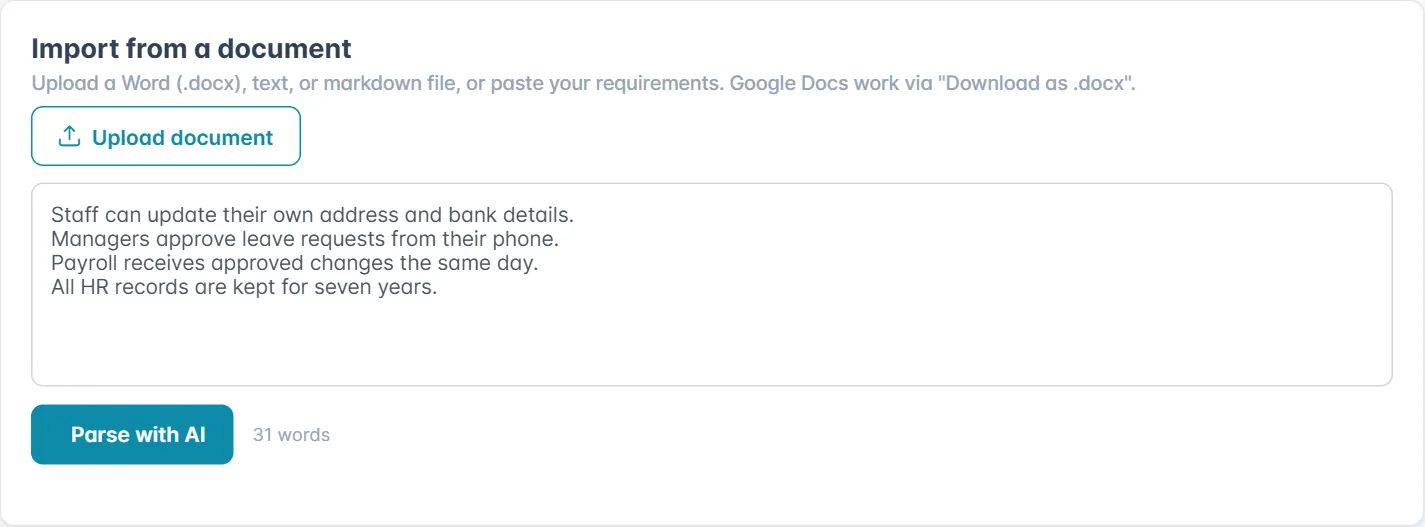
- Select Parse with AI. Perspective reads the text and lists each requirement it found. One requirement per line works well, but full paragraphs are fine too.
- Check the list. Untick anything you do not want, and set each one's Category (Functional, Non-functional, Business or Technical) and Priority (Must, Should, Could or Won't).
- Select Import (the button shows how many are ticked). They are added to the Requirements register. Discard throws the list away instead.
TIP
Read the list before importing. The reading is a suggestion: it can split one requirement in two or merge two into one, and it is quicker to fix that here than afterwards.
Turn requirements into tasks
- In the Requirements register, tick the requirements you want to deliver.
- Choose how to make the tasks:
- Create tasks makes one task for each requirement.
- AI expand to tasks breaks each requirement into the several tasks it takes to deliver it.
- A message confirms the tasks were created. Select View tasks on the project to see them in Tasks & schedule, where you can set dates, owners and estimates.
The register's Tasks column shows how many tasks each requirement has, so you can see which requirements are covered.
Add or change requirements by hand
Select Add requirement in the register to add one yourself, or the pencil next to a requirement to edit it, including its Status (Proposed, Approved, In progress, Verified, Deferred or Rejected). The bin next to it deletes it. Use the search box and the Category, Priority and Status filters to find one in a long list.
Good to know
- If the project has no Requirements section, it may be hidden while the project is in its current status. An Admin chooses which sections each status shows.
- Importing adds to the register; it never replaces requirements that are already there.