
Appearance
Create your first project
The project wizard takes you from a name to a project that is ready to staff. It has four short steps, and only the first one is required.
Before you start
- You need the Admin, PMO or PM role. If you cannot see the New project button, ask an administrator.
- It helps to have your teams and roles in place first, so you can staff the plan straight away. See Add your people.
- Statuses and types come from your company's lists. Your company starts with a sensible set, and an administrator can change them under Settings, in Project statuses and Project & plan types.
Steps
- Open Projects in the left menu.
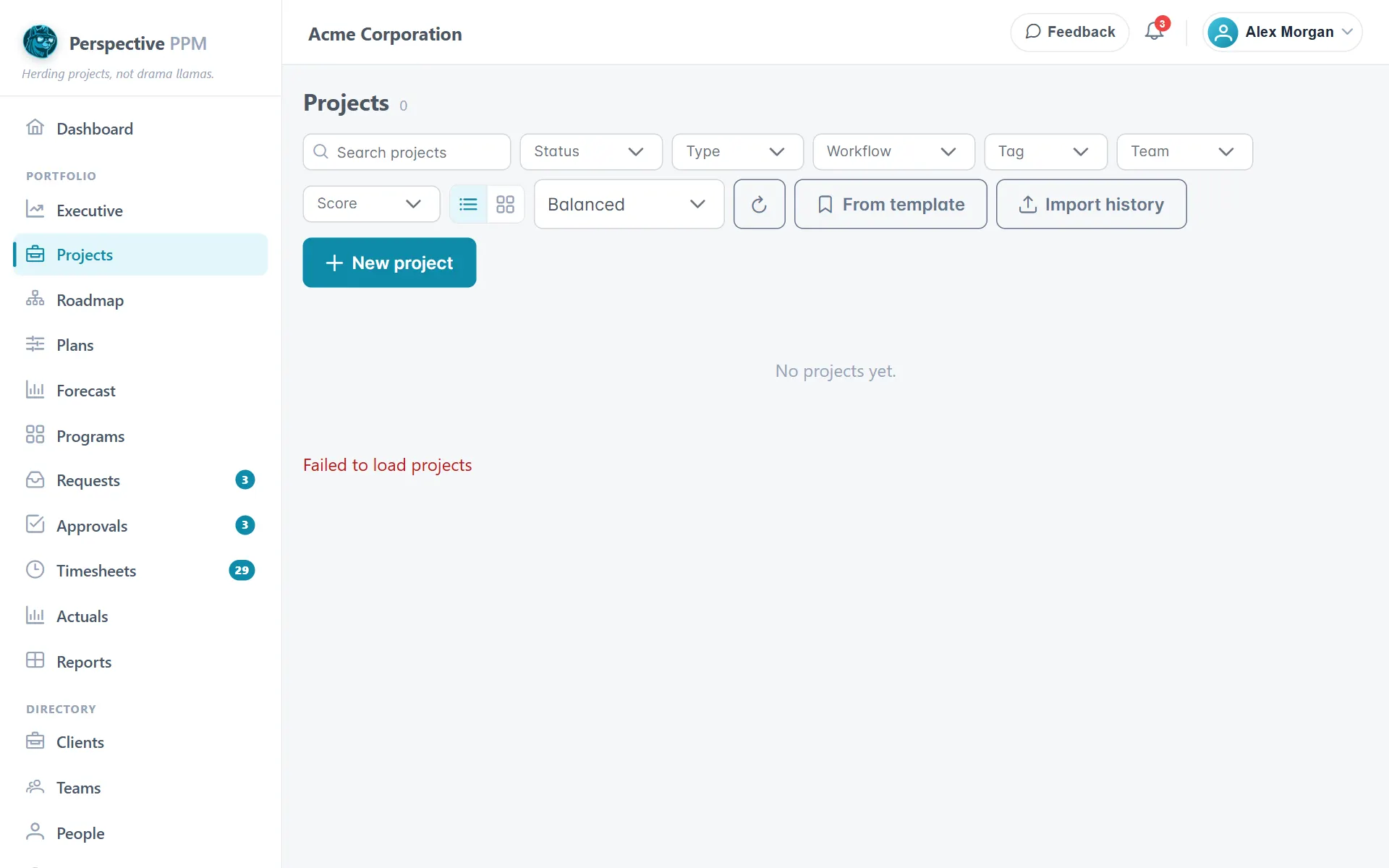
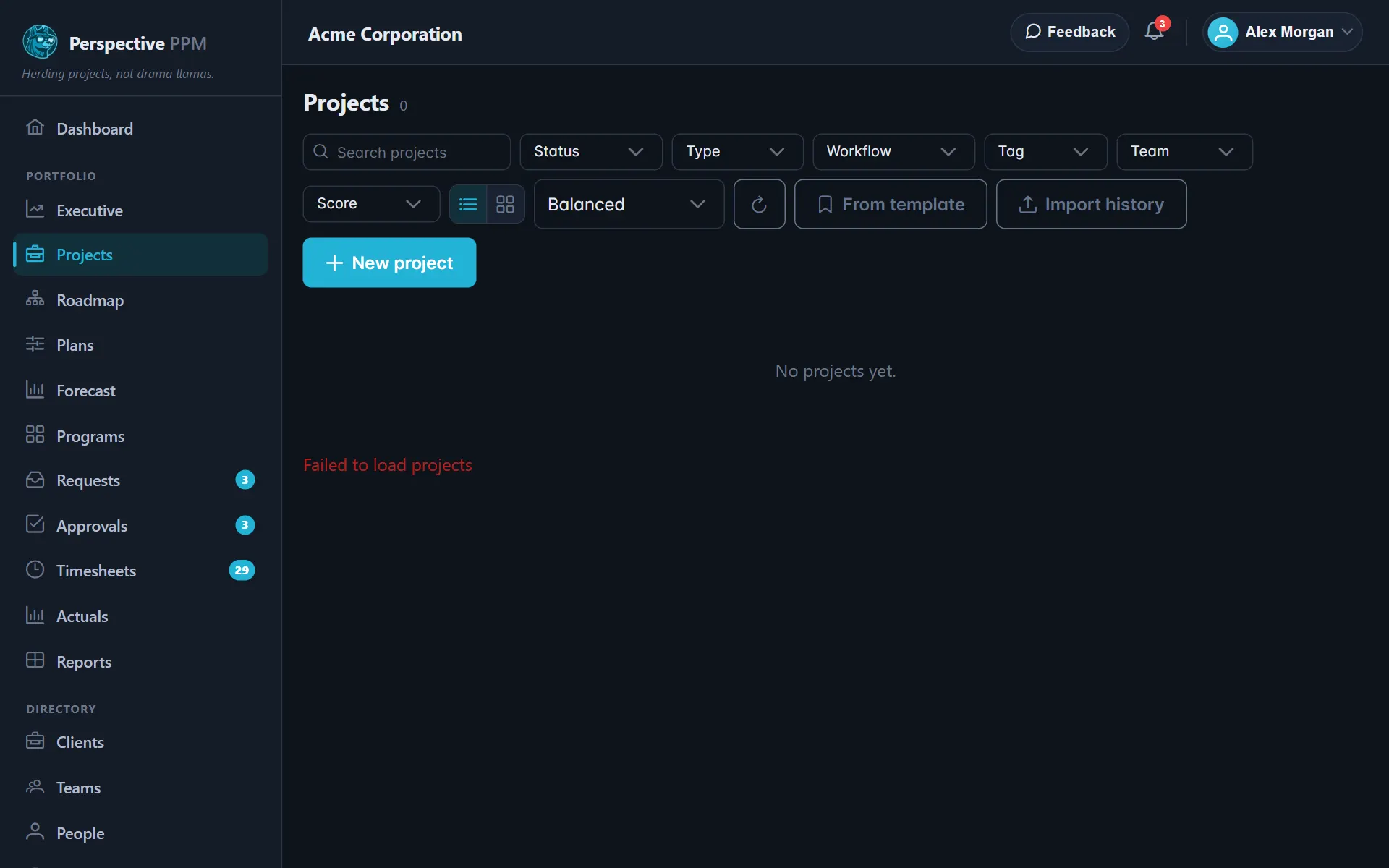
- Select New project. The wizard opens on Basics.
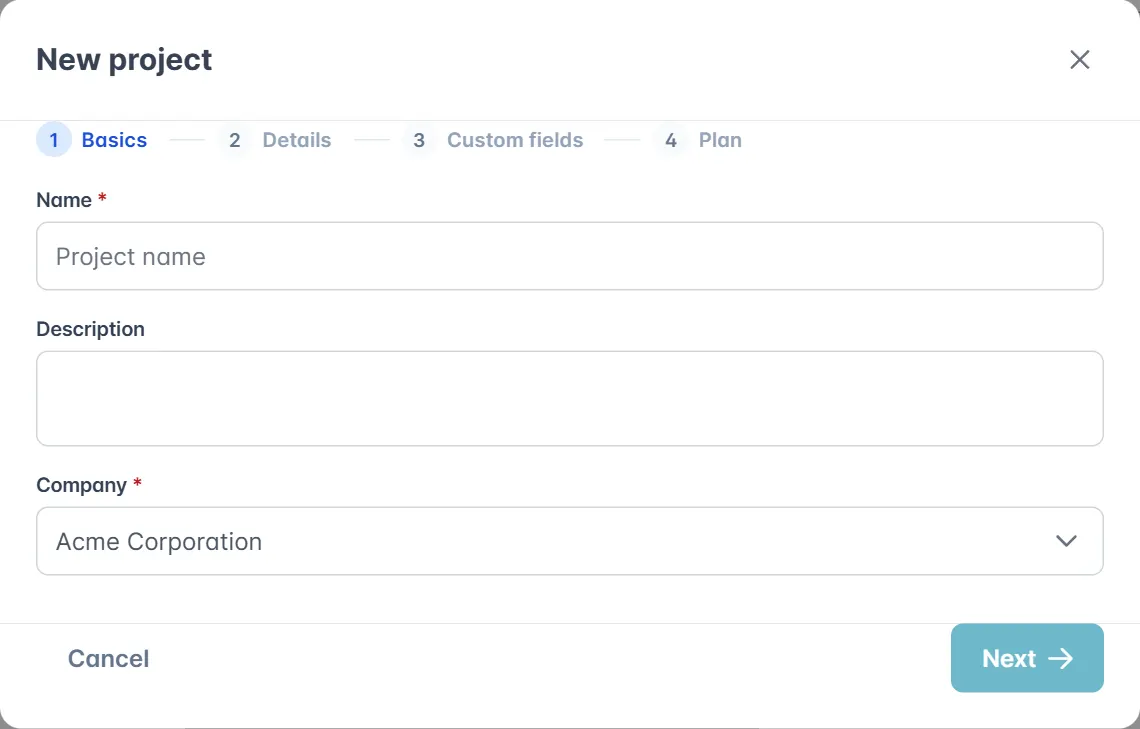
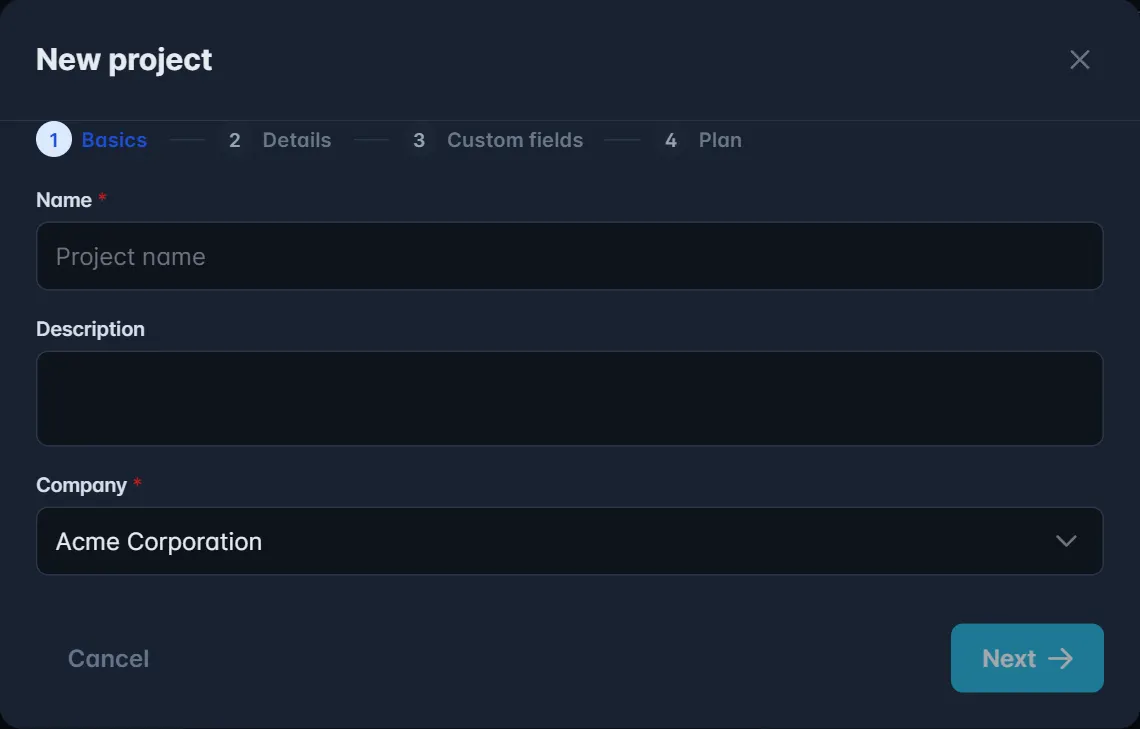
Basics
- Type a Name for the project. A short, recognisable name works best, because it is what people see on lists and the roadmap.
- Add a Description if you like.
- Choose the Company the project belongs to. If you only work in one company, pick that one.
- Select Next.
Details
Everything on this step is optional, and you can change it later on the project page.
- Pick a Status to show where the project stands today.
- Set a Priority and a Type.
- Fill in Budget and Budget code if you track money against this project.
- Choose a Color, whether the work is internal or external under Internal / external, and any Tags.
- Under Linked companies, add any other companies that share this project.
- Select Next.
Custom fields
- If your company has added its own fields for projects, they appear here. Fill in any marked as required, then select Next.
Plan
- Tick Also create an initial plan for this project.
- Give the plan a Plan name. Baseline is filled in for you.
- Set the Start date and the Duration (days).
- Under Plan teams, choose the teams who will do the work. The teams you pick decide which roles you can add next.
- Under Roles, choose the roles the work needs and set how many of each. Tick Include roles the team can do via skills to also see roles that team members can fill through their skills.
- Under Resources, add anything else the work uses, such as licences or equipment, with a quantity.
- Leave Make this the active plan ticked.
- Select Create project.
Your project appears on the Projects list. Open it to staff the plan with people.
Every project needs a plan
The project says what the work is. The plan says how it will be done: the roles, the people, the hours and the dates. Until a project has a plan, there is nothing to staff and nothing to cost.
If you skip the plan step, that is fine. Open the project, find the Plans card and select Add plan, or use Planning wizard for a guided version.
TIP
The first plan you create for a project becomes its active plan. You can add more plans later to try a different approach, then switch with Set active.