
Appearance
Approve timesheets
When someone submits their week, it waits for a manager to check it. Approving it confirms the hours as the record of what was worked. Sending it back lets the person fix it and submit again.
Before you start
- You need a role that can approve time: Team Lead or Admin. The PMO role runs the portfolio, not time, so it does not approve timesheets on its own.
- A team lead sees the weeks of people on the teams they lead. An admin sees everyone in the company.
- You can never approve your own timesheet.
Steps
- Open Timesheets in the left menu, under Portfolio. The badge next to it shows how many weeks are waiting. Team leads also have a Timesheets card on their Dashboard.
- The Timesheet approvals page lists each waiting week with the Person, the Week, the hours Logged and when it was Submitted.
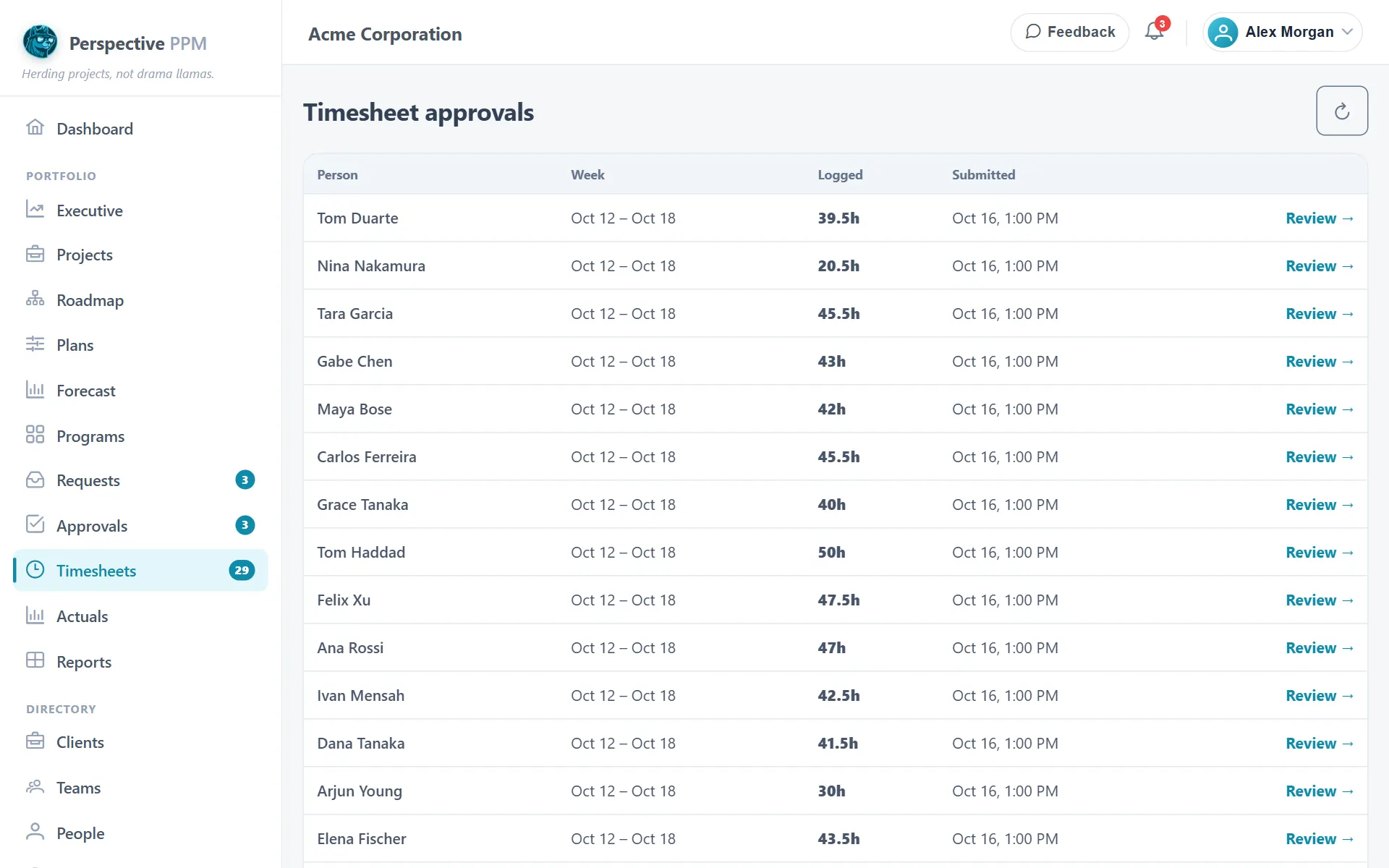
- Click Review on a row to open that person's timesheet for that week.
- Check the hours, project by project and day by day. The Daily total row and the week total at the top help you spot a day that looks too long.
- Click Approve to accept the week, or Reject to send it back. When you reject, you can add a note saying what needs changing, then click Send back. The note is optional.
The page has a refresh button next to its title if you are waiting for more weeks to arrive.
Approving is final. An approved week's hours count as actuals, so neither you nor the person can reopen it afterwards. Check the week before you approve it.
TIP
Rejecting does not delete anything. The person sees the week as Rejected, with your note under Sent back, makes their changes and submits again, and it returns to your list.
Choose how approval works for your company
An admin decides whether submitted weeks need approval at all.
- Open Settings in the left menu and choose Time & approvals.
- Pick one option:
- Approval required: every submitted week goes to a manager. This is the default.
- Only when it differs from the plan: weeks that match the plan are confirmed automatically. Only overtime, unplanned projects and weeks that run over or under need a manager.
- Self-confirm (no approval): submitting confirms the week straight away, with no manager step.
- Click Save.
People see the effect on their own timesheet: the submit button reads Submit for approval when a manager will review the week, and Confirm week when it will be confirmed automatically.
WARNING
With Self-confirm (no approval), no one checks the hours before they are confirmed. Choose it only if you trust the numbers to be right first time.